
Masters: your reference lists
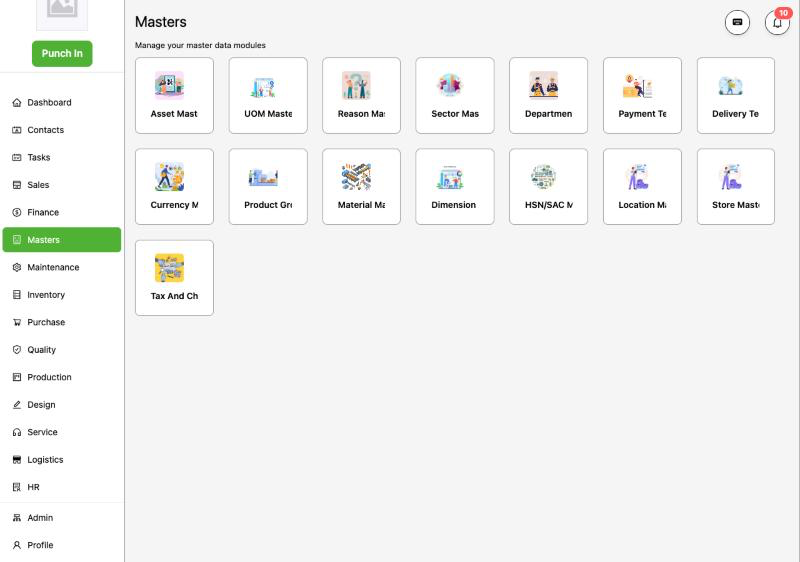
Masters are the reference lists the rest of the ERP picks from: units of measure, currencies, payment terms, stores and so on. You fill them in once, and every purchase order, invoice, item and stock movement reuses them. Good masters mean fewer typing mistakes and consistent documents.
What you are doing
Learning what each Masters card is for and the order to fill them in.
Why it matters
Documents and items can only pick values that already exist in a master, so missing masters block day-to-day work later.
- Who
- Your administrator, or anyone given Masters permissions in their user role
- Where in the ERP
- Masters (left menu)
- 1UOM Master
- 2Store Master
- 3Tax And Charges
What each card holds#
| Card | What it holds | Example | Guide |
|---|---|---|---|
| Location Master | Your plants, warehouses and offices, each belonging to one Company | Chennai Plant (Factory) | Locations and stores |
| Store Master | Stores inside a Location, and what each store may hold | Raw Material Store, Finished Goods Store | Locations and stores |
| UOM Master | Units of measure and how they convert | KGS, NOS, MTR | Units and item attributes |
| Dimension Master | Measurable properties of items | Length (MM), Volume (CBM) | Units and item attributes |
| Material Master | Materials and their density | Mild Steel, 7.85 g/cm³ | Units and item attributes |
| Product Groups | Families of items, their code prefix and attributes | PLATES with Length, Width, Thickness | Units and item attributes |
| Currency Master | Currencies you trade in | INR, USD, IDR | Commercial terms |
| Payment Terms Master | Credit periods for customers and suppliers | Net 30 days | Commercial terms |
| Delivery Terms Master | Incoterms and domestic delivery terms | FOB, Door Delivery | Commercial terms |
| HSN/SAC Master | India GST classification codes and their GST rate | 7208 – flat-rolled steel, 18% | Commercial terms |
| Department Type Master | Kinds of department, used by HR, Purchase, Design and Quality | Purchase, Quality | Organisation lists |
| Sector Master | Industry sectors for customers, suppliers and leads | Automotive | Organisation lists |
| Reason Master | Reasons users pick when they record certain actions | Stock count difference | Organisation lists |
| Asset Master | Machines, tools and equipment for maintenance | Press 01 (Machine) | Organisation lists |
| Tax And Charges | Tax categories, tax rates, tax rules and charges | GST @ 18% | Set up taxes and charges |
| Posting Rule | Which income or expense ledger sales and purchase invoices post to | Sales of finished goods → Sales Account | Posting rules |
| Technical Specifications | Specification templates (rows of parameters) offered on quotations | Gear motor datasheet | Technical specifications |
Some lists you might expect here live elsewhere:
- Item Master and Vendor Master are under Purchase.
- Customers are under Sales.
- Process Master and Workstations are under Production.
- Departments are under HR → Employees → Department Master.
Which order to fill them in#
Some masters pick values from others, so create them in this order:
| Need | Mandatory? | Why |
|---|---|---|
| A Location and its stores | Mandatory for stock | Goods can only be received into a store at a Location |
| Units of measure | Mandatory | Every item needs units; common units come with your account |
| Currency | Mandatory | Your Company's base currency; INR, USD, IDR and MYR come with your account |
| Payment terms, delivery terms | When used | Offered on customers, suppliers and orders |
| HSN/SAC codes | When used (India) | Picked on items for GST classification |
| Dimensions, materials, product groups | When used | Needed for item families with sizes and calculated weights |
| Department types | When used | Needed before HR departments; some screens look for the HR department of a given type, for example Production on bills of material |
| Sectors, reasons, assets | Optional | Classification and maintenance. Reasons are needed before you mark a quotation line Order Lost or add a penalty; assets before you raise a maintenance request |
How every master screen works#
All Masters screens follow the same pattern:
Open the register
📍 Masters → the cardThe register lists every record with its Status. Use the search box or Filter (for example by status or creator) to narrow it. Most registers show cancelled records in red; Department Type Master shows them only by their Status.
Create a record
📍 Create … (top right)Fill in the fields marked with a red *. The Create … button on the register is greyed out when your role can't create. On the form, Create stays disabled while a check fails, for example a code that already exists; on some forms it also waits until you have changed something. If a required field is still empty when you click Create, the field is marked Required, usually a Please correct the form message names the fields to fix, and nothing is saved. Reset Form clears what you typed after you confirm. On a create form, Cancel asks you to confirm (Discard Changes And Exit) before leaving without saving, and if you move to another page with unsaved changes, Unsaved Changes offers Stay here, Discard & Exit or Save & Exit; after Save & Exit, opening the create form again asks Saved Changes Found. Reuse The Saved Changes? (Use Saved Changes or Start Fresh). Some screens (Sector, HSN/SAC) let you add several rows at once.
View or edit
📍 Show More → View / EditOpen a record to see its details and history. Edit is available to the person who created the record, if their role allows editing; hover over a greyed-out Edit to see why. Records that come with your account (marked as system-defined) cannot be edited.
Cancel instead of delete
📍 View → CancelMasters are never deleted, because documents may already use them. To retire a record, open it with View and click Cancel: read the warning, enter the Reason For Cancellation and click Proceed. Cancel is greyed out for cancelled records and, on most masters, for users who didn't create the record; some masters also protect the records that came with your account. A cancelled record can no longer be picked or edited; if you need it again, create a new one.
Which masters belong to your whole account, a Company or a Location#
Your account (workspace) can hold several Companies, and each Company has one or more Locations. Masters don't all belong at the same level. The level decides who sees a record and whether a change in one Company affects the others. You always work in the Company (and, for Location masters, the Location) selected in the header.
| Level | Masters | What this means for you |
|---|---|---|
| Whole account (shared by every Company) | UOM Master, Currency Master, Payment Terms Master, Delivery Terms Master, Department Type Master, Sector Master, Reason Master, Technical Specifications | One list for all Companies. The register and the drop-downs show the records of every Company, and a record you edit or cancel while working in one Company is changed or cancelled for every Company. A new record also notes the Company you were working in when you created it. |
| One Company only | Location Master, Product Groups, HSN/SAC Master, Dimension Master, Material Master, Tax Categories, Tax Master, Tax Rules, Charges Master, Posting Rule, and (outside Masters) Customers and Vendors | You see and use only the records of the Company selected in the header. The same real customer or vendor needs one record in each Company. A product group code, an HSN/SAC code or a dimension name must be unique within its Company; another Company can use the same one. |
| One Location only | Store Master, Asset Master | The register and the drop-downs show only the stores or assets of the Location selected in the header. Store drop-downs offer only those stores that are also in your Accessible Stores (set on your team member record under Admin → Team). Switch Location to see another site's stores or assets. An asset moves to another Location only through Transfer Asset. |
| Items | Item Master (Purchase) and Product Master (Sales) | An item is created in the Company you're working in, but items are listed and offered in every Company of your account. An item code can be used only once in the whole account. |
Some shared lists check for duplicates only inside the Company you're working in: a payment term name and a reason text can each be added once per Company. Because these lists are shared, two Companies that add the same name will both see two entries. The GST rate you pick on an HSN/SAC code must be a tax rate of the Company you're working in.
GST Master and TDS Master have been removed#
There is no GST Master or TDS Master screen any more, and global search no longer offers them. GST rates are set up in Masters → Tax And Charges (see Set up taxes and charges).
Roles and permissions#
Each card has its own permission in Admin → User Roles, under the Masters module (for example Uom Master, Store Master, Location Master, Posting Rule, Technical Specifications). A few have different names there: the Asset Master card uses Asset Codes, Sector Master uses Company Sector Master, Reason Master uses Reasons, HSN/SAC Master uses Hsn Master and Product Groups uses Product Group. The Tax And Charges card shows when the role can read Tax Master, Tax Rules or Charges Master. Moving an asset to another Location needs the separate Asset Transfer permission. A role needs:
- Read to see the card and open the register.
- Create to add records.
- Update to edit records.
- Cancel to cancel records.
Grant each permission explicitly in the user's role.
Next step · AdministratorSet up locations and stores →