
Set up units, dimensions, materials and product groups
These four masters describe how you measure things. Simple items only need units. Item families that come in sizes, such as steel plates, pipes or sheets, also use dimensions, materials and product groups, so the ERP can calculate weights and generate item codes.
Example: you buy mild-steel plates by weight (KGS) but stock them by number (NOS). With the masters below, an item PLATE-MS-6MM-1250x2500 carries its length, width and thickness, and its weight can be calculated from them.
Units of measure (UOM Master)#
Your account comes with common units, for example NOS, PCS, EA, SET, BOX, PACK, CTN, DOZ, BATCH, KGS, GMS, TON, MTR, CMS, MM, LTR, ML, CBM, SQM and SQF. Add a unit only when you need one that isn't there.
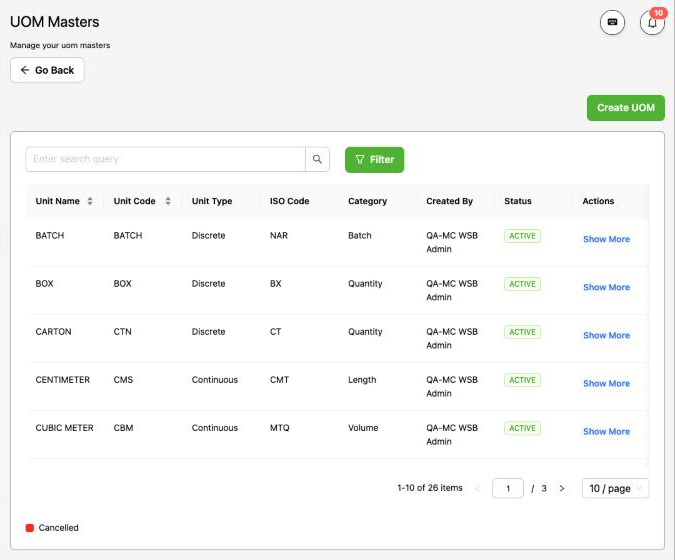
- 1Unit Code (short form)
- 2Discrete or Continuous
Open the form
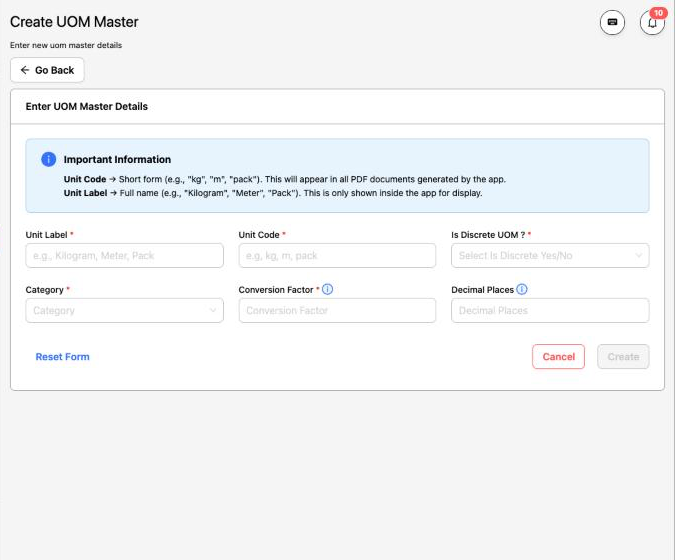
📍 Masters → UOM Master → Create UOMThe blue box on the form explains the two names.
Unit Label and Unit Code
Unit Label is the full name shown inside the app (Kilogram). Unit Code is the short form (KGS); the blue box on the form says it is the one that appears on PDF documents. A label or code that another unit already uses shows UOM label already exists. or UOM code already exists. under the field, and Create stays disabled.
Is Discrete UOM ?
Choose Yes for units you count in whole numbers (NOS, BOX). Decimal places are then fixed at 0. Choose No for units that can be fractional (KGS, MTR).
Category and Conversion Factor
Pick the Category (Quantity, Length, Weight, Volume and so on). Each category has a base unit, for example Weight → Kilograms, Length → Meter. Enter the Conversion Factor to that base unit, for example 1 GMS = 0.001 KGS. Then set Decimal Places for continuous units and click Create.
Edit or cancel a unit#
Open the unit from Show More → Edit in the UOM Master register, change it and save. The Unit Code can't be changed after the unit is created. Only the unit's creator can edit or cancel it. To retire a unit, open it with View and use Cancel with a reason. Units are shared by every Company of your account, so a change or cancellation applies to all of them.
A unit already used on items or documents can't be cancelled, and while it is in use its code, category, base unit, conversion factor, decimal places and Is Discrete UOM ? setting can't be changed either. The check looks at every Company of your account and covers masters (items, product groups, materials, tax and charges), stock (inventory items, batches, reservations, opening inventory, material requisitions, issue and return notes), purchase documents (purchase requests, RFQs, purchase orders, GRNs, purchase invoices, purchase agreements) and production (bills of materials, work orders, job cards). The message lists where the unit is used, for example This UOM cannot be cancelled because it is in use in: … Cancel or close those records, or change their UOM, first. (when you change a locked field, it says cannot be changed and names the locked fields). You can still change the Unit Label and ISO Code.
What else you may see:
- Edit greyed out with System defined UOM cannot be edited, or Cancel greyed out with System defined UOM cannot be cancelled: the unit came with your account.
- This UOM was changed by another user. Reload it and try again.: someone saved the unit after you opened it. Reload and make your change again.
Dimensions (Dimension Master)#
A dimension is a measurable property of an item, such as Length, Width, Thickness, Weight or Capacity.
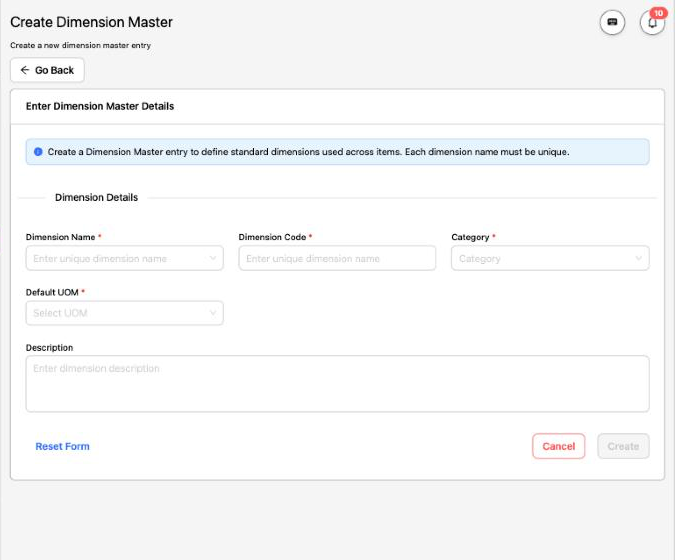
- Go to Masters → Dimension Master → Create Dimension Master.
- Pick the Dimension Name from the list offered. Each name can be used once in a Company: a name already used shows Dimension name already exists.
- Enter a unique Dimension Code (a used code shows Dimension code already exists.). While either message shows, Create stays disabled.
- Choose its Category and the Default UOM (only units of that category are offered).
- Add a description if useful, then click Create.
Dimensions belong to a Company. The Dimension Master register lists the dimensions of the Company you're working in, cancelled ones included (in red); the dimension boxes on product groups and item code templates offer only its active ones, and items record the attributes of their product group. The name and code checks look only at that Company. You can change or cancel only a dimension of that Company.
To change a dimension, use Show More → Edit in the register; this opens Update Dimension Master. To retire it, open it with View and click Cancel, enter the Reason For Cancellation and click Proceed; it becomes Cancelled. Only the dimension's creator can edit or cancel it, your role needs Dimension Master update (to edit) or delete (to cancel), and a cancelled dimension can't be edited.
Materials (Material Master)#
A material records what an item is made of and its density, which is used to calculate weight from size.
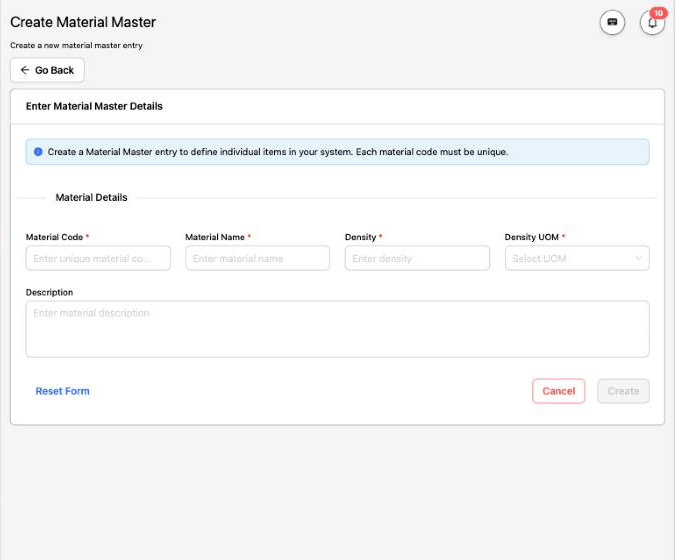
- Go to Masters → Material Master → Create Material Master.
- Enter a unique Material Code (MS) and Material Name (Mild Steel).
- Enter the Density (7.85) and the Density UOM (only units of the Density category are offered).
- Click Create. Material codes must be unique within the Company: a code already used by an active material of the Company you're working in shows Material code already exists. under the field, and Create stays disabled.
Materials belong to a Company, the same way as dimensions: the Material Master register lists the materials of the Company you're working in, cancelled ones included; Select Material on items offers only its active ones. To change a material, use Show More → Edit; to retire it, open it with View and Cancel it with a reason. Only the material's creator can edit or cancel it. A cancelled material is no longer offered for new items; items that already use it keep it.
Product groups (Product Groups)#
A product group is a family of items. Its Group Code can be part of the item codes generated for that family, when the item code template includes it. Its attributes are the dimensions every item in the family records. The Product Groups register and the product group box on items show only the groups of the Company you're working in.
Group details
📍 Masters → Product Groups → Create Product GroupEnter a unique Group Code (PLATES), a Group Name (MS Plates) and an optional description.
Add attributes
Under Attributes, add one row per dimension: Select Dimension, Is Calculated? and Default UOM. Use Add Attribute for more rows. Drag rows to change their order.
Calculated attributes
Set Is Calculated? to Yes for a value the ERP should work out, such as Weight = Length × Width × Thickness × 7.85 ÷ 1,000,000 (steel, sizes in mm, weight in kg). Set it to No for values users type in. The Default UOM box opens once a dimension is chosen.
For each calculated attribute a formula table appears. Add one row per part of the formula with + Add Row, and choose its Type:
Type Value Example Dimension One of the group's dimensions Length Operator +-*/^%(), the constantpi, or a function:sqrt,cbrt,abs,ceil,floor,round,log,log10,exp,min,max*Custom Number Any number you type 7.85 The rows are read from top to bottom, and the table footer shows the resulting formula. Create stays disabled, with a yellow message naming the row, until every calculated row has a formula. The weight is then calculated on the item form when an item of this group is created or updated, once its other attribute values and units are entered.
Create
Click Create. The group is now offered in Purchase → Item Master and when creating items from a goods receipt. While you type the Group Code, the form checks it: a code already used in this Company shows Product Group code already exists. under the field and Create stays disabled. Another Company may use the same code. If you click Create with an attribute row that has no dimension, a Product Group not created message says Complete attribute row N: select a Dimension for every row. (with the row numbers); if the Group Code or Group Name is empty it says Fill in the Group Code and Group Name.
Change or cancel a product group#
- Edit (from Show More in the register): you can change the Group Name, the description and the attributes and formulas. The Group Code is locked once the group is created. Only the group's creator can edit or cancel it.
- What happens to existing items: each item keeps the attributes and values that were saved on it. Changing the group's attributes or formulas doesn't rewrite items that already exist; the new attributes apply to items you create from then on.
- Cancel (from View, with a reason): the group is no longer offered for new items. The ERP doesn't check whether items use the group, and items that already belong to it keep it. A cancelled group can't be edited or brought back; create a new one if you need it again.
- Every change is listed on the group's Audit Log.
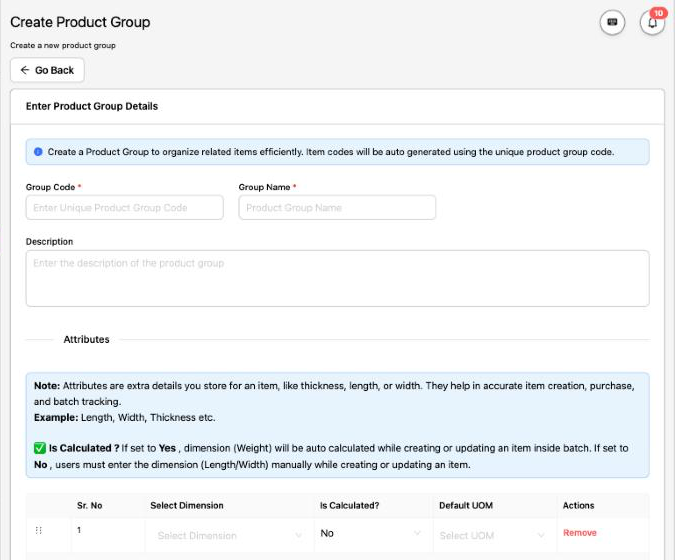
- 1Group Code: start of item codes
- 2One row per attribute