
Set up taxes and charges
Before anyone can calculate tax on a purchase order, sales invoice or other document, the Company needs its tax setup. MSME Sales Booster keeps tax in four separate places, and each answers a different question:
| Screen | Question it answers | Example |
|---|---|---|
| Tax Categories | What kind of tax is it? | GST |
| Tax Master | At what rate? | GST @ 18% (split into CGST 9% + SGST 9%, or IGST 18%) |
| Tax Rules | When does it apply? | On Purchase Orders, for domestic suppliers |
| Charges Master | Which extra amounts go on a document? | Freight, packing, insurance |
What you are doing
Setting up the tax categories, rates and rules your documents use, plus any extra charges.
Why it matters
Sales invoices and new purchase orders can't be saved until a tax rule applies to them, and some other documents are saved without tax, so the Company can't buy or invoice correctly without this setup.
- Who
- Your administrator or accountant (needs Masters permissions)
- Where in the ERP
- Masters → Tax And Charges
How the pieces fit together#
From tax category to the tax on a document
Swipe sideways to see the whole diagram, or tap Enlarge.
- 1. Tax Category: the kind of tax, for example GST.
- 2. Tax Master: a rate in that category, for example GST @ 18%.
- 3. Tax Rule: which documents use the category, for example Purchase Orders for domestic suppliers.
- 4. The document: when you choose the supplier, the Tax Rule field offers the rules that fit and, on a new document, preselects one; you pick the rate for each line.
- Each of these records belongs to one Company. Another Company in your workspace does not see them, and every Location of the Company shares them.
- The rule also decides which part of GST applies. When the supplier (or customer) is in the same state as your Location, CGST + SGST apply. When they're in a different state, IGST applies. When they're in another country, the purchase counts as an import (a sale as an export).
What a new Company already has#
When a Company in India is created, it gets a GST tax category and the GST rates 0%, 5%, 12%, 18% and 28% in Tax Master, each split into CGST, SGST and IGST with the Company's own input and output tax ledgers. These records are system-defined: their rates can't be changed and they can't be cancelled. No tax rule is created for you. Companies in other countries start with no tax categories or rates.
Before you start#
✅ Before you start
0/4 ready1. Create the tax category#
Masters → Tax And Charges → Tax Categories → Create Tax Category
| Field | Required | What to put | Example |
|---|---|---|---|
| Category Name | Yes | The kind of tax, in capitals. For Indian GST use exactly GST: that name tells the system to split rates into CGST, SGST and IGST | GST |
| Display Sequence | No | The order the category appears in on documents | 1 |
| Description | No | A note for your team | Goods and Services Tax |
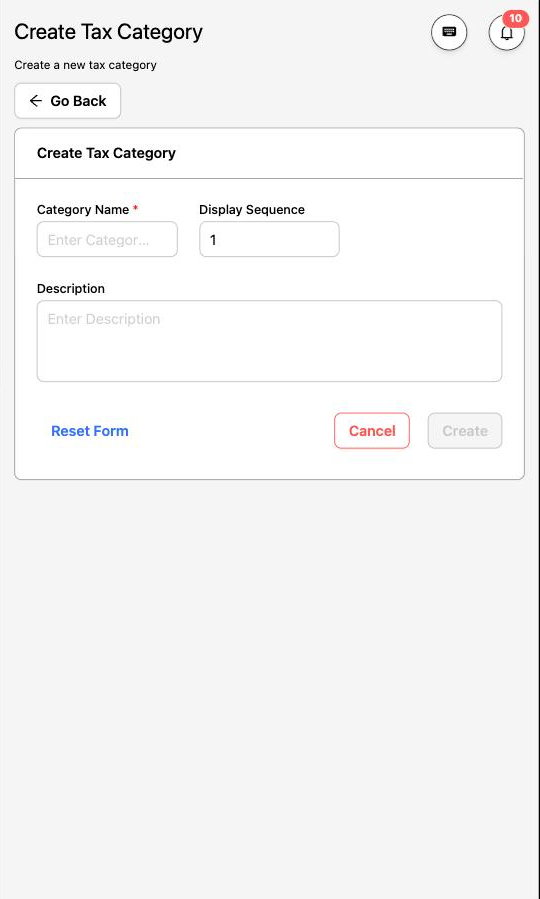
- 1Category Name: use GST for Indian GST
- 2Display Sequence
You can't create two categories with the same name in one Company.
2. Create the tax rate (Tax Master)#
Masters → Tax And Charges → Tax Master → Create Tax Master
| Field | Required | What to put | Example |
|---|---|---|---|
| Tax Category | Yes | The category from step 1 | GST |
| Calculation Type | Yes | Percentage, Fixed Per Invoice or Fixed Per Qty | Percentage |
| Rate % (or Fixed Amount) | Yes | The full rate | 18 |
| Description | No | A note | — |
For a category named GST, the form creates three components for you:
| Component | Rate | Used when |
|---|---|---|
| CGST | half the rate (9%) | supplier or customer in the same state |
| SGST | half the rate (9%) | supplier or customer in the same state |
| IGST | the full rate (18%) | another state, import or export |
For any other category, one component is created and applies everywhere. If the Finance module is on, choose an Input Ledger and an Output Ledger for each component. The ledger lists offer only the active ledgers of your Company in the Duties & Taxes and Direct Expenses groups, and they need no Finance permission: your Tax Master permission is enough. Orders don't use the ledgers; purchase and sales invoices post the tax to them, and invoices also need your Company's posting rules, which say which income or expense ledger the invoice value goes to.
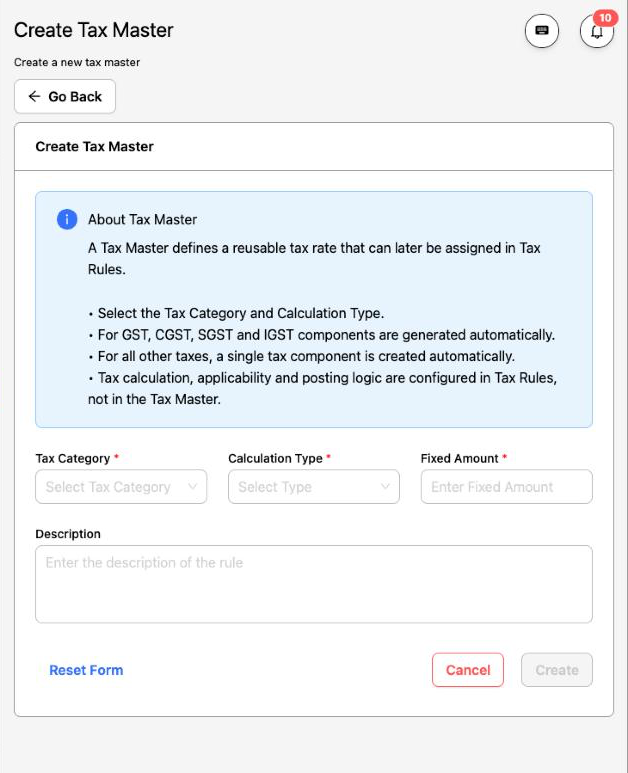
- 1Tax Category
- 2Calculation Type
- 3Rate % or Fixed Amount
Create one Tax Master per rate you use, for example GST @ 5%, 12%, 18% and 28%. You can't create the same category, calculation type and rate twice: A Tax Master with the same Tax Category, Calculation Type and Rate already exists.
Each component row also has two settings:
- Recoverable: Yes sets Affects Landed Cost to No and locks it. Purchase tax is posted to the component's Input Ledger either way. This is the usual setting for GST.
- Affects Landed Cost: can be set only when Recoverable is No. Yes adds the tax to the landed cost of the goods. To add a tax to the cost of goods, set Recoverable to No and Affects Landed Cost to Yes.
With Fixed Per Qty, choose the Tax Quantity UOM: the fixed amount is charged for each unit of the line's quantity. The line's own unit isn't checked against it.
3. Create the tax rule#
Masters → Tax And Charges → Tax Rules → Create Tax Rule
| Field | Required | What to put | Example |
|---|---|---|---|
| Rule Name | Yes | A name your team recognises | PURCHASE GST DOMESTIC |
| Document Types | Yes | The documents this rule covers: Sales Order, Sales Invoice, Proforma Invoice, Purchase Order, Purchase Invoice, Delivery Challan | Purchase Order |
| Transaction Scopes | Yes | Domestic (same country, covering same-state and other-state), International (import and export) or Any | Domestic |
| Priority (higher number wins) | Yes | When several rules fit a document, the rule with the highest priority is preselected on it (the oldest one when priorities are equal); users can still choose another | 100 |
| Country | — | Set from your Company automatically | — |
| Taxes To Apply | Yes | Click Add Tax for each row, then choose the tax category and Apply On. Create stays disabled until there is at least one row, and Add Tax stays disabled while a row is incomplete. Taxes are calculated from top to bottom; drag rows to change the order | GST · Item After Discount |
| Description | No | A note | — |
In Document Types, the Select all link ticks all six document types at once. A rule with exactly the same document types, transaction scopes and product groups as another rule of the Company is refused: A Tax Rule with the same document types, supply scopes and product groups already exists for this company, so "…" was not saved. Edit the existing rule or change the criteria.
Apply On options: Item After Discount, Invoice Total Without Charges, Invoice Total With Charges, Additional Charges Only, Invoice Total With Previous Taxes. For GST on goods, use Item After Discount. An older rule that still stores another value shows it marked (unsupported legacy value); it can be kept but not chosen again.
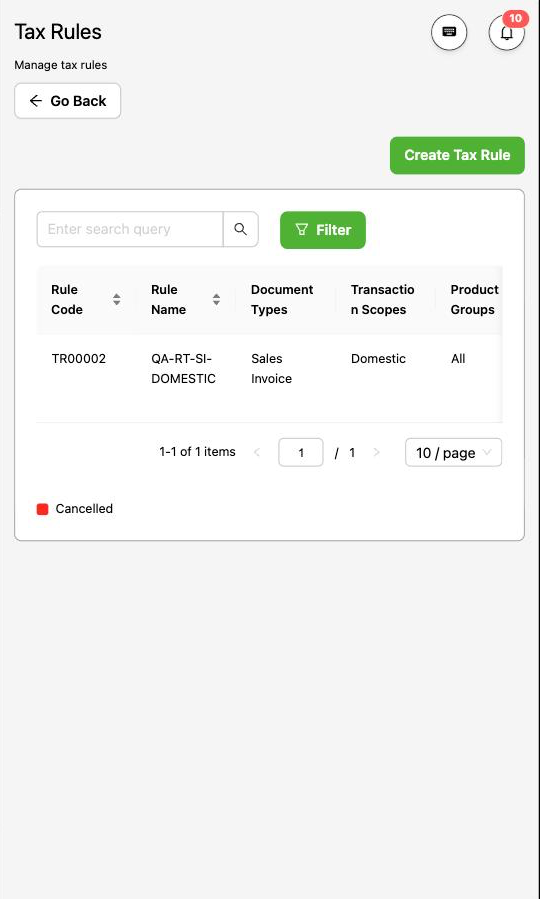
- 1Document Types: which documents each rule covers
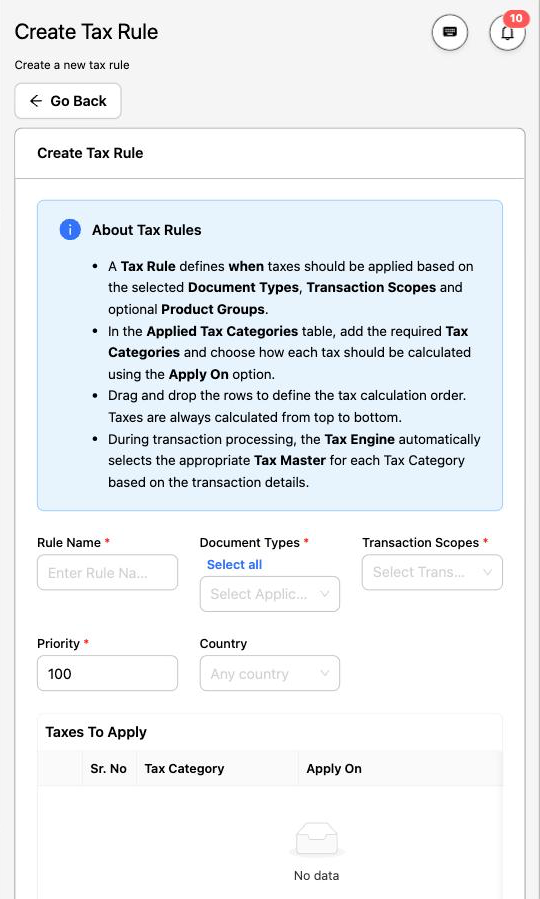
- 1Rule Name
- 2Document Types: tick every document the rule covers
- 3Transaction Scopes
- 4Taxes To Apply: category and Apply On
How a document picks its tax rule#
Purchase orders, purchase invoices, customer orders, sales invoices, proforma invoices, delivery challans, credit notes and debit notes have a Tax Rule field at the start of their taxes section. After you choose the party, it offers the active rules of this Company that list the document's type and cover the supply (domestic or international), and a new document preselects the one with the highest Priority. Once a rule is chosen it isn't swapped for another one; if a change of party or address means it no longer applies, the field asks you to choose again (Tax Rule … does not apply to the current vendor and delivery location. Choose a Tax Rule.).
- Customer orders use the rules that list Sales Order.
- A credit note uses the Sales Invoice rules and a debit note the Purchase Invoice rules. A note raised against an invoice always keeps that invoice's rule.
- An invoice created from orders starts with the orders' rule when they all have the same one.
- An existing document keeps its saved rule while its party, location and taxes stay unchanged, even if the rule wouldn't be offered today (The saved Tax Rule is not offered for this supply today. It is kept while the vendor, location and taxes stay unchanged.).
- The rule is checked again when the document is saved, for example Tax Rule … is not set up for Purchase Order. or Tax Rule … does not apply to Domestic supplies.
4. Create charges (optional)#
Masters → Tax And Charges → Charges Master → Create Charges Master
Charges are extra amounts on a document, such as freight or packing. You need them only if you add such amounts to purchase or sales documents.
| Field | Required | What to put | Example |
|---|---|---|---|
| Charge Name | Yes | What the charge is | Freight |
| Charge Category | No | Freight, Transportation, Packing, Handling, Loading, Unloading, Insurance, Documentation, Government Fees, Customs & Duties, Port Charges, Inspection & Testing, Installation, Labour, Service Charges… | Freight |
| Applicable In | Yes | Sales, Purchase or Both | Purchase |
| Calculation Type | Yes | Percentage, Fixed Per Invoice, Fixed Per Qty or Manual | Fixed Per Invoice |
| Calculate On | For percentages | Invoice Gross Amount, Invoice Net Amount, Previous Charges, Invoice Net Amount + Previous Charges | — |
| Rate % / Fixed Amount | For Percentage and Fixed Per Invoice | The rate (Rate %) or the amount (Fixed Amount) | 500 |
| Rate Per Qty, Charge Applied Unit | For Fixed Per Qty | The amount per unit, and the unit it applies to | 10 per BL |
| Can Value Be Manually Changed? | Yes, except for Manual | Whether users may change it on a document. A Manual charge has no amount field and no such question | Yes |
| Accounting (per Sales/Purchase) | Yes | Ledger (required), and optionally the Tax Master that taxes this charge, HSN/SAC and whether it counts in the taxable value, the document total or the landed cost | Freight Inward ledger, GST @ 18% |
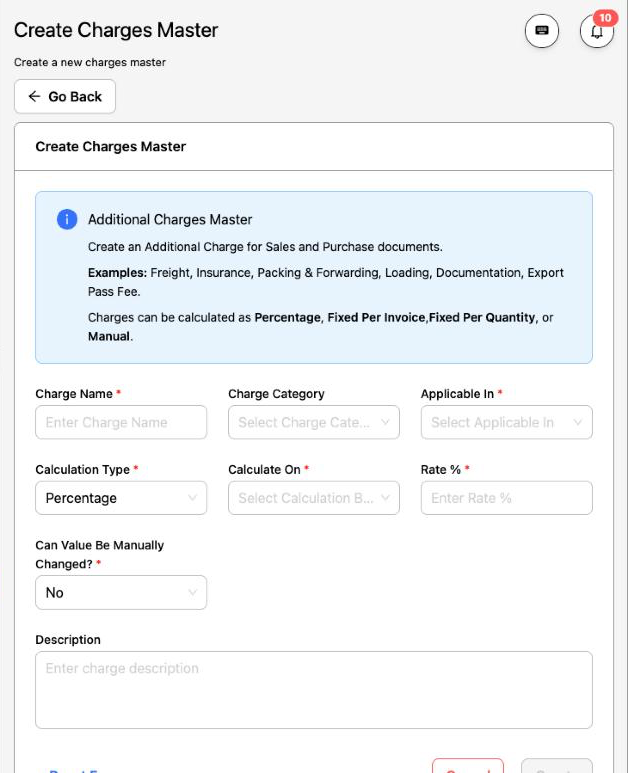
- 1Charge Name
- 2Applicable In: Sales, Purchase or Both
- 3Calculate On
A charge is taxed only through the Tax Master chosen in its accounting row. Each accounting row also says whether the charge is Include in Tax Assessable Value (added to the value tax is calculated on), Include in Document Total and Affects Landed Cost. A charge with the same name and calculation type as an existing one is refused: A charge with this name and calculation type already exists.
Edit or cancel tax setup#
Tax categories, tax rates, tax rules and charges are all changed and retired the same way:
- In the register, open Show More → Edit, change the record and click Update.
- To retire a record, open it with View and click Cancel. Enter the Reason For Cancellation and click Proceed. The record becomes Cancelled and is no longer used for new documents.
| What you see | Why |
|---|---|
| Edit and Cancel are greyed out | The record is already cancelled. Cancelled records are kept for history only; create a new one. |
| On a tax category, tax rate, tax rule or charge, Edit or Cancel is greyed out with Only the creator or designated users can update this entry (or … cancel this entry) | Only the person who created the record can edit or cancel it. Ask them. |
| Cancel is greyed out with System defined tax masters cannot be cancelled (on tax rules: System defined tax rules cannot be cancelled; on tax categories: System defined tax categories cannot be cancelled) | The record was provided with your account. Leave it, or stop using it on your documents. Charges provided with your account show the tax-master tooltip too. |
| One or more selected Tax Categories are not available for this company. when saving a rule | A category in Taxes To Apply is cancelled or belongs to another Company. Remove it, pick an active category of this Company and save again. |
| This tax master is already cancelled. / This tax rule is already cancelled. / This charges master is already cancelled. | Someone cancelled it before you. Reload the register. |
The Document Types filter on the Tax Rules register lists Sales Quotation, Sales Order, Sales Invoice, Purchase Order, Purchase Invoice, Credit Note and Debit Note. These are filter values only; a rule can cover only the six document types offered on the form.
Worked example: purchase tax for a supplier in your state#
Your plant is in Chennai (Tamil Nadu). You buy 10 steel plates at ₹100 each from a supplier in Tamil Nadu.
| You create | Values |
|---|---|
| Tax Category | GST |
| Tax Master | GST, Percentage, 18 (gives CGST 9%, SGST 9%, IGST 18%) |
| Tax Rule | PURCHASE GST DOMESTIC: Document Types Purchase Order, Transaction Scopes Domestic, Priority 100, Taxes To Apply GST · Item After Discount |
On the purchase order, after you choose the supplier, the Tax Rule field preselects PURCHASE GST DOMESTIC and the line shows a GST Rate column. Choose GST @ 18% if it isn't filled in already (it fills in from the item's Tax % in Item Master when one is set).
| Amount | |
|---|---|
| 10 × ₹100.00 | ₹1,000.00 |
| CGST 9% | ₹90.00 |
| SGST 9% | ₹90.00 |
| Total | ₹1,180.00 |
The same rule covers every Location of the Company. If your Pune (Maharashtra) plant orders from the same Tamil Nadu supplier, the supplier is in another state, so the line gets IGST 18% (₹180.00) instead.
When goods from this order are received into stock, the stock value is ₹100 per plate, without GST. GST rates set up as recoverable (the default for GST) have Affects Landed Cost set to No, so GST isn't added to the cost of the goods.
Statuses#
Tax categories, tax rates, tax rules and charges are Active when saved and Cancelled once cancelled.
Which documents use tax rules#
| Document | Uses rules that list | Saved without a rule? |
|---|---|---|
| Sales Invoice | Sales Invoice | No: preview and save need a rule |
| Purchase Order | Purchase Order | No for a new order: Preview Purchase Order and Create stay disabled, even though the Tax Rule field says it will be saved without tax. An order saved earlier without a rule can still be updated or amended without one. |
| Purchase Invoice | Purchase Invoice | Yes, without tax |
| Customer Order | Sales Order (tick Sales Order in the rule) | Yes, without tax |
| Proforma Invoice | Proforma Invoice | Yes, without tax |
| Delivery Challan | Delivery Challan | Yes, without tax |
| Credit Note | Sales Invoice (or the invoice's own rule) | Yes, without tax |
| Debit Note | Purchase Invoice (or the invoice's own rule) | Yes, without tax |
Common mistakes#
- Creating rates but no rule. Rates alone never apply. Create a rule for each kind of document.
- A rule for the wrong document type. A Sales Invoice rule doesn't cover purchase orders.
- A category not named exactly GST. Any other name gives one flat component, with no CGST/SGST/IGST split.
- A state that isn't an Indian state name. For Indian addresses the state must be an Indian state or union territory, or its two-digit GST state code; capitals and extra spaces don't matter. A name the ERP doesn't recognise, or a missing state, is shown under the Tax Rule field as Supplier or delivery address needs attention (for example Supplier state is missing. Set it on the vendor or location address.), and a new purchase order can't be saved until it is fixed.
- Working in the wrong Company. Tax setup belongs to the Company selected in the sidebar.
- Several rates in one category. Users then have to pick the rate on each line. That's expected when you use 5%, 12% and 18%. A rate created while an order is already open may only appear after you reload the page.
- GST and CST on the same supply. A supply can carry GST or CST, never both. If a rule (or a line) brings in a GST tax and CST that would both apply to the same transaction, the document can't be calculated or saved. CST on its own for an interstate supply is fine.
- Two rules for the same documents and scope. A second rule with exactly the same document types, transaction scopes and product groups is refused. Rules that only overlap are all offered on the document, and the one with the highest priority is preselected.
Rules to know#
- Invoices post their tax to the ledgers on the tax rate, and their value to the ledger in your Company's active posting rule.
- In Indonesia, PPN for non-luxury goods is 12% on a tax base (DPP) of 11/12 of the price. Luxury-goods PPN isn't available yet.