
Step 3: Create the purchase order
What you are doing
Ordering the requested items from a vendor, at an agreed price, with taxes calculated for you.
Why it matters
The purchase order is your commitment to the vendor. The GRN, inspection and vendor invoice all work against it.
- Who
- Purchase team
- Where in the ERP
- Purchase → Purchase Orders → Create Purchase Order
Before you start#
✅ Before you start
0/3 readyWhat to enter#
| Field | Required | What to put | Example |
|---|---|---|---|
| Purchase Order Date | Yes | Today, or an earlier date in the current financial year if your company allows past dates. Never a future date | Today |
| Purchase Order Type | Yes | Goods or Service. Each type has its own number series (see below) | Goods |
| Vendor | Yes | The supplier | Sample Steels LLP |
| Source | Yes | Purchase Request (or Direct Purchase, Request for Quotation) | Purchase Request |
| Purchase Requests | When Source is Purchase Request | The request(s) and the lines to order | PR for RM-SS304-SHEET-2MM |
| Price, quantity, taxes | Per line | Quantity, purchase and pricing units and Unit Price are required on every line; taxes are calculated | ₹ 2,450 × 100 |
| Expected Delivery Date, Payment Terms, Delivery Terms, Delivery Timeline | As needed | Commercial terms | 30 days |
| Bill To Address / Ship To Address | Bill To: yes. Ship To: as needed, or tick Shipping Address same as Billing Address | Usually your Location's address | — |
| Approvers | When PO approval is on in Any Approver or All Approvers mode (in Sequential mode the approvers come from Application Settings) | Who approves this order. Only active Purchase department members with access to your current location are listed. If you name only yourself, the order is approved when you create it. Creating it with no approver is refused: Purchase Order approval is required: select at least one approver. | — |
Order date and numbering#
- If Allow Past Dates for Purchase Orders is No, every new order is dated today, whatever date the form shows.
- If it is Yes, you can choose an earlier date. You see "Purchase Order date cannot be in the future." for a future date, and "Purchase Order date must be within the current financial year (on or after …)." for a date before the year started.
- Goods orders and Service orders are counted separately. When a type has its own Add PO Type row (Detailed numbering), its prefix, digits and suffix are used; otherwise the order uses your company's common purchase order format.
- Known issue with Common numbering: Goods and Service orders share one prefix but keep separate counters, so a Goods order and a Service order can get the same number (for example two orders numbered PO/0001/26-27). If you raise both types, use Detailed numbering with a different prefix for each type.
Steps#
Start a new order and choose the vendor
📍 Purchase → Purchase Orders → Create Purchase Order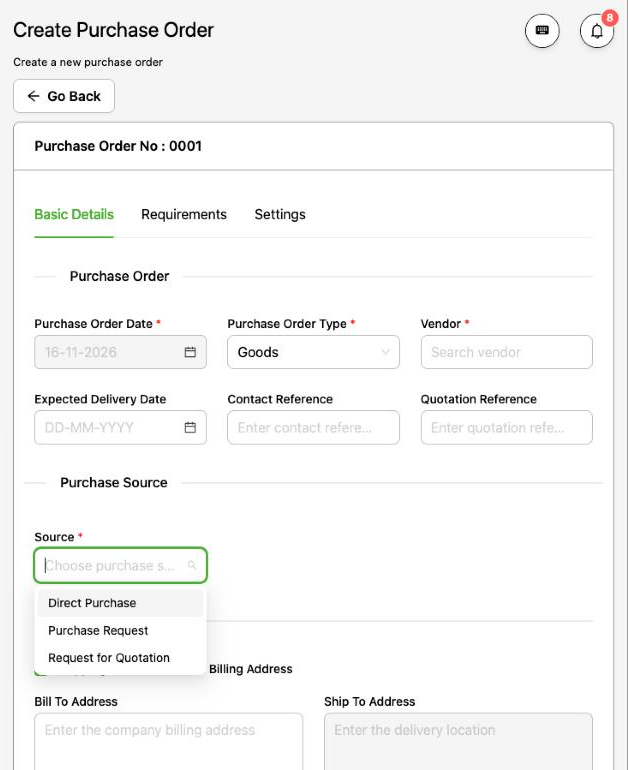
- 1Purchase Order Date and Purchase Order Type
- 2Vendor
- 3Source: choose Purchase Request
The empty form, before anything is entered. Open the full-size screenshot of Purchase order: createPick the request lines
Set Source to Purchase Request and choose the request under Purchase Requests. On the Requirements tab, select Choose Items, tick the lines to order and select Add Selected. Only lines not already on another order or request for quotation are offered. A request that has approvers, or any request made on the purchase request form while Require Approval for Purchase Requests is Yes, must be Approved before you create the order: otherwise Create shows an Error message Something went wrong. We have been notified and will check this out shortly. The item, unit and quantity of a line taken from a request are locked. To collect and compare vendor prices before ordering, use a request for quotation instead: see RFQ to purchase order.
Check prices, taxes and terms
When you pick an item, its price is filled in from this vendor's last price, where there is one. Enter or check the Unit Price. Net price, taxes and totals are recalculated as you type; nothing is saved until you click Create. If the line has a tax column (for example GST Rate), choose the rate. It fills in by itself only when your Company has exactly one rate in that tax category. Check the addresses, terms and approvers on Basic Details, then select Preview Purchase Order: the preview shows the taxes and totals and enables Create.
The Tax Rule field offers your Company's active purchase order tax rules that fit this vendor and your Location; on a new order the one with the highest priority is chosen for you, and you can pick another. For an address in India, the state must be known: when the vendor's or your Location's state is missing, or isn't an Indian state or union territory, a red message says what to fix, and a new order can't be saved until it is fixed.
If a red message says "No tax rule is selected for this purchase order. A missing tax rule is not a 0% tax.", Preview and Create stay disabled. No tax rule is chosen, usually because your Company has no tax rule for purchase orders that fits this vendor yet. This is a setup step, not a fault: ask your administrator to follow Set up taxes and charges, then open a new order.
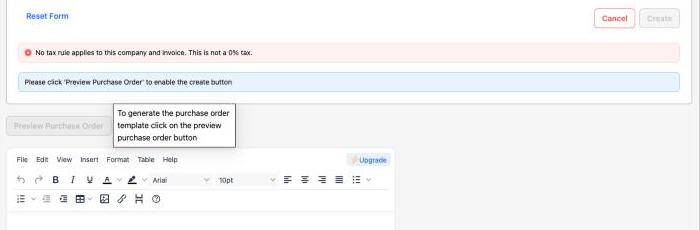
- 1The message: a tax rule for Purchase Orders is missing
- 2Preview Purchase Order stays disabled
What you see when the Company has no purchase tax rule. Open the full-size screenshot of Purchase order: no tax ruleReview price changes
📍 Create Purchase Order → Review VarianceIf a price differs from the vendor's previous purchase order, you see Some items have changed in price compared to the previous purchase order. Click Review Variance. Price Variance Detected — Review Before Approval lists each line's Previous Unit Price, New Unit Price, Changed Amount and % Diff. Tick I have reviewed and approve these price variations, enter a Remark and click Proceed. Create stays greyed out until you have.
Check the purchase order document
📍 Create Purchase Order → Preview Purchase OrderPreview Purchase Order builds the order document next to the form, from your Application Settings (addresses, authorised signatory), the vendor and the terms. You can edit its text there. Whether the discount and HSN/SAC columns print is chosen on the order's Settings tab: Show HSN/SAC Code In PO Template and Show Discount In PO Template. They start ticked or unticked as set in Application Settings, and you can change them for this order. It needs Purchase Orders → Export in your role. The text as you leave it becomes the PDF.
Create
Select Create.
What happens after you save#
- The order gets its number (by Purchase Order Type) and the status Open. The PDF, named after the order number, appears in the order's Files tab shortly afterwards, with Download and Preview; there's no print or e-mail button (see Files, PDFs, remarks, audit logs and notifications).
- The request lines are marked as ordered. The request becomes Closed, or Partially Closed if you ordered only some lines.
- If purchase order approval is on, the order's approval status is Pending. When your company uses Tasks, its approvers get a task (in Sequential mode, the first approver; the next one when it is their turn).
What happens after approval#
Approvers use the same modes as for requests (Sequential, Any Approver, All Approvers). Approved orders can be followed up and received. A Rejected approval keeps the order's status Open.
Changing an order later#
Step-by-step approval, Edit, Amend, e-mailing and export are in Manage purchase orders. Delivery dates, follow-ups and delayed orders are in Track deliveries. To raise an order straight from low stock items, see Plan purchases.
- Amend creates a new version with an amendment number; the old one shows Amended.
- Cancel opens Cancel Purchase Orders. On the screen it is enabled only for the order's creator (others see Only the creator or designated users can cancel this entry) and only with Cancel on Purchase → Purchase Orders in their role (You don't have permission to cancel this entry). Enter the Reason For Cancellation and click Proceed. Cancelling can't be undone. The order becomes Cancelled; its request and RFQ lines are available again; if it was an amendment, the earlier version is Open again; and, when your company uses Tasks, its open tasks are cancelled, with a notification to the people concerned. Cancel is greyed out once items have been received (Items have already been received, so this entry cannot be cancelled.), on a Fully Delivered order and on an amended one (This entry is amended cannot be cancelled.).
- Follow Up records a conversation with the vendor in Add Follow-Up: the Date (today or earlier), the Mode of Follow-up (Call, Text, Email, Online Meeting or Personal Visit) and the Feedback from vendor. They are listed on the Follow Ups tab with who added them. Follow-ups can't be edited or deleted once added, and can't be added to cancelled, amended or fully delivered orders. It needs Purchase Orders → Update.
- Editing stops once the order is Fully Delivered, amended, cancelled, or approved when approval is required.
- Update and Amend both open the order with its saved document. Click Preview Purchase Order again before you save; the save button stays disabled until you do. Saving makes a new PDF in the order's Files tab.
- Changing the date on Update. You can change the order date only when Allow Past Dates for Purchase Orders is Yes. It can't be changed once the order is cancelled, amended, approved (when approval is required), has goods received or has been invoiced. The message says why, for example "Purchase Order date cannot be changed because goods have been received against it." The new date must stay in the order's financial year and can't be in the future.
- The amendment date. An amendment is dated today unless past dates are allowed. Then you can choose an earlier date, but not a future date, not before the date of the order you are amending, and not outside that order's financial year.
Export and dashboard#
- Export on the Purchase Orders list downloads the filtered list to Excel, one row per item with ordered and delivered quantities, linked request, RFQ and GRN numbers and the order status (needs Export on Purchase → Purchase Orders).
- Dashboard → Choose Dashboard → Purchase shows the procurement funnel, spend by vendor, deliveries, vendor performance, price variance and material shortage; several cards have Export.
Vendor item codes (Product Mapping)#
If a vendor uses its own codes for your items, record them once: Purchase → Vendor Master → vendor → Product Mapping → Manage Product Mapping. Click + Add Item, choose the Internal Item Code, enter the Vendor Item Code and Vendor Description, and click Save Mappings. The mappings belong to the vendor, which belongs to your Company, and you can then find items by the vendor's code when you pick them. It needs Update on Purchase → Vendors in your role, and isn't possible for a cancelled vendor.
- To remove a mapping, click Remove on its row, then Save Mappings. The mapping stops being used; adding the same item and vendor code again later brings it back.
- Each Internal Item Code can be on only one row. Choosing it twice shows Duplicate Item and clears the second row.
- The same item and vendor item code pair can't be saved twice.
Statuses#
Open, Partially Delivered, Fully Delivered, Amended and Cancelled, with a separate approval status when approval is on. See Statuses and approvals.
Purchase agreements#
When Enforce Purchase Agreement Items in Purchase Order is on in Admin → Application Settings → Purchase → Purchase Orders, a new order (any source except an RFQ) offers only the items of the vendor's active purchase agreements at your location whose period covers the order date. Choose the vendor and date first (Select vendor and PO date first). The agreed rate is filled in; with Allow Override No the Unit Price is locked: the agreed rate is shown greyed out and can't be changed. A line that isn't covered shows This item is not covered by an active Purchase Agreement for the selected vendor and PO date. and the order can't be saved. If the agreements can't be loaded, you see Purchase Agreements could not be loaded and can't save. Checking an order against the agreements needs only your Purchase Orders permission. Opening or creating the agreements themselves needs Purchase → Purchase Agreements (Read to open the list, Create to add one): if that list opens a no-permission page, ask an administrator to tick it for your role in Admin → User Roles. See Purchase agreements.
Rules to know#
-
The vendor can't be changed on an order after it is created (edit or amend): cancel the order and create a new one.
-
For a vendor in another currency, Exchange Rate is required and must be a positive number (Enter the exchange rate from … to ….).
-
When the purchase order shows a price variance on a line, you must acknowledge it before the order can be saved.
-
Only a listed approver can approve or reject a purchase order, each approver acts once per approval round, and rejecting needs a reason.