
Step 2: Approve the purchase request
What you are doing
Deciding whether a purchase request may go ahead.
Why it matters
It lets the people responsible for spending check a request before purchasing acts on it.
- Who
- The approvers listed on the request
- Where in the ERP
- Tasks → the approval task → View Linked Entry, or Purchase → Purchase Requests → the request
This step applies only when your company has switched on purchase request approval. If it hasn't, go to Step 3.
Before you start#
✅ Before you start
0/3 readyWhat to enter#
| Field | When | What to put |
|---|---|---|
| Decision | Always | Approve or Reject |
| Reason For Rejection | When rejecting | Why, so the requester can fix it |
Steps#
Open the request
📍 Tasks → the approval task → View Linked Entry, or Purchase → Purchase RequestsWhen your company uses Tasks, you get an approval task. A new request gives each approver a task called [Action Required] - Purchase Request number requires approval. In Sequential mode only the first approver gets one at first (the title adds Step 1 of n); each later approver gets [Action Needed] - Purchase Request number requires approval (Step x of n) when it is their turn. After an edit the task is called Purchase Request number has been updated and requires re-approval. Open the task from Tasks (Show More → View), then select View under View Linked Entry. This opens the request with the approval banner.
Without Tasks, nobody is told: open the request from Purchase → Purchase Requests.
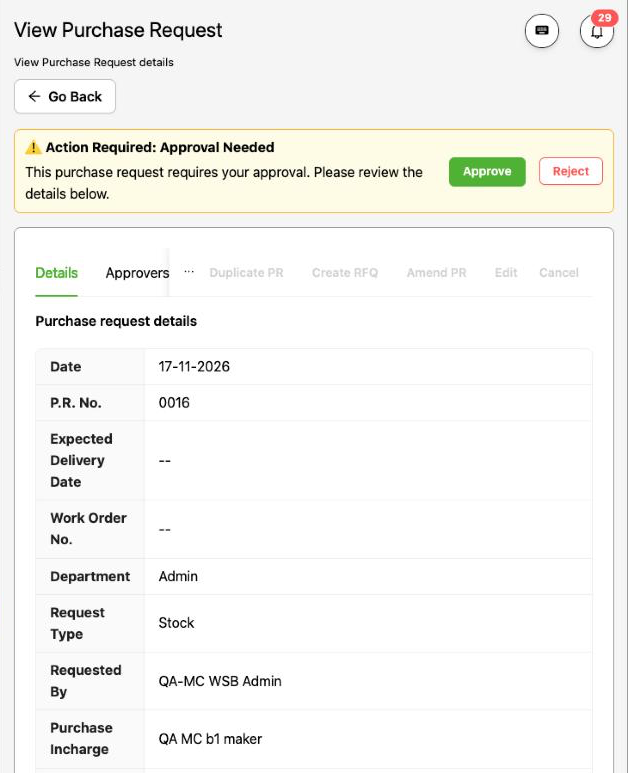
- 1Action Required: Approval Needed
- 2Approve or Reject
- 3Approvers tab: approval mode, status and history
What the approver sees. Open the full-size screenshot of Purchase request: approvalApprove or reject
When it's your turn, a yellow Action Required: Approval Needed banner appears above the request details. Choose Approve or Reject in the banner. A rejection needs a reason. The Approvers tab shows who else is on the request and the approval history.
How the approval modes work#
| Approval Mode | What happens |
|---|---|
| Sequential | Approvers act one after another, in the order set. You can act only when it is your turn. Until the last approver acts, the request shows Partially Approved |
| Any Approver | The first approval approves the request |
| All Approvers | Everyone must approve. Until the number of approvals reaches the number of approvers, the request shows Partially Approved |
What happens after you decide#
- Approve: the approval status becomes Approved (or Partially Approved while others still have to act). Once the request is fully approved, a fresh PDF of it is made in the background and replaces the earlier one in its files.
- Reject: the approval status becomes Rejected and your reason is shown on the request and in the Approvers tab. One rejection rejects the request in every mode. With Tasks, the requester gets a task called [Action Needed] - Purchase Request number has been rejected with your reason, and the other approvers' open tasks are closed. When the requester edits the request, it returns to Pending for a new round. Each approver can act only once per round.