
Employee to approved leave: attendance and leave requests
Example. Priya joins the welding department. HR creates her employee record with her shift and wage grade. Each morning she punches in from the sidebar. One day she forgets, so she asks for the missed attendance. Next month she requests two days of casual leave. Ravi, the HR manager, is on the approver list and approves both, and her casual leave balance goes down by two.
Who does what#
| Step | Typical person | Screen |
|---|---|---|
| 1. Approvers | Administrator | Admin → Application Settings → HR |
| 2. Employee | HR | HR → Employees → Employee Master |
| 3. Daily attendance | Every employee | Punch In / Punch Out in the sidebar |
| 4. Missed attendance | Employee | HR → Employees → Attendance |
| 5. Leave request | Employee | HR → Employees → Leaves |
| 6. Approval | Attendance and leave approver | Dashboard → HR → Employees, or the notification |
Before you start#
✅ Before you start
0/4 readyStep by step#
Choose who approves
📍 Admin → Application Settings → HRPick the people in Choose who can approve attendance and leaves. The list belongs to the Company you are working in. Only people on this list can approve; no other permission is needed to decide. Nobody can approve their own request. The list always shows your account's main administrator, who is saved as an approver when you click Save Changes. Allow Punch In Only From Mobile App set to Yes hides the Punch In button in the web app. See HR settings.
Create the employee
📍 HR → Employees → Employee MasterRequired: Is External Employee, the linked Employee (team member), Employee Name, Date Of Birth, Employee Code, Attendance Mode, Shift and Wages. External employees have no user account and can't request leave. Attendance modes are App Attendance Only, Biometric Attendance Only, or Hybrid (App + Biometric). You can also import employees from Excel, and use Assign Shift and Assign Wages for several employees at once. Set opening leave balances in Leaves Master. See Employee Master for importing, status changes and assigning shifts and wages.
Record attendance each day
📍 Sidebar → Punch In, then Punch OutEmployees punch in when they start and out when they finish. Punching in on a holiday asks for a reason. Attendance shows each day's punch times, working time and status.
Punching in and out needs a Company and a Location selected at the top of the app. The selected Location becomes the work Location of the day. If your employee record belongs to another Company, the punch is refused (Your employee record does not belong to the active company.).
The Punch In button appears at the top of the sidebar only for people with an Active employee record whose Attendance Mode isn't Biometric Attendance Only. It is hidden for everyone in the web app when Allow Punch In Only From Mobile App is set to yes.
On a holiday from the Holiday Master, and on every Sunday, Punch In opens Punch In On Holiday. It shows the date and the holiday (or Sunday) and asks you to state your reason before you can punch in. Your approvers on the attendance and leave list for your Company get a notification that you punched in on a holiday. The day is saved as not present (shown as Pending Approval on the Calendar) until an approver reviews it from that notification, also for administrators. Approving it marks you present and adds one compensatory leave to your balance.
In Punch In On Holiday, the Punch In button stays disabled until you type a reason.
After you punch in, the button becomes Punch Out. Clicking it asks "Do you really wish to punch out?" and warns that you can't punch in again that day. Click Punch Out to confirm. Your punch-out time is recorded, your hours worked and any overtime after the working day's end time are worked out, and the day shows Punched Out. The button switches to Already Punched Out as soon as you confirm and stays switched off until the next day. You get one punch-in and one punch-out per day; to correct a day, ask for missed attendance.
Ask for missed attendance
📍 HR → Employees → Attendance → Request AttendanceRequest Attendance appears only for people with an Active employee record whose Attendance Mode isn't Biometric Attendance Only. It opens Request For Missed Attendance, which asks for the Date*, Punch In Time*, Punch Out Time* and a Reason*. Dates on which you are already marked present, or that already have a pending request or a leave, can't be picked. The window's note says you can ask only for days on which you were marked absent or didn't mark attendance. Click Request to send it. The day shows Pending Approval until an approver decides.
Request leave
📍 HR → Employees → LeavesThe Requests tab holds the request form. The top of it shows your available privilege, sick, casual, other and compensatory leave, and leave without pay taken.
- Choose the Leave Type: Privilege Leave, Sick Leave, Casual Leave or Compensatory Leave.
- For Compensatory Leave only, a Holidays list appears: choose the holiday(s) you worked. From and To stay disabled until you do, Sundays can't be picked as To, and To is limited to as many days (not counting Sundays) as holidays chosen.
- Choose the From and To dates and type a Leave Reason, then click Request.
- A summary window opens before anything is sent: Leaves Without Pay when the days go beyond your balance, Compensatory Leave for compensatory leave, otherwise Leaves Request. It shows the dates, your balance and the days requested, with the note Note: Sundays and public holidays are not counted! If every chosen day is a holiday, it says Chosen day is a holiday and cannot be requested! and its Request button is disabled.
- Click Request in that window to send the leave, or Cancel to go back. The Cancel button on the form clears it. If another leave request already covers one of the dates, the request is refused (A leave request already covers one of these dates.) and the window stays open.
For privilege, sick and casual leave, days beyond the available balance are recorded as leave without pay. Leaves History lists your leave requests with their status (pending, accepted or rejected). View Leave Requests opens Pending Leave Requests, where your pending requests are listed.
Open the full-size screenshot of HR: Leaves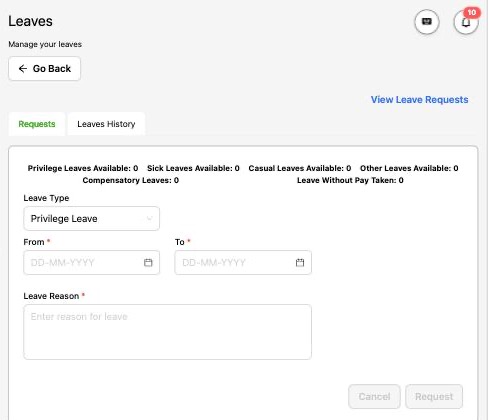
Approve or reject
📍 Dashboard → HR → Employees, as an approverPending requests are listed on the HR dashboard (Employees view): leave in the Leave Requests card and missed attendance in the Attendance Requests card. The Employees view shows only when your role has HR-employees → Employees Dashboard Read. Approvers see everyone's pending requests with Accept and Reject, except their own; everyone else sees only their own, with Delete to withdraw them.
- Leave: click Accept or Reject in Leave Requests. You can also decide from the leave notification: its Leave Request Details window has Approve and Deny (or only View, which opens the dashboard, for a request sent while another was still pending). Approving deducts the leave from the right balance and adds unpaid days to leave without pay. The employee is notified.
- Missed attendance: click Accept or Reject in Attendance Requests. Accepting marks the employee present for that day with the requested times. Rejecting marks the day Absent.
- Holiday punch-in: open the notification … has punched In on a holiday; its Holiday Attendance window has Approve and Deny. Approving credits one compensatory leave.
- A decided request can't be accepted or rejected again.
See attendance and leave on the Calendar#
HR → Employees → Calendar shows your month at a glance. It needs HR-employees → Calendar Read.
- At the top: Request Attendance (opens Attendance) and Request Leave (opens the Leaves requests tab).
- Approvers only: a Team Members picker to look at someone else's month.
- Balances: Privilege Leaves Available, Sick Leaves Available, Casual Leaves Available, Compensatory Leaves and Leaves Without Pay Taken.
What the day colours mean:
| Legend | Meaning |
|---|---|
| Present | Punched in and worked a full day |
| Half Day | Present but marked half day, or fewer than 7 hours worked |
| Night Shift | The punch-out was on the day after the punch-in |
| Absent | Not present, or a missed-attendance request was denied |
| Pending Approval | A missed-attendance request, a leave request or a holiday punch-in is waiting for an approver |
| Holiday | A holiday from Holiday Master, shown with its name |
| Present on Holiday | Punched in on a holiday |
| Paid Leave, Unpaid Leave, Compensatory Leave | An accepted leave of that kind |
Stock and accounts#
Attendance and leave don't post to the accounts. Approving leave updates the employee's leave balances and leave without pay only.
Common mistakes#
Other attendance and leave actions#
- Export attendance: HR → Employees → Attendance → Export asks for a date range and downloads each employee's daily status, in and out times, working hours and overtime to Excel (needs Attendance export).
- Withdraw your own pending missed-attendance request: click Delete on it in the dashboard's Attendance Requests card (needs Attendance Delete). The day is then marked absent. Attendance records can't be edited field by field, and a decided request can't be changed.
- Withdraw your own pending leave: click Delete on it in the dashboard's Leave Requests card and confirm Delete this pending leave request? with Delete (Keep leaves it). The dates become free again.
- Reject a leave that was already approved: an approver clicks Reject on Leaves History. It is disabled once the leave's date has passed, and only the latest entry for a leave can be rejected.
- Delete an approved leave: the employee clicks Delete on Leaves History and gives a reason (Specify your reason for deletion, then Submit). The approvers are notified. An approver then decides on Leaves History, or in the Leave Request Deletion Details window opened from the notification: Delete removes the leave and gives the days back; Cancel keeps it. Only approvers can decide, and nobody can decide their own leave.
- Correct balances: Leaves Master → Show More → Edit changes Paid Leaves, Casual Leaves and Sick Leaves; click Save Changes.
Monthly accrual. Under Attendance-Based Leave Accrual (App Settings → HR), privilege leave is added to each employee's balance every month, according to attendance. Under Fixed Leave Allocation, balances are set on the first day of the financial year. See What MSME Sales Booster does automatically for the schedule.
- Attendance-Based Leave Accrual: on the 1st of each month, No Of Leaves To Be Added is added to the privilege leave balance in full if the employee was present on every working day of the previous month. Otherwise one leave fewer is added. Sundays and holidays from the Holiday Master don't count as working days, but Saturdays do, even with Enable Alternate Saturdays Off.
- Fixed Leave Allocation: the privilege, casual and sick balances are replaced by Privilege Leaves to be added at the start of FY, Casual Leaves to be added at the start of FY and Sick Leaves to be added at the start of FY. Unused leave isn't carried over. In this version the reset may not happen on its own, because the financial year moves on earlier the same night. In early April, check the balances and correct them in Leaves Master if needed.
- Both methods skip inactive team members, people without an Employee Master record, and records without a Company or Location. Holidays are those of the employee's own Location.
Automatic punch-out. At 20:00 India time (IST) each day, if your working day's start and end times are set, employees with App Attendance Only who punched in but not out are punched out at 20:00 IST. Their hours worked run to 20:00 IST, and any time after the working day's end time counts as overtime. If they actually left earlier, correct the day with Request For Missed Attendance.
Rules to know#
- Only people on the attendance and leave approver list can decide requests, and nobody can decide their own.
- If an employee record is linked to a team member, that member must be active and have access to at least one Location of this Company, and each team member can have only one active employee record.
- Employees on Biometric Attendance Only can't punch in from the app; their attendance comes from a biometric device registered in Biometric Devices.
- Attendance and leave belong to the employee's own Company. Approvers decide only the requests of the Company they are working in.
- Dates already covered by an accepted or pending leave can't be picked again in the leave request.