
Load opening stock and correct stock with adjustments
Example. You go live on 1 April. The store keeper counts 120 steel sheets in the Raw Material store at ₹2,400 each and enters them once as opening stock. In June a recount finds 3 sheets damaged, so the store keeper records a Qty- adjustment of 3 with the reason Damaged.
Who does it#
A store manager. Two things in the role decide it:
- Add Inventory follows the role's first Inventory store page it finds (Electrical Items Store, then Engineering Items Store, then Tools And Equipments Store). If that page doesn't allow create, the button is greyed out with You don't have permission to create inventory.
- Adjust Stock is available only when the role has all three pages: Electrical Items Store, Engineering Items Store and Tools And Equipments Store. Otherwise it's greyed out with You don't have permission to adjust stock.
- Saving either screen also needs create on Inventory → Inventory in the role. Without it the save is refused.
- You can work only with the stores granted to you in Admin → Team → member → Accessible Stores. Other stores aren't offered, and a save naming one is refused.
When the Finance module is in use and Enable Ledger Posting is on for your Company, Accounts should agree the values first, because both screens post to the accounts.
Before you start#
✅ Before you start
0/4 readyLoad opening stock#
Open Add Inventory
📍 Inventory → Add InventoryThe Create Opening Balance screen opens. You can enter many items at once.
Open the full-size screenshot of Inventory: Create Opening Balance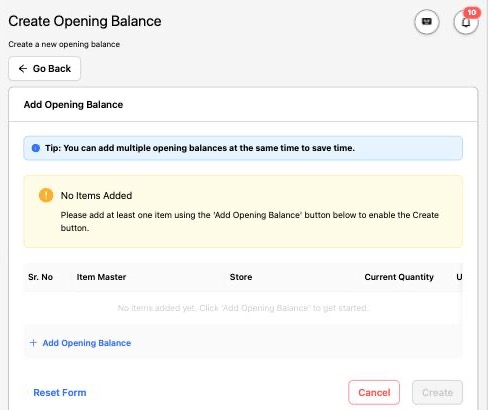
Add a row for each item
📍 Add Opening BalanceClick Add Opening Balance to add a row. For each row choose the Item Master and Store, and enter the Current Quantity (more than zero) and Unit Cost. Current Value is worked out for you (quantity × unit cost). Only the active stores of the Location you're working in that are granted to you are offered; if your role can create stores, an Add Store link lets you create one here.
As soon as you choose an item, the screen checks whether it already has an opening balance at this Location this year. If it has, the message An opening balance is already posted for this item at this location in the current financial year. Use Stock Adjustment instead. appears under the item, and Create stays greyed out until you remove the row or choose another item. Min Stock Level (for low-stock alerts) and Storage Position are optional.
If the item's product group tracks dimensions, a batch table opens under the row: add each batch with its quantity and dimensions. Create stays greyed out until every such row has at least one batch.
Create
📍 CreateClick Create. All rows are saved together or none are: if one row is wrong, the message starts Opening balance was not saved. and names each item with its reason, and nothing is saved. After a successful save, go back to Inventory to check the stock.
What saving does. The quantity goes into the store as an Opening Balance movement, and the store becomes the item's default store at this Location. With Finance in use and ledger posting on, a journal debits the item's stock ledger (Finished Goods, or material inventory; Fixed Assets for Asset items) and credits Difference In Opening Balances. Lines with no value post nothing.
One opening per item per year. Each item can have one opening balance per Location in the current financial year, whatever the store. To change it later, use a stock adjustment. There's no screen to view or cancel an opening balance, so check the figures before you click Create.
Correct stock with an adjustment#
Open Adjust Stock
📍 Inventory → Adjust StockThe screen lists the adjustment rules. Choose the Adjustment Date (it can't be in the future).
Open the full-size screenshot of Inventory: Adjust Stock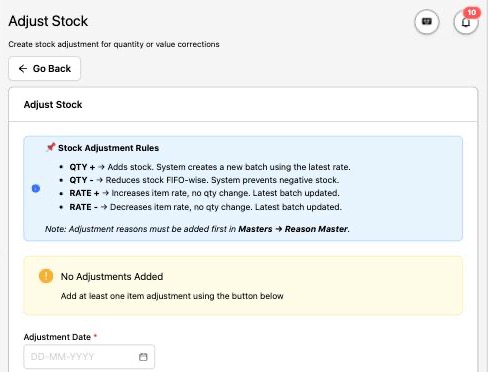
Add a line for each correction
📍 Add Adjustment LineClick Add Adjustment Line. Choose the Item, the Store and the Adjustment Type, then the Reason. The item must already have stock at this Location: if it doesn't, the line shows Item has no inventory batch at this location. Add it to Inventory first. and Create stays greyed out. The Store list offers the stores that hold the item and are granted to you.
Type What it does You enter Qty+ (Add Stock) Adds stock as a new batch at the latest rate Quantity, optional Storage Position Qty- (Reduce Stock) Removes stock, oldest batch first; for items tracked by dimensions you select the batch Quantity (no more than the current stock) Value+ (Increase Rate) Raises the rate of the latest batch; quantity doesn't change New Rate Value- (Decrease Rate) Lowers the rate of the latest batch New Rate Qty+Value (Custom Rate) Adds stock at a rate you choose Quantity, New Rate (shown as Custom Rate) and optional Storage Position Create
📍 CreateClick Create. The adjustment is posted straight away; there's no approval step. If one line is refused, nothing is saved. You return to the Inventory page.
What saving does. Quantity adjustments appear in the Movement Ledger as Adjustment. With Finance in use and ledger posting on, increases post to Inventory Gain and decreases to Inventory Loss. There's no list, view or cancel for adjustments: to undo one, post the opposite adjustment.
Statuses and approvals#
| Record | Status when saved | Later changes |
|---|---|---|
| Opening balance | Approved | None: no view, edit or cancel |
| Stock adjustment | Posted | None: post the opposite adjustment to undo |
Neither has an approval step: both take effect as soon as you click Create.
Common mistakes#
Rules to know#
- Every quantity adjustment must be greater than zero.
- The Adjustment Date can't be in the future.