
Customer invoice to receipt: sales invoice, e-invoice, receipt and reports
Example. You delivered 10 frames to Acme Engineering on a delivery challan. Accounts creates the sales invoice from the challan and, in India, generates the e-invoice. Acme pays 60% after a week and the rest later. Each payment is recorded as a receipt against the invoice, and the Receivables report shows what's still due.
Who does what#
| Step | Typical person | Screen |
|---|---|---|
| 1. Customer | Sales | Sales → Customers |
| 2. Sales invoice | Accounts | Finance → Sales Invoices, or the challan or order |
| 3. E-invoice | Accounts | Sales invoice → Generate E-Invoice |
| 4. Receipt | Accounts | Finance → Payments Received |
| 5. Adjustments | Accounts | Finance → Credit Notes |
| 6. Reports | Accounts, management | Finance → Reports |
Your role needs the matching rights on the Finance pages Sales Invoices and Payments Received: Read to see them, Create to add, Update to edit and Cancel to cancel.
Before you start#
✅ Before you start
0/6 readyStep by step#
Set up the customer
📍 Sales → Customers → Create MasterSet the Customer Type, the Company Name (or Customer Name for an individual), the GST Treatment and, where needed, the GSTIN. Also set the Payment Term, Credit Limit, Credit Days and Responsible Sales Member. If the customer has no ledger in your Company yet, one is created when their first invoice is saved.
Create the sales invoice
📍 Delivery challan → Create Sales Invoice, or Finance → Sales Invoices → Create Sales InvoiceOn Basic Details, enter the Invoice Date and Party Name, check the billing and shipping address, Payment Term and Due Date, choose the Sales Person (required on a new invoice) and pick the Customer Orders or Delivery Challans being invoiced. Choose Items adds lines from the chosen orders; Add Item adds a line by hand. Under Taxes, check the Tax Rule: a new invoice starts with the highest-priority rule that applies, and you can choose another one from the list. In India, the place of supply is taken from the customer's billing state; you don't enter it.
Click Preview Sales Invoice. The preview appears below the button. Create is enabled only after a preview, and any change to the lines, prices, taxes or other details disables it again until you preview once more. Preview Sales Invoice stays greyed out until the Invoice Date is filled in, a customer is chosen, at least one line has a quantity and unit price, and a tax rule applies.
- From a delivered challan, Create Sales Invoice fills in the customer, the customer orders, the challan and the delivery country, state and GSTIN, and adds the lines at the challan's quantities.
- You can't invoice more than the challan's delivered quantity that hasn't been invoiced yet: Invoice quantity for … exceeds the uninvoiced delivered quantity of … on Delivery Challan …
- If the order has delivered quantity not yet invoiced, the invoice must link that challan. Otherwise tick Invoice as a separate dispatch, but only when this invoice isn't billing that delivery. Stock is then taken out for the quantities not linked to a challan.
What saving does
📍 CreateThe invoice is Posted and Unpaid, and it is kept in your current Company and Location. In one step it:
- takes the goods out of stock, unless a linked delivered challan already did;
- posts a journal entry: the customer's ledger is debited with the invoice total, and the sales revenue ledger of your Company's posting rule, the tax ledgers and any charge ledgers are credited; the round-off ledger is credited when the total is rounded up and debited when it is rounded down;
- updates the customer order's invoiced quantities and the customer's invoiced and pending totals.
If any part fails, nothing is saved. The invoice date must fall in an open financial year of your Company (Admin → Companies → the Company → Financial Years tab). If Enable Ledger Posting is switched off in your Company's Finance application settings, the invoice is saved without a journal entry.
Generate the e-invoice (India and Indonesia)
📍 Sales invoice → Generate E-InvoiceOpen the invoice's E-Invoice tab first: it checks the invoice and marks what needs fixing (Needs action). Generate E-Invoice at the top of the invoice stays greyed out until every check passes; hover over it to see why. In India, once the e-invoice is generated, E-Waybill creates the e-way bill (when e-way bills are switched on for your account and the subtotal is at least ₹50,000). While an e-invoice is being submitted, has been accepted, needs reconciliation, or has been cancelled or replaced, the sales invoice can't be edited. See E-invoicing, e-way bills and GSTIN checks.
Record the money received
📍 Sales invoice → Record Payment, or Finance → Payments Received → Create PaymentRecord Payment on the invoice opens the receipt with the customer and the invoice already filled in; it is greyed out for a cancelled invoice or one with nothing pending. Otherwise choose the Receipt Date, Customer and Payment Type:
- Against Invoice: choose the Sales Invoices, enter the Receipt Amount and share it across them under Allocate to Invoices. When the customer has an unused advance, Adjust From Advance appears so you can use it as well; the customer's Advance Payment Balance is shown under Customer.
- Advance Payment: money received before an invoice. Switching to Advance Payment clears any invoices you had selected.
Only this Location's open invoices of the customer are offered, and only advances received in this Company and Location can be adjusted. Choose the Payment Mode (Cash, Bank, Cheque or UPI); for anything except Cash, also choose the Bank Account. Add a Reference No. if you have one, then click Create.
Create stays greyed out while the amount is zero. For Against Invoice it is enabled only when at least one invoice is selected, no selected invoice has 0 allocated, and the allocations add up exactly to the Receipt Amount plus any advance adjusted; until then a warning shows Total allocated (…) doesn’t match effective receipt (…).
When you save, the receipt's journal entry is posted. Each invoice's pending amount goes down and its payment status becomes Partially Paid or Fully Paid. The journal entry debits Cash-in-Hand (for Cash) or the chosen bank account's ledger, and credits the customer's ledger for each invoice. An advance is credited to Customer Advance; an adjusted advance is debited from it.
Open the full-size screenshot of Finance: Create Receipt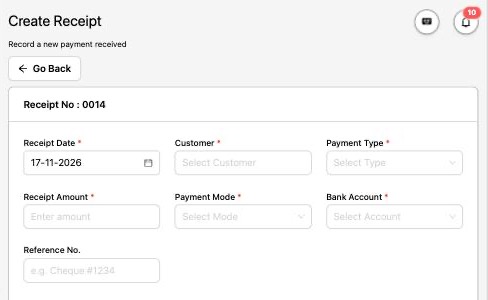
Adjust with a credit note (when needed)
📍 Finance → Credit Notes → Create Credit NoteChoose the type: Return, Rate Difference or Advance Refund (these are the only types offered). For Return and Rate Difference choose the Sales Invoice and the items. The credit note lowers the invoice's pending amount, and a Return can have its own e-invoice. See Credit and debit notes for the full steps.
Follow up what's outstanding
📍 Finance → ReportsReport What you'll see Receivables One row per invoice with Customer Name, Grand Total, Amount Paid and Pending Amount; click the customer name to see that customer's receivable history Receivables & Payables Ageing What is due, grouped by how many days it is overdue General Ledger The customer and bank entries for the invoice and receipt Day Book and Trial Balance All entries for a day, and that debits equal credits
Statuses#
| Document | Statuses |
|---|---|
| Sales invoice | Posted or Cancelled; payment: Unpaid, Partially Paid, Fully Paid |
| Receipt | Cancelled once cancelled |
| Credit note | Issued or Cancelled |
Cancelling a sales invoice reverses its journal entry and its stock issue. It's refused once an e-invoice has been generated for it, and while receipts or credit notes still settle it: cancel those first. To edit or cancel an invoice or a receipt, see Edit or cancel invoices and payments.
Approvals#
Sales invoices, receipts and credit notes have no approval step: each takes effect when saved. See Who approves what.
Common mistakes#
Refusals from the server appear in a red Error message at the top of the screen.
Export invoices#
On Finance → Sales Invoices, Export asks for a Date Range and Sales Member and downloads an Excel list with one row per item (invoice date, invoice number, customer, item code, quantity, rate and amount) and a total row. Date Range is required. Export needs the Export right on Sales Invoices in Finance, and is greyed out while the list is empty.
The invoice PDF#
Preview Sales Invoice on the create and update forms shows the printed invoice, laid out by the Print & Layout settings in Admin → Application Settings → Finance → Sales Invoice. Shortly after you save, the invoice PDF is made in the background and added to the invoice's Files tab; updating the invoice makes the PDF again. When an e-invoice is accepted for the invoice, the PDF is made once more with the e-invoice details and replaces the earlier one.
On the Files tab each file has Preview, which opens it in a PDF Preview window, and Download, which opens it in a new browser tab where you can save or print it. Files can't be deleted there. The view page has no separate print button in this version.
Rules to know#
- Invoices, receipts and their lists belong to your current Company and Location. A user working in another Company or Location doesn't see them and can't change them.
- A sales invoice can't be cancelled once an e-invoice has been generated for it, even if the e-invoice is later cancelled.
- A cancelled sales invoice can't be submitted for an e-invoice.
- The quantity you invoice on a line can't be more than what is still outstanding on that customer order line.
- When a receipt is against invoices, each invoice can be allocated once, every invoice must belong to the receipt's customer and be in the receipt's currency, no allocation can exceed what is pending on that invoice, and the allocations can't total more than the receipt amount plus any advance adjusted; the form enables Create only when they add up exactly.
- An advance adjustment can't exceed the customer's unused advances in this Company and Location.
- The bank account on a receipt must be one of your Company's bank accounts.
- Only the person who created a receipt, or a user designated to edit it, can edit or cancel it; see Edit or cancel invoices and payments.
- In a rate-difference credit note, every line you include must have a revised price lower than the invoiced price.