
Post journals and contra entries, and reconcile your bank
Example. At month end the accountant posts a journal to provide for the electricity bill: Dr Electricity Expenses ₹18,000, Cr Outstanding Expenses ₹18,000. The cashier deposits ₹50,000 of cash in the bank with a contra entry from Cash to the current account. When the bank statement arrives, the accountant imports it. Lines whose reference, date and amount agree with a bank book entry held for reconciliation match automatically, and the rest can be matched by hand.
Who does it#
An accountant or cashier. Their role in the Company needs, on the Finance pages: Create on Journal Entries or Contra Entries to post; Update to edit and Cancel to cancel (the User Roles screen calls this action Cancel). A team member with Is Admin switched on has every permission in the Companies granted to them, whatever their role allows. The contra entry form lists banks from Bank Master and cash ledgers from Cash Book, so it also needs Read on both. For bank reconciliation, importing a statement needs Create on Bank Reconciliation; matching a line by hand needs Update on Bank Reconciliation and Read on Bank Book (to list the bank book entries). The ledger lists on the journal entry form come with Create (or Update) on Journal Entries; Read on Chart Of Accounts isn't needed for them. In the same way, the ledger lists in the General Ledger report and on the Tax Master, Charges Master and Posting Rule screens (Masters) need only that screen's own Read, and the Tax Master list offers only Duties & Taxes and Direct Expenses ledgers. Journals and contra entries belong to the Location you're working in. Imported statement lines belong to the Company, but they're matched only with the bank book entries of the Location you're working in.
Before you start#
✅ Before you start
0/3 readyPost a manual journal entry#
Open the form
📍 Finance → Journal Entries → Create Journal EntryThe form is Create New Journal Entry. Check the Currency; for a foreign currency, enter the Exchange Rate too. Add a Narration that explains the entry.
Open the full-size screenshot of Finance: Create Journal Entry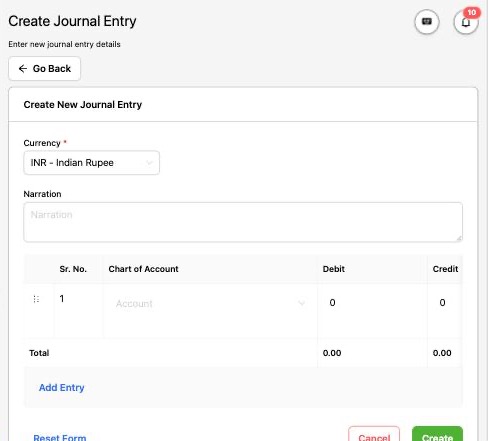
Enter the lines
📍 Lines tableFor each line, choose the Chart of Account ledger (the list shows the Company's active ledgers) and enter either a Debit or a Credit, not both. Add a Description per line if useful. Add Entry adds a line and Remove deletes one. The Total row must show the same debit and credit.
Create
📍 CreateThe journal is posted with today's date: there's no date field, so post it on the day it belongs to. It appears in the list as Manual with status Posted.
Postings into a closed year, or a date no financial year covers, are refused: you see Financial year is … and cannot accept postings. or No financial year covers the posting date for this company. This applies when you create a contra entry too.
Review journal entries#
Finance → Journal Entries lists every journal, manual or automatic, with its Date, Journal Number, Entry Type (Manual, or the source document as a link), Created By and Status. Cancelled entries have their number shown in red. You can filter by Date, Created By and Entry Type (Manual or Linked).
Open one (Actions → View) to see View Journal Entry. Its Details tab shows Journal Details:
| Field | Meaning |
|---|---|
| Voucher Number, Posting Date | The journal's number and accounting date |
| Narration | The explanation entered, or the document's description |
| Posting Mode | Manual (posted by hand) or System (posted by a document) |
| Entry Nature | FULL for a normal posting, DIFF for a difference posted when a document changes, REVERSAL for a reversal |
| Transaction Currency, Base Currency, Exchange Rate | The document currency, your Company's currency, and the rate between them |
| Posted At, Created By | When and by whom |
| Status | The journal's status |
| Cancellation Reason | Shown once cancelled |
For an automatic journal, Source Document shows the Document Type, its Voucher Number, the Posting Event (for example saving or cancelling the document) and the Linked Entry. Journal Totals shows the debit and credit totals, and Entries lists each line's Account Code and Account with its transaction and base-currency debit or credit and Narration. The Audit Logs tab shows the history.
Edit or cancel a manual journal#
Edit
📍 Journal Entries → Actions → EditOn Update Journal Entry you can change the Narration, Currency and Exchange Rate, and add, change or remove lines. The date stays as it is. The debit and credit totals must still agree. Click Update: the same journal (same number) is updated in place with the new lines, and the ledger balances are adjusted; no reversal entry is created.
Cancel
📍 View Journal Entry → CancelIn Cancel Journal Entries, enter the Reason For Cancellation and click Proceed. The journal becomes Cancelled and its amounts are taken off the ledgers.
- Edit works for anyone whose role has Update on Journal Entries; without it the tooltip says You don't have permission to update this entry. Cancel needs the Cancel permission, and the screen offers it only to the journal's creator: others see it greyed out with Only the creator or designated users can cancel this entry, and without the permission the tooltip says You don't have permission to cancel this entry.
- Both are greyed out for a cancelled journal and for journals posted by documents. Edit then shows This entry cannot be edited; Cancel shows This entry is already cancelled or Can't cancel an auto created journal entry. Correct automatic journals by changing or cancelling the source document.
Move money between cash and bank#
Open the form
📍 Finance → Books → Contra Entries → Create Contra EntryOn Enter Contra Entry Details, choose the Date (not in the future) and the Amount.
Choose From and To
📍 From / ToFor From and To choose Cash or Bank, then the From Cash Ledger / To Cash Ledger or the From Bank / To Bank account. All four directions work: cash to bank, bank to cash, bank to bank and cash to cash. If both sides are the same account, an Invalid Selection message appears and Create stays greyed out. Add a Reference No. and Narration if useful, then click Create.
The entry debits the To account and credits the From account, and appears in Bank Book and Cash Book.
Saving is refused with a message when the amount is zero (Contra entry amount must be greater than zero.), when a bank has no ledger, or when contra entry numbering isn't set up (Contra Entry number could not be generated. Check the numbering settings.).
View, edit or cancel a contra entry#
Finance → Books → Contra Entries lists contra entries with Date, Voucher No, From, To, Amount, Narration, Created By and Status. The view (View Contra Entry) shows the Voucher Number, Date, From Account, To Account, Amount, Reference No., Created By, Narration and Status, with an Audit Log tab; there is no Files tab.
- Edit (with Update on Contra Entries; the screen offers it only to the entry's creator): change the Date (not in the future), Amount, Reference No. and Narration. The accounts are shown but locked. Update is enabled once you change something. Saving rewrites the entry's journal with the new date and amount; the accounts stay the same. To change the accounts, cancel the entry and create a new one.
- Cancel (with Cancel on Contra Entries; the screen offers it only to the entry's creator): read Once cancelled, this contra entry cannot be modified. If needed, you will have to create a new entry., enter the Reason For Cancellation and click Proceed. The entry becomes Cancelled and its journal is cancelled too. A cancelled contra entry can't be edited.
Reconcile a bank statement#
Prepare the statement
📍 Your bank's Excel exportUse an Excel file (.xls or .xlsx, up to 10 MB) with the columns Date, Description, Reference Number, Debit, Credit and Amount. Common bank headings such as Txn Date, Narration, Particulars, Withdrawal and Deposit are also recognised. Every row needs a reference number, and a reference already imported for the Company is skipped as a duplicate. The screen mentions a sample template, but there's no template to download, so use these column names.
Import
📍 Finance → Banking → Bank Reconciliation → Import And ReconcileIn Import Bank Statements, Select Bank, Choose Excel File and click Import & Reconcile. If rows were skipped, an Import Report lists each row with its Status and Reason (for example Reference number missing, Duplicate reference number, Invalid date format or No transaction amount found).
Open the full-size screenshot of Finance: Import Bank Statements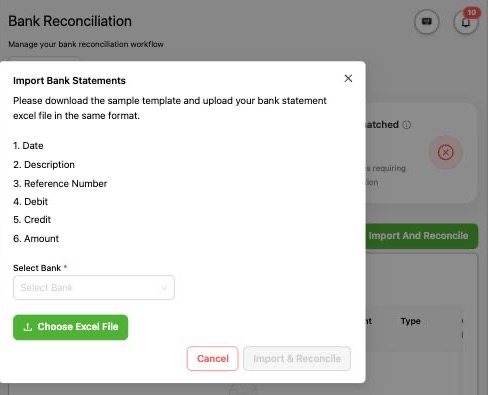
Review the matches
📍 Bank Reconciliation: Matched / UnmatchedRight after the import, lines show Pending while matching runs. A statement line matches automatically when its reference number, bank, date and amount agree with an unmatched bank book entry of your Location in the opposite direction. These are bank book entries held for reconciliation, not the transactions on the Bank Book screen: receipts, payments and contra entries you post are not added to them in this version, so they are not matched or offered for matching, and their lines stay Unmatched. Matched lines show Matched, and their bank book entries become Reconciled. The rest show Unmatched. You can filter the list by Status (Matched, Unmatched, Pending) and Type (Debit, Credit).
Match the rest by hand
📍 Unmatched line → Actions → Match EntryMatch Unmatched Entry shows the statement line (Statement Amount, Statement Date, Statement Transaction Type, Reference Number, Bank Name) and lists the bank book entries you can link: unmatched entries of the same bank and Location with exactly the same amount and the matching direction (up to 50, newest first). Select one (Link Selected is greyed out until you do) and click Link Selected. A match can't be undone, so check before you link.
Matching only changes statuses; it doesn't post anything to the accounts.
Statuses and approvals#
| Record | Values |
|---|---|
| Journal entry | Posted; Cancelled for a cancelled manual journal (or the journal of a cancelled contra entry); Reversed for a journal reversed by its source document |
| Contra entry | Posted, or Cancelled |
| Statement line | Pending after import, then Matched or Unmatched |
| Bank book entry | Reconciled once matched |
Journals, contra entries and reconciliation have no approval step.