
Finance
Finance keeps your Company's books. Most accounting happens automatically: when someone saves a sales or purchase invoice, a receipt or payment, a credit or debit note, opening stock, a stock adjustment or an opening balance on a ledger or bank, MSME Sales Booster posts the journal entry for it. Goods receipts (GRN), material issues and returns, and production receipts don't post journal entries in this version. Your accounts team then checks the books, records anything unusual with a manual journal, reconciles the bank and reads the reports.
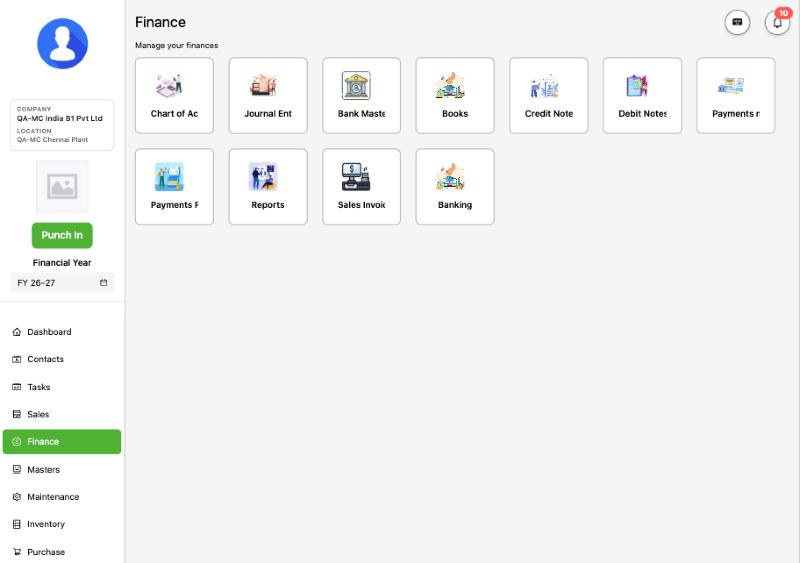
- 1Financial Year
- 2Journal Entries
- 3Reports
Whose books you see#
Ledgers and bank accounts belong to the Company you're working in; all its Locations share them. Journals, invoices, receipts, payments, notes, contra entries, the books and the reports belong to the Location you're working in: you see and change only those of the Company and Location selected in the sidebar. Your permissions come from your role in that Company; a member with Is Admin has every permission.
How money flows through the books#
| Document | Where it's created | What it posts | Editing it | Cancelling it |
|---|---|---|---|---|
| Sales invoice | Finance → Sales Invoices, or from a delivered challan | Debits the customer's ledger; credits the sales revenue, tax and charge ledgers; the round-off ledger is credited when the total is rounded up and debited when it is rounded down | Reposts the entry | Reverses the entry |
| Payment received | Finance → Payments Received, or Record Payment on an invoice | Debits Cash-in-Hand or the bank's ledger; credits the customer (an advance goes to Customer Advance) | Reposts the entry | Reverses the entry |
| Credit note (customer) | Finance → Credit Notes | Credits the customer's ledger; debits the credit-note posting rule ledger and the output tax ledgers (a Rate Difference note that raises the price posts the other way round) | Reposts the entry | Reverses the entry |
| Purchase invoice | Purchase module | Credits the vendor's ledger (or Accounts Payable); debits the purchase posting rule ledger and the input tax ledgers | Reposts the entry | Reverses the entry |
| Payment made | Finance → Payments made | Credits Cash-in-Hand or the bank's ledger; debits the vendor (an advance goes to Vendor Advance) | Reposts the entry | Reverses the entry |
| Debit note (supplier) | Finance → Debit Notes | Debits the vendor's ledger; credits the debit-note posting rule ledger and the input tax ledgers (a Rate Difference note that raises the price posts the other way round) | Reposts the entry | Reverses the entry |
| Contra entry (cash ↔ bank) | Finance → Books → Contra Entries | Debits the To account, credits the From account | Updates its journal | Cancels the entry and its journal |
| Opening stock and stock adjustments | Inventory | Automatically | No edit or cancel action in this version | No edit or cancel action in this version |
| Manual journal | Finance → Journal Entries | The lines you enter, posted when you save | Updated in place with the new lines (same journal number, no reversal entry) | Cancels the entry |
Some cancellations are refused until the documents that settle them are cancelled first: a sales invoice that receipts or credit notes still settle, and a purchase invoice that payments or debit notes are still applied to.
Automatic posting is controlled by Enable Ledger Posting on the Common Settings tab of Admin → Application Settings → Finance, separately for each Company (it is on by default). When it is off, documents are saved without journal entries, and they are not posted automatically later (but if the setting is switched back on, editing a purchase invoice, credit note or debit note saved while it was off posts it). The exception is a ledger's opening balance: a ledger created in Chart of Accounts with an opening balance posts its opening balance journal even while the setting is off. Once the Company has posted journals the setting is locked: the screen shows Enable Ledger Posting is locked and it can no longer be changed. The same screen sets the numbers of journals, bank and cash books, payments, receipts, sales and proforma invoices and credit and debit notes, and the print layout of sales invoices; its tabs and fields are listed in Finance settings. Saving needs Update on App Settings under ADMIN in your role.
Before you start#
✅ Before you start
0/6 readyThe Finance screens#
Chart of Accounts#
The list of ledgers, each with an Account Code, Account Type (Asset, Liability, Equity, Income, Expense) and Account Group.
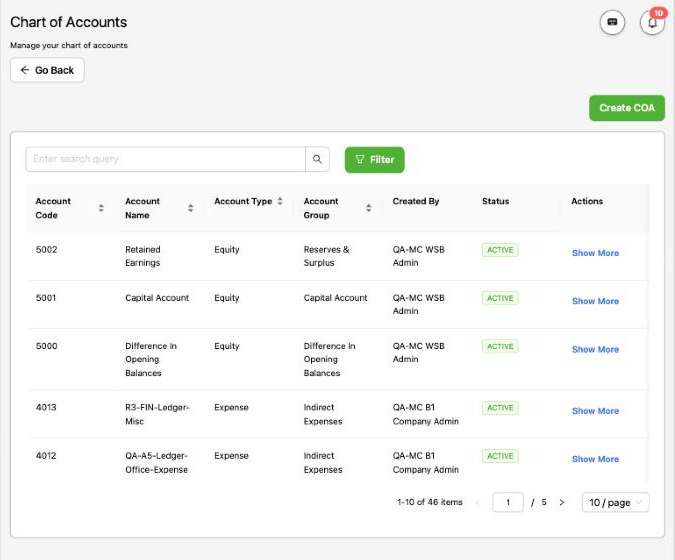
To add a ledger, click Create COA and fill in:
- Ledger Name (it must be unique in the Company).
- Account Group, for example Indirect Expenses, Bank Accounts or Sundry Creditors.
- Optionally, an Opening Balance: Dr or Cr, with its As On date. It posts an opening balance journal.
- The Currency (the Company's base currency if left empty), and any notes.
A ledger that is no longer needed is cancelled, not deleted. After that it can't be used for new transactions. System ledgers can't be edited or cancelled.
Journal Entries#
Every posting, automatic or manual, appears here.
- Entry Type shows Manual, or the source document as a link back to it (Sales Invoice, Payments Received …).
- Status shows Posted, Reversed (a later cancellation or change of the document reversed it) or Cancelled.
- Automatic entries can't be edited or cancelled. Change or cancel the source document instead.
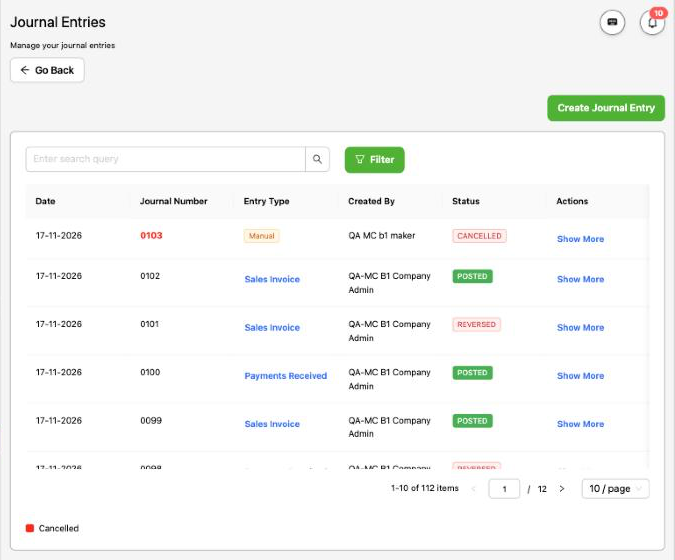
- 1Manual entry
- 2Linked to its source document
- 3Reversed
To record a manual journal:
- Click Create Journal Entry.
- Choose the Currency. Foreign currencies also need an Exchange Rate to your base currency.
- Add a Narration.
- Add lines with Add Entry. Each line has a Chart of Account, a description, and either a Debit or a Credit.
- Check that the totals match, then click Create. The entry is dated today and posted immediately; there is no date field, draft or approval step.
Bank Master and Books#
- Bank Master: your bank accounts. Saving a bank creates its ledger under Bank Accounts.
- Required: Bank, Account Number (IBAN outside India), Account Holder Name, Opening Balance (with Dr/Cr when it is above zero), and Is Reconciliation Account.
- Optional: IFSC Code (India), Branch, Account Type, SWIFT / BIC, Currency and Bank Address. Opening Balance As On is required when the opening balance is above zero.
- Books → Bank Book / Cash Book: opening balance, receipts, payments and closing balance per bank or cash account, and one account's transactions with a running balance over a date range. Export needs the Export permission on Bank Book or Cash Book.
- Books → Contra Entries: moving money between cash and bank, for example a cash deposit.
- Choose From (Cash or Bank) and To, with the ledger or bank on each side.
- Enter the Amount, and optionally a Reference No. and Narration.
- The source and destination must differ.
- Banking → Bank Reconciliation: import a bank statement (Excel) for a bank account. Lines are matched automatically against the bank book entries held for reconciliation; match the rest by hand. Lines show as Pending, Matched or Unmatched. Receipts, payments and contra entries you post are not added to those entries in this version, so they are not offered for matching.
Sales invoices, receipts and credit notes#
-
Sales Invoices shows each invoice with its Pending Amount and Payment Status (Unpaid, Partially Paid or Fully Paid).
- On an invoice, Record Payment opens Payments Received with the customer and invoice already filled in.
- Invoices can also be created from a delivered delivery challan; see Logistics.
-
Payments Received: choose the customer.
- Choose the Payment Type: Against Invoice (allocate the amount to one or more invoices) or Advance Payment.
- Then enter the Payment Mode (Cash, Bank, Cheque, UPI). For any mode except Cash, also choose the Bank Account.
-
Credit Notes: choose the customer and the Credit Note Type:
- Return or Rate Difference, against a sales invoice;
- or Advance Refund.
Then give a Reason. On a credit note, the invoice can't be changed once items are added.
Purchase payments and debit notes#
- Payments made: the same as receipts, for vendors.
- Choose Against Invoice to allocate to purchase invoices, or Advance Payment.
- Debit Notes: choose the vendor and the Debit Note Type: Return or Rate Difference against a purchase invoice, or Advance Refund.
Reports#
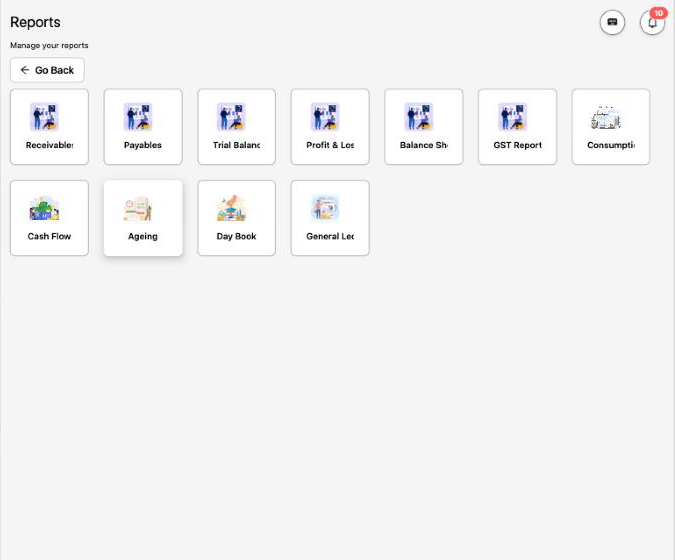
| Report | What it answers |
|---|---|
| Receivables / Payables | Which customer or vendor invoices are still open? |
| Ageing | How old are open invoices (0–30, 31–60, 61–90, 90+ days)? |
| Trial Balance | Do debits equal credits, by account type and ledger? |
| Profit & Loss | Income minus expenses, with closing stock valuation |
| Balance Sheet | Assets, liabilities and equity |
| General Ledger | Every transaction in a ledger, with opening and closing balances |
| Day Book | All vouchers of a day |
| Cash Flow | Money in and out of cash and bank accounts |
| GST Reports (India) | CGST, SGST and IGST on sales and purchases |
| Consumption | Material consumed by item, product, work order, department or requisition purpose |
The reports show the figures of the Company and Location you're working in. Most reports have Export Report or Export, which needs the Export permission on that report in your role. Each report has its own guide:
| Guide | Reports |
|---|---|
| Receivables, payables and ageing | Receivables, Payables, Ageing |
| Financial statements and GST | Trial Balance, Profit & Loss, Balance Sheet, GST Reports |
| Cash Flow, Day Book and General Ledger | Cash Flow, Day Book, General Ledger |
| Consumption report | Consumption |
| Bank Book and Cash Book | Bank Book, Cash Book (opened from Books, not from the Reports page) |
Proforma invoices have no card on the Finance page; open them from the search (Ctrl + F). See Proforma invoices.
The Finance dashboard (Dashboard → Choose Dashboard → Finance) gives a chart view of the same books. See Finance dashboard.
If Finance isn't offered in Choose Dashboard, or the dashboard's Export links are greyed out (You don't have permission to export), ask an administrator to tick Read (and Export for the downloads) on Finance Dashboard under FINANCE for your role in Admin → User Roles. Only a member with Is Admin can change the role they hold themselves; anyone else's own role must be changed by another administrator.
Financial years#
Every posting date must fall in an open financial year of the Company. Choose the year in the sidebar: most Finance lists and the Trial Balance, Profit & Loss, Balance Sheet, Cash Flow and General Ledger start from it.
On 1 April each year, MSME Sales Booster moves your account-wide financial year (used, for example, by the date range of Bank Book and Cash Book) to the new April–March year. The sidebar selector lists the Company's own financial years, plus All FY. It does not create or open the next financial year for each Company. Before the year ends, an administrator creates it with Create Financial Year on the Company's Financial Years tab in Admin → Companies; otherwise postings dated in the new year are refused. The form asks for the Start Date, End Date, Suffix (for example 26-27) and Status (Upcoming, Open or Closed); the Company is filled in for you. Every field is explained in Companies and numbering.
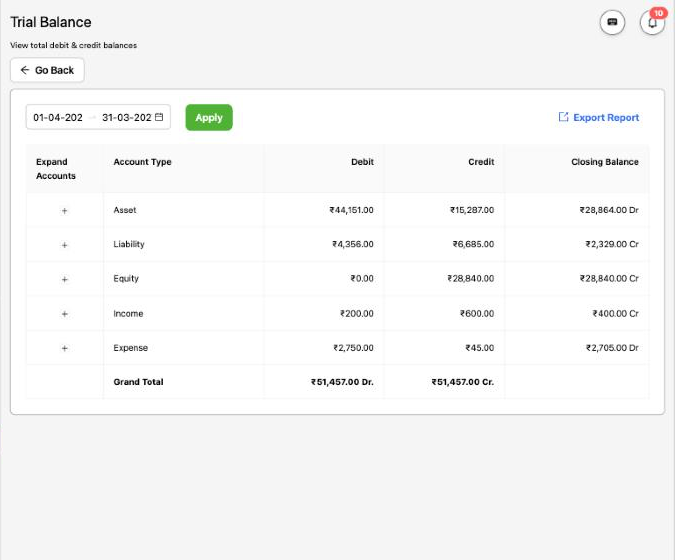
- 1Date range
- 2Export Report
- 3Expand to ledgers
India and Indonesia#
E-invoicing is set up for each Company on its E-Invoice tab in Admin → Companies, while you are working in that Company. See E-invoicing and GST.
- India:
- A sales invoice generates a GST e-invoice (IRN) through Masters India from its E-Invoice tab once the Company's e-invoicing is set up; a return credit note also needs e-invoicing on for your account. An e-invoiced sales invoice can also generate an e-way bill (E-Waybill button) when e-way bills are switched on and its subtotal is at least ₹50,000. Below ₹50,000 the E-Waybill button is greyed out with E-Way Bill cannot be generated for invoices below ₹50000.
- Credit note e-invoices and e-way bills use the GST portal login saved for the Company.
- Once an e-invoice has been generated, the sales invoice can't be cancelled in MSME Sales Booster, and a credit note with an e-invoice can't be edited or cancelled.
- GST Reports are available only for Indian companies.
- Indonesia:
- The sales invoice's E-Invoice tab sends PPN e-invoices through Pajak.io for an Indonesian Company.
- A draft created by Pajak.io shows Draft Created — Upload to DJP Required until you use Upload to DJP.
- Cancelling an accepted e-invoice cancels the government e-invoice only; the sales invoice stays unchanged.
Roles and permissions#
In Admin → User Roles, the Finance module has one row per screen: Finance Dashboard, Ageing, Bank Book, Bank Master, Cash Book, Chart Of Accounts, Contra Entries, Consumption, Credit Notes, Debit Notes, GST Reports, Journal Entries, Sales Invoices, Payments Made, Payments Received, Payables, Receivables, Reports, Proforma Invoices, Bank Reconciliation, Trial Balance, Profit And Loss and Balance Sheet. Most reports, Bank Book, Cash Book and the Finance Dashboard also have an Export action. Cash Flow, Day Book and General Ledger use the Reports row.
Currency. Every journal is recorded in the Company's base currency (INR for an Indian Company, IDR for an Indonesian one). Documents in another currency also carry their currency and exchange rate, and their amounts are converted to the base currency for the books.
Related workflows#
Customer invoice to receipt
Sales invoice, e-invoice, receipt and reports.
Vendor bill to payment
Purchase invoice, payment and reports.
Credit and debit notes
Returns, rate differences and advance refunds.
Edit or cancel invoices and payments
Locks, reposting and reversals.