
Production
Production takes what customers ordered, or what you want to make for stock, and turns it into work orders. A work order's bill of materials and process route produce job cards that the shop floor works through. Finished goods are received into stock when the work is marked complete.
The production flow#
- Customer order (or stock / R&D need)Sales
- Work orderProduction planning
- Bill of materials and processingProduction / design
- Job cards and batchesShop floor
- Mark completed: finished goods into stockQuality
- 1Bill Of Materials
- 2Work Orders
- 3Job Cards
| Step | Where | What happens |
|---|---|---|
| Work order | Production → Work Orders → Create Work Order, or Create Work Order on a customer order | Choose the reference (None or Customer Order), type (Customer Order, Stock or R&D), priority and the products with quantities |
| Start a product | The product's Show More → Start Work Order (later Update Work Order), or Products → Bulk Update | Choose the department and its in-charge. This can't be undone. When the Design module is on, choosing a Design department starts a design request. The first department you choose moves the work order to In Progress. Starting a product doesn't create job cards or reserve material |
| Bill of materials | The work order's BOM tab | Create BOM if the product has none; otherwise Start Processing. For an order-specific (Custom) product it opens a six-step guide (product structure, part BOMs, material purchase request, job-work purchase request, process routes, review) and Continue Processing picks up pending items later; for a Standard or Template product it opens a review screen with the material requirement (Start processing a work order) |
| Job cards | The work order's Job Cards tab | Job cards are created when you confirm processing from the BOM tab's Start Processing (Job cards and production batches). For a Standard or Template product, items with Processing Type Batch are split into batches on the Start Processing screen; the batches are created with the job cards and start as Planned. Start, update and complete each process; batches move through Planned, In Progress, Awaiting Qc and Completed |
| Finished goods | Mark Completed on the product | The product's assignee in a Quality department enters the completed quantity and the receipt store. Stock goes up, valued from the material issued to the work order (Record production completion) |
A work order completes when the full quantity of each product has been received as finished goods, or when every product has been moved to a Dispatch department; you can't set it to Completed by hand. Work orders and job cards have no approval step.
Company and Location. Work orders, job cards, production batches, nesting jobs, production plans and workstations belong to the Location you're working in. Process Master, Process Routing and Planning Templates are shared by all Locations of the Company. You see and change the shared masters from any Location of the Company you're working in, and the Location-owned records only at the Location you're working in.
Before you start#
✅ Before you start
0/5 readyOther production screens#
- Production Planning → Planning Templates: reusable plans for work-order stages.
- Production plan and purchase plan: on a work order's Production Planning tab, Create opens Create Production Plan and Purchase Plan: the product's production plan and its purchase plan (Purchase Planning Template, Purchase Target Date, Delay Intimation Users) are created together, so your role also needs Create on Purchase → Purchase Plans. Without it Create is greyed out with You need permission to create a purchase plan: ask an administrator to tick Create on Purchase → Purchase Plans for your role in Admin → User Roles. See Production planning and delays and Purchase planning templates and work order purchase plans.
- Nesting Jobs: shown when nesting is switched on for your account.
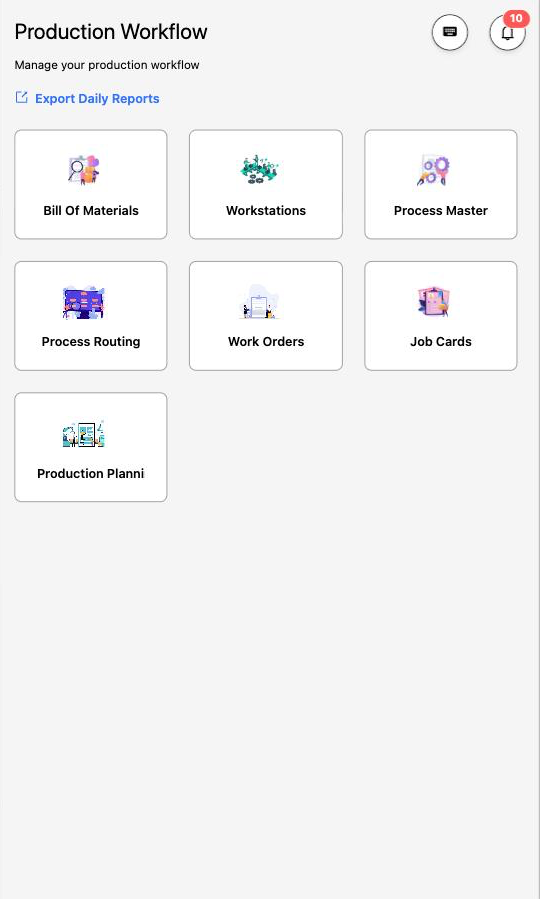
- Daily Production Report: Export Daily Reports on the Production page (needs Work Orders export); see Production planning and delays.
Which cards you see. The Production page shows Bill Of Materials, Workstations, Process Routing, Work Orders, Job Cards and Production Planning to everyone who can open it. Process Master is hidden when your role can't read Process Master, and Nesting Jobs appears only when nesting is switched on. What you can do on each screen depends on your role's Production permissions; when your role doesn't allow something, the screen shows a no-permission page or the message You do not have permission to perform this action.
Guides by task#
| Task | Guide |
|---|---|
| Choose make-to-order or engineer-to-order | Engineer-to-order and make-to-order |
| Build BOMs and multi-level BOMs | Bills of materials |
| Import a parts list from CAD | BOM import from CAD |
| Split a drawing PDF per part | Drawing PDF page split |
| Revise BOMs, frozen BOMs | BOM revisions and frozen BOMs |
| Start processing, material requirement, Bulk PR, job work | Start processing a work order |
| Run job cards and production batches | Job cards and production batches |
| Receive finished goods | Record production completion |
| Machine builders | SPM, conveyor and gear-motor makers |
Rules to know#
- Nesting jobs: confirming rules are in Work order view and tools.
Related workflows#
Customer order to invoice
Order, work order, production, dispatch and invoice.
Material for production
Requirement, requisition, issue and consumption.
Item, BOM, design and drawings
From the item master to production.