
Maintenance
Maintenance keeps machines running. Operators report a breakdown as a request, preventive plans remind the technician before a service is due, and technicians close each request with a report listing the work done and the spare parts used.
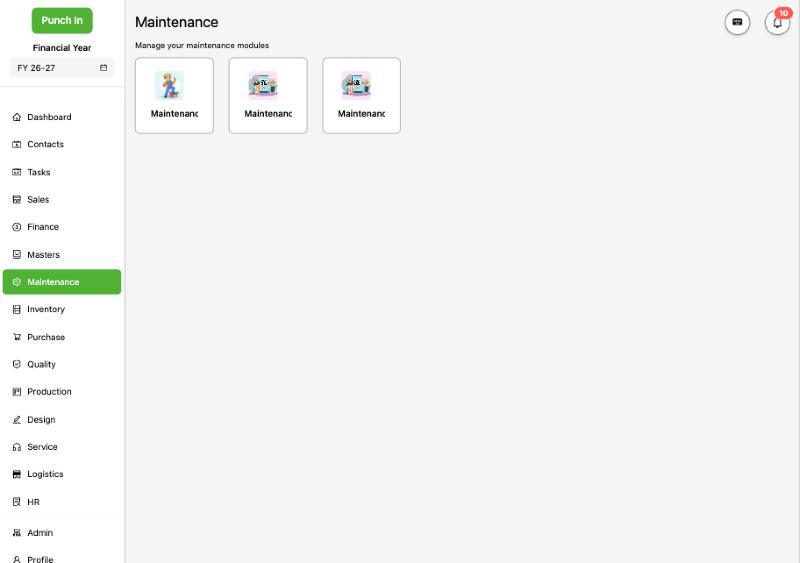
- 1Requests
- 2Plan
- 3Reports
How maintenance flows#
✅ Before you start
0/4 readyMaintenance Requests#
- Go to Maintenance → Maintenance Requests → Request Maintenance. The request number is given automatically.
- Choose the Asset Code (the assets of the Location you're working in) and enter a Request Title.
- Pick the Priority: Low, Normal, High or Critical.
- Describe the problem in Issue Description. Upload photos or videos if useful.
- Choose who to Assign To and, optionally, the Requested Department, then click Create. A technician who isn't an active user with access to this Location is refused (Selected user is not an active member of this location). With the Tasks module on, the technician gets a task New Maintenance Request Assigned (…).
To cancel a request, see Cancel a request.
The priority can be changed later by clicking its tag in the register. Only the person who raised the request or its assigned technician can, while the request isn't cancelled, with Requests update in their role.
There is no approval step for requests or reports.
Maintenance Plan (preventive)#
- Go to Maintenance → Maintenance Plan → Create Maintenance Plan.
- Choose the Asset and enter the Last Maintenance Date and a Maintenance Title.
- Set how often the service is due: Time Duration, plus a Time Duration Unit of days, weeks, months or years.
- Choose the Default Technician and save.
The register shows the Next Maintenance Date. MSME Sales Booster reminds the default technician 7, 3 and 1 day before that date and on the day itself, at about 10:00 in the morning.
- The first reminder raises a maintenance request for the plan, at the plan's Location and assigned to the default technician. It appears in the Maintenance Requests register and can be reported like any other request. When its maintenance report is saved, the plan's Next Maintenance Date moves to the report date plus the plan's interval.
- Only one request is raised for a plan while that request isn't cancelled: later cycles don't raise another one, even after it is resolved. If the plan's request is cancelled, the next reminder raises a new one. For later services, raise a request yourself; after its report, edit the plan's Last Maintenance Date (see below) so the next date follows the work.
- Tasks and notifications: with the Tasks module on, the first reminder also creates a task for the technician, and later reminders arrive as notifications on that task. Without the Tasks module the technician gets no task and no notification, so check the register's Next Maintenance Date yourself.
Keep the next date right for later services#
A request you raise yourself doesn't move the plan's dates. After its report, open the Maintenance Plan register, choose Show More → Edit on the plan's row (the plan's creator can) and set the Last Maintenance Date to the date the work was done. The Next Maintenance Date is worked out again from the plan's interval, and the reminders follow the new date.
Example: Hydraulic Press 01, serviced on 1 November, every 1 month → next maintenance 1 December. The technician is reminded on 24, 28 and 30 November and on 1 December; the 24 November reminder raises the plan's request. The service is reported on 3 December, so the next date becomes 3 January. In January no new request is raised: the technician raises one by hand, reports it on 5 January, and the plan's Last Maintenance Date is then set to 5 January (next date 5 February).
A plan saved without a Company or Location (from before Company and Location ownership) can't raise its request; if it never raised one, it sends no reminders either.
Maintenance Reports (closing the work)#
- Go to Maintenance → Maintenance Reports → Create Maintenance Report.
- Choose the Request. Only requests assigned to you, at the Location selected in the header, that aren't resolved or cancelled are offered. The Technician is filled in from the request; another technician must be an active user with access to this Location.
- Enter the Start Time, then the End Time (it can be chosen only after the Start Time and doesn't offer earlier times), and the Details of the work.
- Add Before Photos (the request's photos are included) and After Photos.
- Under Spare Parts Used, click Add Items for each spare, choose the Item Code (stock of the Company and Location you're working in) and enter the Used Qty. The row shows the Available Qty, and Used Qty can't be more than that. A spare part can't be changed after the report is created; a different spare needs a new report.
- Click Preview Maintenance Report, then Create. Create stays disabled until you have previewed, and again whenever you change the form after previewing.
Saving the report:
- resolves the request;
- completes its linked task;
- for a request raised by a plan, sets the plan's Next Maintenance Date to the report date plus the plan's interval;
- reduces each spare part's available quantity by the Used Qty, and adds a note to the item's history.
Cancelling the report reopens the request, sets its task back to Not Started and adds the spare-part quantities back (to the stock rows of the report's own Company and Location). The quantity change is made directly on the item: no stock issue or stock ledger entry is created and nothing is posted to the accounts, so stock movement reports don't show spares used by maintenance.
Maintenance dashboard#
Dashboard → Maintenance shows:
- total, upcoming, in-progress, overdue, completed and cancelled requests;
- breakdowns by asset and department;
- preventive versus breakdown work and plan compliance;
- technician workload and resolution times;
- spare-part costs.
It is offered under Choose Dashboard when the Maintenance module is on and your role has Read on Maintenance → Maintenance Dashboard, and has no export. It counts only requests of the Location selected in the header. The request counts and lists at the top count the requests you raised or are assigned, plus those of the members assigned to you; with Can View All Members Maintenance Entries ? set to yes in your team settings, or with Is Admin on, they count everyone's. The analysis cards (breakdowns, plan compliance, workload, resolution times, costs) count every request of the Location. Every card is described in Maintenance dashboard.
Roles and permissions#
In Admin → User Roles, the Maintenance module has four pages: Maintenance Dashboard, Maintenance Plan, Requests and Reports. Asset Master is under Masters → Asset Codes; the asset lists on requests and plans need its Read too. Requests, plans and reports belong to one Location: you see and work only on those of the Location selected in the header.