
Maintenance: assets, breakdown requests, preventive plans and reports
Example. The hydraulic press in Bay 2 stops. The operator raises a maintenance request for the press, marked High. The technician fixes it, records the work and the seal kit used in a maintenance report, and the request becomes Resolved. The press also has a plan for servicing every 3 months, so the technician is reminded a week before the next service.
Who does what#
| Step | Typical person | Screen |
|---|---|---|
| 1. Register the asset | Maintenance in-charge | Masters → Asset Master |
| 2. Raise a request | Operator or supervisor | Maintenance → Maintenance Requests |
| 3. Plan preventive work | Maintenance in-charge | Maintenance → Maintenance Plan |
| 4. Report the work | Technician | Maintenance → Maintenance Reports |
Before you start#
✅ Before you start
0/4 readyStep by step#
Register the asset
📍 Masters → Asset Master → Create Asset CodeEnter the Asset Name and Category (required), and optionally the Storage Location and Department. The asset code is given automatically.
Open the full-size screenshot of Masters: Create Asset Code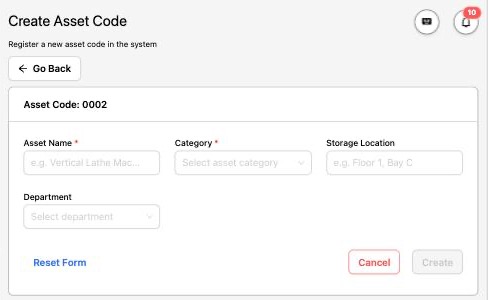
Raise a maintenance request
📍 Maintenance → Maintenance Requests → Request MaintenanceChoose the Asset Code (assets of the Location selected in the header), enter a Request Title, the Priority (Low, Normal, High or Critical) and an Issue Description, and add photos or videos. Choose the technician in Assign To (an active user with access to this Location) and, optionally, the Requested Department. The request is Open. When Tasks are switched on and a technician is assigned, they get a task. Always assign a technician: only the assigned technician can file the report, so an unassigned request can't be reported until it is edited and assigned.
Open the full-size screenshot of Maintenance: Request Maintenance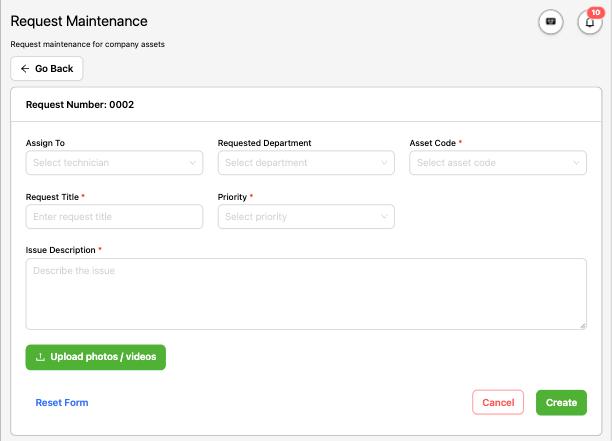
Plan preventive maintenance
📍 Maintenance → Maintenance Plan → Create Maintenance PlanChoose the Asset, the Last Maintenance Date, a Maintenance Title, how often (Time Duration and Time Duration Unit: days, weeks, months or years) and the Default Technician. The next maintenance date is worked out for you.
The technician is reminded 7, 3 and 1 day before the next date and on the day. The first time a reminder is due, it raises a maintenance request for the plan at the plan's Location, assigned to the default technician; it appears in the Maintenance Requests register and is reported like any other request. With the Tasks module on, that first reminder also creates a task for the technician, and later reminders arrive as notifications on it; without the Tasks module, no task or notification is sent. Only one request is raised for a plan while that request isn't cancelled; if it is cancelled, the next reminder raises a new one.
Open the full-size screenshot of Maintenance: Create Maintenance Plan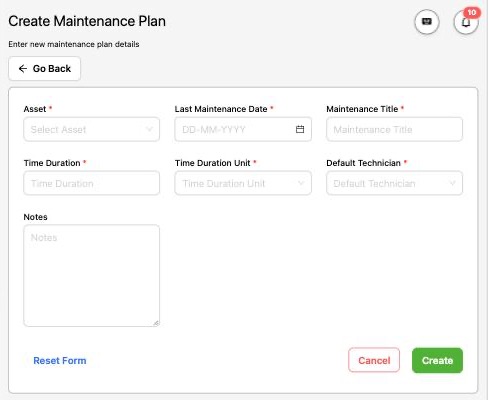
Report the work
📍 Maintenance → Maintenance Reports → Create Maintenance ReportChoose the Request (only requests assigned to you, at the selected Location, that aren't resolved or cancelled appear), the Technician, the Start Time and End Time, and describe the work in Details. Add before and after photos, and the Spare Parts Used with their quantities. Click Preview Maintenance Report, then Create.
When the report is saved, the request becomes Resolved, its task is completed, and each spare part's available quantity is reduced by the Used Qty (see Spare parts and stock below). For a request raised by a plan, the plan's Next Maintenance Date moves to the report date plus the plan's interval. A spare part can't be changed after the report is created.
Preview Maintenance Report fills the editor below the form with the formatted report, built from what you have entered, including the photos and spare parts. Its header shows your Company's legal name and logo and the Location's address. You can adjust the wording there before saving. Create (or Update when you edit a report) stays switched off until you preview. If you change anything in the form after previewing, the button switches off again, so preview once more before saving.
When you save or update a report, its PDF is prepared in the background from the previewed report. After a short while the PDF appears on the report's Files tab, with the before and after photos. If the report text changed, updating it replaces the PDF with the new version.
Open the full-size screenshot of Maintenance: Create Maintenance Report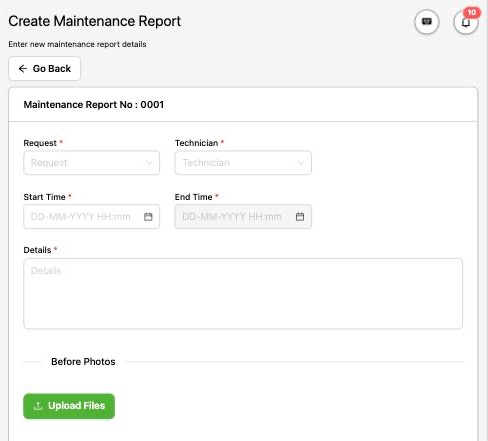
Plans are Active or Cancelled. Assets are Active, or Retired when cancelled. There's no approval step anywhere in Maintenance.
Cancel a request#
Open the request with View and click Cancel. Enter the Reason For Cancellation and click Proceed. On the screen, Cancel is enabled only for the person who raised the request, and their role needs Cancel on Maintenance → Requests. The request becomes Cancelled, its task is cancelled too, and it can no longer be edited or reported.
Spare parts and stock#
Requests and plans don't touch stock. A maintenance report does, in a limited way:
| When | What happens to each spare part |
|---|---|
| The report is created | Its available quantity is reduced by the Used Qty, and a line such as Used 2 for maintenance request … with the remaining quantity is added to the item's history. |
| The report is cancelled | The quantity is added back. |
This is a direct change to the item's available quantity. No stock issue document or stock ledger entry is created, so the quantity used doesn't appear in stock movement reports, and nothing is posted to the accounts. If you need the consumption in your stock records, also issue the spares through your usual inventory process and agree with your stores team how to avoid counting them twice.
Cancel a maintenance report#
Open the report with View, click Cancel, enter the Reason For Cancellation and click Proceed. On the screen, Cancel is enabled only for the report's creator, and their role needs Cancel on Maintenance → Reports. Cancelling:
- sets the report to Cancelled;
- reopens its request (Open) and sets the request's task back to Not Started;
- adds the spare-part quantities back to their available quantity.
Use this when a wrong request or spare part was recorded, then create a new report.
Common mistakes#
Edit plans, requests and reports#
All three are edited from Show More → Edit in the list, by their creator, until cancelled.
- Plan: last maintenance date, title, duration, default technician and notes. The asset can't be changed: cancel the plan and create a new one.
- Request: assignee, department, asset, title, priority, description and up to 5 photos. Clicking the Priority tag in the list changes only the priority; only the person who raised the request or its assigned technician can, while it isn't cancelled.
- Report: technician, start and end times, details and before and after photos. Click Preview Maintenance Report, then Update. The request and spare parts used can't be changed.
Dashboard: Dashboard → Choose Dashboard → Maintenance shows request totals, overdue and upcoming work, technician workload, costs and plan compliance for the Location selected in the header. It counts the requests you raised or are assigned, plus those of the members assigned to you (everyone's when Can View All Members Maintenance Entries ? is set to yes in your team settings, or when you are an admin with Is Admin on). It needs Read on Maintenance → Maintenance Dashboard. Its cards have no export.
Rules to know#
- Spare parts recorded on a report reduce the item's available quantity directly; cancelling the report restores it. No stock ledger entry is made.
- Each morning, requests that aren't resolved or cancelled are marked Overdue once the day they were raised for has passed.
- The Maintenance Requests, Maintenance Plan and Maintenance Reports lists show only the records of the Location selected in the header. Older requests saved without a Location aren't listed.
- An asset that is already retired (cancelled) can't be cancelled again.