
Set up production: workstations, processes, routings and planning templates
Example. Your fabrication shop has a laser cutter and a press brake. You create a workstation for each and name the in-charge. You create two processes, Laser cutting (In-House, 12 minutes) and Bending (In-House, 8 minutes), each linked to its machine. You join them in a routing, Bracket route: Step 1 Laser cutting, Step 2 Bending. Last, a planning template, Standard bracket, lists the departments a work order passes through. Every new bracket work order can now reuse all of this.
Who does it#
A production engineer or planner whose role can create on the Production permission pages Workstation, Process Master, Process Routing and Planning Templates. Production settings are under Admin → Application Settings and need the Admin permission page App Settings. Set these up once, before your first work order.
Before you start#
✅ Before you start
0/3 readyStep by step#
Create a workstation for each machine or work centre
📍 Production → Workstations → Create WorkstationEnter the Workstation Name and Department (both required), and optionally the Workstation In-Charge, Team Members and Description. The in-charge is added to the team automatically. Each workstation gets a code such as WS00001, numbered across your Company. Two workstations in the same department at this Location can't share a name. The in-charge and team members must have access to the current Location, or the workstation isn't saved.
Create the processes
📍 Production → Process Master → Create ProcessEnter the Process Name, Process Type (In-House or Outsource), Process Time (In minutes) and Process Cost (shown with your company's currency), all required. Choose the machines that can do it under Workstation/Machine's: this is required for an In-House process and optional for Outsource. The list shows the active workstations of your current Location. Add a Process Description if useful.
Join processes into a routing
📍 Production → Process Routing → Create Process RouteEnter a Routing Name. In Process Routing Steps, choose the Process Name for Step 1, then Add Next Step for each further step. If a process has only one workstation, the Workstation and Assigned To fill in for you. Drag a row to change the order of the steps, or click Remove to delete one; the Process Routing Flow line under the table shows the steps in order. A routing needs at least one step. It gets a code such as RT00001, numbered across your Company, and its type (In-House, Outsource or Mixed) follows its processes. Steps can only use your Company's processes and workstations, and people with access to the Company.
Open the full-size screenshot of Production: Create Process Routing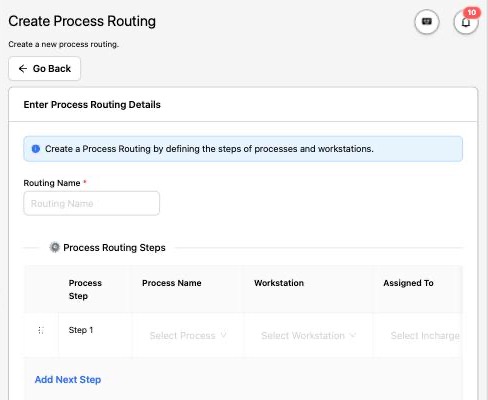
Give products their routing
📍 Sales → Product Master → product → Process RoutingSet the routing on each manufactured product (finished or semi-finished goods). In the Start BOM Process wizard for order-specific products you pick the routing (shown as RTxxxxx - name) for each part.
Create planning templates (optional)
📍 Production → Production Planning → Planning Templates → Create TemplateEnter a Template Name, then Add Department for each stage, with its Department and Responsible Person (both required) and an optional Stage Name. Create stays greyed out until at least one department is added. The responsible person must have access to your Company. When you plan a work order, choose the template in Template to fill in its departments. Copy From, shown when another product of the same work order already has a plan, copies that product's plan instead.
Statuses#
| Record | Values |
|---|---|
| Workstation, process, routing, template | Active until cancelled, then Cancelled |
Cancel from the record's view page. A reason is required, and a cancelled record can't be edited and is no longer offered for selection. A workstation can't be cancelled while active processes, routings or open job cards use it. Processes and routings aren't checked this way, so remove them from items first.
These records have no approval step and don't affect stock or accounts.
Common mistakes#
Edit workstations, processes, routings and templates#
Each is edited from Show More → Edit in its list until cancelled. For workstations, processes and routings, Edit is greyed out for everyone except the record's creator (Only the creator or designated users can update this entry); a planning template can be edited by anyone whose role has Update:
- Workstation: name, department, in-charge, team members and description. The name must be unique within its department.
- Process: name, type, workstation or machines, time, cost and description.
- Process routing: name, steps (add or remove) and description; it needs at least one step.
- Planning template: description and department plan; the template name can't be changed.
Production settings#
Admin → Application Settings → Production opens the Production Settings page (opening it needs Read on the Admin permission page App Settings; saving needs Update). The settings belong to the Company you're working in, so each Company keeps its own numbering, plant heads, notification receivers and task settings. The page has up to four tabs. Change the fields and click Save Changes.
| Tab | Settings |
|---|---|
| Work Order | Plant Heads: Assign Plant Heads (on a work order, the edit icon next to Our Target Date is shown to them and to the work order's creator). Work Order Numbering: Work Order Numbering Type Common (one Work order number prefix, Work order no of digits, Work order number suffix, previewed as Example Work Order No) or Detailed (Add Work Order Type for Customer Order, Stock and R&D, each with Prefix, Digits, Suffix and its own example). Task Automation Settings for work order tasks. Dispatch Planning Notifications: Dispatch Notification Receivers. Work Order Completion: Require Material Issue Before Work Order Completion |
| Job Card | Job card number prefix, Job card no of digits, Job card number suffix, Example Job Card No, and Task Automation Settings (Task Due in Days (Max 30), Task Priority) for job card and inspection tasks |
| Price Estimation BOM | Shown with the Tasks module: Task Due in Days (Max 30) and Task Priority for price estimation BOM tasks |
| Production Batch | The batch number format built from tokens (Add Token): Financial Year, Year, Month, Day, Counter, Separator, Custom Text; Example Production Batch No previews it |
- Assign Plant Heads and Dispatch Notification Receivers offer only team members who have access to the active Company.
- Task Automation Settings appear only when the Tasks module is on.
- Every Monday at 10:00, each Dispatch Notification Receiver gets the task [Action Needed] Review Weekly Planned Dispatches for each Location of the Company they have access to, when the Tasks module is on.
- Without update permission, Save Changes is greyed out with You do not have permission to update production settings.
- Require Material Issue Before Work Order Completion is set for the active Company and saved as soon as you switch it, not by Save Changes. When on, finished goods can be received only after the work order's raw materials are issued (Record production completion). The line under the switch shows the state, for example Enabled for this Company. or Disabled for this Company (default). To change it you need update permission and a Location of that Company selected; otherwise the switch is greyed out (Select a Location of this Company to change this setting., or the tooltip You do not have permission to update production settings).
- On the Production Batch tab, an invalid format greys out Save Changes; hover over it to see the rule broken (for example Counter token is mandatory for batch numbering). The format needs a Counter, can't be empty, can't start or end with a separator or have two separators together, and custom text and separators need a value.
- When Work Order Numbering Type is Common, every work order type uses the common format, even a type that has a format saved under Detailed.
- If saving shows This company's settings have not been set up yet., the Company's settings record doesn't exist yet; contact MSME Sales Booster support.
Rules to know#
- Each active planning template needs a name not already used by another active template of the same Company.
- Workstations belong to one Location; Process Master, Process Routing and Planning Templates are shared by all Locations of the Company.