
Customer order to invoice: make, dispatch and bill
Example. A customer orders 10 fabricated frames. Sales enters the order. Planning raises a work order and plans its stages. The shop floor processes the frames through job cards. Quality receives the finished frames into the Finished Goods store. Dispatch sends them on a delivery challan, and Accounts bills them on a sales invoice.
Every arrow in the diagram below is something a person does on a screen. The system fills details in for you and updates the related statuses as a result, but each step itself is started by a person.
Who does what#
| Step | Typical person | Screen |
|---|---|---|
| 1. Customer order | Sales | Sales → Customer Orders |
| 2. Work order | Production planning | Customer order → Actions → Create Work Order |
| 3. Production plan | Production planning | Work order → More → Production Planning |
| 4. Start and process | Department in-charge | Work order → Products, then BOM |
| 5. Job cards | Shop floor | Work order → Job Cards |
| 6. Finished goods | Quality member the product is assigned to | Work order → Products → Mark Completed |
| 7. Delivery challan | Dispatch | Work order or customer order → challan |
| 8. Sales invoice | Accounts | Delivery challan → Actions → Create Sales Invoice |
Before you start#
✅ Before you start
0/6 readyStep by step#
Enter the customer order
📍 Sales → Customer OrdersCreate the order from a quotation or directly. A new order is Active. There's no approval step on customer orders. Taxes follow the Tax Rule you choose on the order. The order acknowledgement PDF is prepared automatically after the order is created, edited or amended and appears on the order's Files tab; there's no separate download or regenerate action (except Generate O.A PDF for companies connected to SAP Business One). Every field, credit blocks, amendments and the order acknowledgement are explained in Customer orders.
Open the full-size screenshot of Sales: Customer Order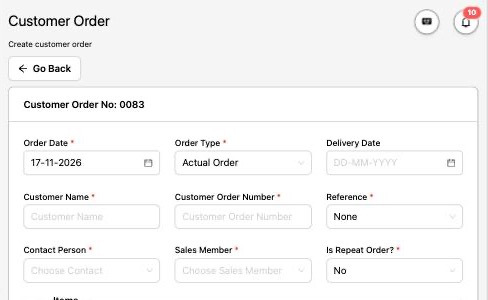
Create the work order
📍 Customer order → Actions → Create Work OrderThe work order form opens with the customer and order already filled in. Create Work Order is shown only to the person who created the customer order, when their role has Work Orders create (being an administrator doesn't change this). You can also start from Production → Work Orders → Create Work Order and choose Customer Order as the reference.
- Required: Work Order Date, Select Reference (None or Customer Order), Work Order Type (Customer Order, Stock or R&D; Customer Order isn't offered when the reference is None) and Priority (Low, Medium, High or Urgent). With the Customer Order reference also Company Name and Select Customer Orders.
- Optional: Our Target Date, Assign To and the Customer Target Date.
- With the Customer Order reference, click Choose Items. Choose Products to Create Work Orders lists each order line with its Ordered Qty, Already Allocated (on other work orders), Available Qty and the Work Order Qty to put on this work order, at most the available quantity. You can make a work order for part of a line and the rest later. Combine Selected joins lines with the same item code and unit (even from different customer orders) into one product; Split Row separates them again. A line whose remaining quantity is already on a work order, or whose processing has started, can't be ticked.
- Without a customer order, add lines with + Add Product. Each product line has a quantity and a type: Manufacturing, Service or Bought Out.
A new work order is Pending, and the customer order lines it covers become In Production (the order too). If another person took the same quantity a moment earlier, saving shows an error that names the item and the quantity still available (Requested quantity of … exceeds available quantity of …). Create Work Order is greyed out once the whole quantity of every line is on work orders (Every item on this customer order already has a work order.), or when the customer order is closed or amended. It isn't shown at all on a cancelled order.
Open the full-size screenshot of Production: Create Work Order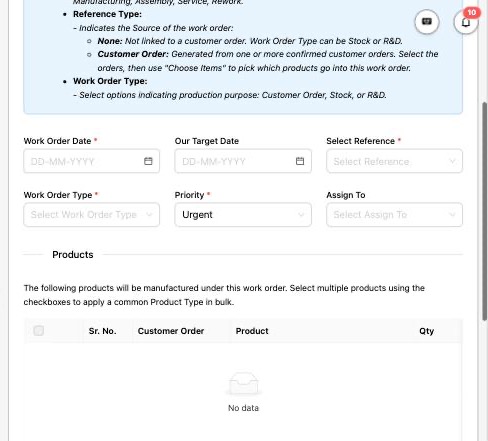
Plan the stages (optional)
📍 Work order → More → Production Planning → product → Show More → CreateOnly products of type Manufacturing can have a production plan. Choose the product and, optionally, a Template (from Production → Production Planning → Planning Templates) or Copy From another plan. For each stage, set the Department, Responsible Person and Target Days; the system works out the target dates. In the same window choose the Purchase Planning Template and Purchase Target Date: the purchase plan is created with the production plan. Each product can have one active plan. Plans whose stages run late appear in the delayed production plans list.
Open the full-size screenshot of Production: View Work Order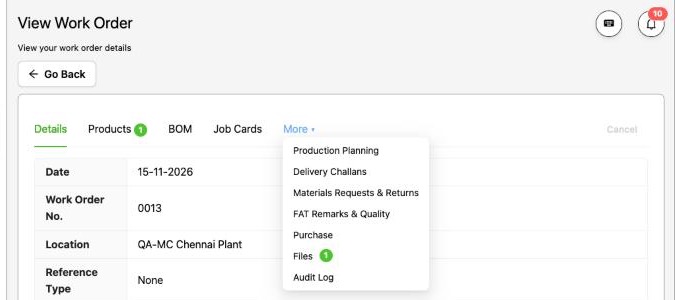
Start the product
📍 Work order → Products → Show More → Start Work OrderChoose the Department and its in-charge, add a remark or file, and click Yes, Start. The work order moves from Pending to In Progress. When the product has a production plan, only the plan's stage departments are offered. The in-charge gets a task when Tasks is switched on, or a notification otherwise. Starting the product doesn't reserve material or create job cards; that happens at Start Processing. Choosing a Design department also opens a design request when the Design module is switched on (see the design-to-production journey).
Note that starting or updating a product sets the linked customer order to Closed straight away, not only when the work order completes. Create any further work orders for the rest of that customer order before you start its products: a closed order no longer offers Create Work Order.
To move a started product to another department or in-charge, use Show More → Update Work Order in the same way. The previous in-charge's open task is completed and the new in-charge gets one. Update stays greyed out while the same department and in-charge are chosen. For several products at once, use Products → Bulk Update (see Work order and BOM tools).
Start processing
📍 Work order → BOM → Start ProcessingWhat opens depends on the product's BOM Strategy:
- Standard or Template BOM: a review screen with the Material Resource Planning table (required quantity, physical, reserved and free stock, and shortage). Click Start Processing.
- Custom BOM: the Start BOM Process wizard: Define Product Structure, Define Part BOMS, Create Material PR, Create Job Work PR, Define Process Routing, Review.
Both are explained step by step in Start processing a work order; which one applies is explained in Engineer-to-order and make-to-order.
When you confirm, the system creates the job cards, adds the raw materials to the work order, reserves them from free stock (the first time only) and raises a purchase request for any shortage. On the fixed-BOM screen, for a product whose Processing Type is Batch, you first split each line's required quantity into batches that add up exactly; the batches are created as Planned.
Work through the job cards
📍 Work order → Job CardsEach job card is Pending, then In Progress, then Completed. On the work order's Job Cards tab use Start Process / Update Process and Mark as Complete (with an inspection step when one is required), or Bulk Mark Complete; see Job cards and production batches. Material is drawn from stores through a material requisition and issue note; see Material for production. Goods bought for the work order on a purchase request can be requested from the GRN with Request Material once added to inventory and not yet requested; this opens a material requisition to be issued (Manage GRNs).
Receive the finished goods
📍 Work order → Products → Show More → Mark CompletedOffered only to the person the product is assigned to, and only while the product is with a Quality department. Enter the Completed Qty, the Store and Assign To (and serial numbers for serial-tracked products), then click Mark Complete. For a Manufacturing product, every job card of the product must be completed or cancelled first.
This is the moment stock goes up: the quantity is received into the Finished Goods store as a production receipt, valued from the material issued to the work order. No accounting journal is posted for the production receipt at present; the value is kept on the stock movement. When every product is complete, the work order becomes Completed. A work order also becomes Completed when all its products have moved to a Dispatch department. If the last product got there through Start Work Order or Update Work Order, its stock reservations are released. If it got there through Bulk Update, the reservations stay until you release them under Inventory → Inventory Reservation. An open quality issue or open FAT remarks block this step. Every message is explained in Record production completion.
Final Inspection in the same menu is offered to the product's Quality assignee.
Dispatch on a delivery challan
📍 Customer order → Create Delivery Challan, or work order → Products → Mark As DispatchWhen a product's full quantity is completed, it moves to your Dispatch department. Mark As Dispatch appears above the work order's product list for members of the Dispatch department once some completed quantity isn't dispatched yet, when the work order is for a customer and Logistics is switched on; it is greyed out without Delivery Challans create permission. Fill in the challan, preview it and create it. Creating the challan reserves the stock; Mark As Delivered (in the challan's Actions, for the person who created the challan) then issues it. See Delivery challans for every field.
Invoice the customer
📍 Delivery challan → Actions → Create Sales InvoiceAvailable once the challan is delivered. You can also invoice from the customer order, or from Finance → Sales Invoices → Create Sales Invoice. The invoice posts to your accounts and the customer order becomes Partially Closed or Closed. Stock already issued by a delivered challan isn't issued a second time.
- Create Sales Invoice on the challan fills in the customer, Party Name, billing and shipping address and the challan's customer orders, and links the challan. The lines come in at the challan's quantities, for the customer's open orders that the challan covers.
- The button is greyed out when the challan is cancelled, isn't delivered yet, or your role can't create sales invoices. Hover over it to see which.
Statuses along the way#
| Document | Statuses |
|---|---|
| Customer order | Active → In Production (once a work order covers it) → Partially Closed / Closed, with Ready For Dispatch in between when Finance is on (or Cancelled). The order's creator or sales member can also set the status by hand with Update Order Status (Open, In Production, Partially Open or Closed): see Cancel or close an order |
| Work order | Pending → In Progress → Completed (also Amended, Cancelled) |
| Job card | Pending → In Progress → Completed (or Cancelled) |
| Delivery challan | Posted (or Cancelled); dispatch: Dispatched when created, Delivered after Mark As Delivered, Cancelled when cancelled |
| Sales invoice | Posted (or Cancelled); payment: Unpaid, Partially Paid, Fully Paid, Overdue |
Common mistakes#
Work order exports and dashboard#
- Export on the Work Orders list downloads the filtered list to Excel, one row per product (needs Work Orders export).
- Request Billing on a work order's products lets you pick products and the Qty To Invoice, then exports them for invoicing.
- FAT Remarks & Quality → Export gives the FAT remarks as Excel or PDF, with at least three columns you choose.
- Dashboard → Choose Dashboard → Production shows work order distribution, production health, QC pending, delivery commitment, bottlenecks, throughput, dispatch planning and the production planning summary for the date range you choose. Most cards have an Export link (needs Production → Production Dashboard read, and export for the links).
- If Production isn't offered in Choose Dashboard, or an Export link is greyed out (You don't have permission to export), ask an administrator to tick Read (and Export for the links) on Production Dashboard under PRODUCTION for your role in Admin → User Roles. Only a member with Is Admin can change the role they hold themselves; anyone else's own role must be changed by another administrator.
Rules to know#
- Start Processing can be run for a product only while the work order isn't cancelled, amended or completed, and only if the product is on that work order at its Location, isn't completed or cancelled and still has quantity left (ordered minus completed).
- A product that is already processing can't be started again; a Custom product with BOM items still pending uses Continue Processing.
- A job card can go back only when it isn't on its first process, and can move on only while there is a next process; at the last process, mark it complete instead.
- Cancelling a customer order needs a reason; orders that are already cancelled, closed or amended can't be cancelled. On the screen, Cancel is also greyed out once the order has any work order (Order already converted to work order and cannot be cancelled.). Orders imported from SAP or Tally are view-only: Cancel Customer Order isn't shown on them.
- A customer order can be closed by hand only while it is active: cancelled, amended or already closed orders can't be closed.
- A work order can reference only customer orders of the same Company and Location that aren't cancelled.
- Stock is reserved for a work order product only the first time Start Processing is run for it.
- When you record a delay on a plan stage, the number of delay days must be more than zero.
- A production plan becomes Completed when every stage has its actual dates filled in.
- A job card can be completed only after all its required routing steps are done.
- A cancelled or completed job card can't be completed again.
- A cancelled or Completed job card can't be cancelled.
- A cancelled or completed production batch can't be completed again.
- The completed quantity on Mark Completed must be more than zero.
- A work order product with no product type can't be marked completed: set its type (Manufacturing for goods made here) on the work order first.
- You can't mark more as completed than the quantity still left on the work order product.
- Mark Completed adds finished goods to stock only for products of type Manufacturing; Service and Bought Out products don't add stock.
- With Finance switched on, a completed product's customer order line becomes Ready For Dispatch. With Finance off, the line becomes Partially Closed or Closed as soon as its quantity is completed.