
Record arrivals at the gate and convert them to a GRN
Example. A truck arrives at 9:30 with steel from your vendor. The security guard records a Gate Inward Note: type Purchase Delivery, the vendor, the purchase order, the vehicle number and the vendor's challan number, and assigns it to the store keeper. When the store keeper has counted the steel, they open the note and click Convert to GRN. The GRN opens with the vendor, purchase order and invoice details already filled in.
Who does it#
Security or stores staff record the note (GIN: Create in their role); the store keeper converts it. Converting needs Create on both GIN and GRN; without GIN: Create, Convert to GRN is greyed out (You don't have permission to create GRN). On the note, Edit and Cancel are greyed out for anyone other than the note's creator (Only the creator or designated users can update this entry / … cancel this entry). A Gate Inward Note has no approval step. Using it is optional: you can also create a GRN straight from the purchase order.
Before you start#
✅ Before you start
0/4 readyStep by step#
Record the arrival
📍 Purchase → Gate Inward Note → Create New GINEnter the Date, GIN Type (Purchase Delivery, Service, Sample, Return or Other, which asks for a reason), Vendor and Time In, all required. Then choose the Purchase Order, if any, and fill in the Vehicle Number, Driver Name, Driver Contact, Delivery Challan No and Vendor Invoice Number and date. Upload up to five photos or documents, and add remarks.
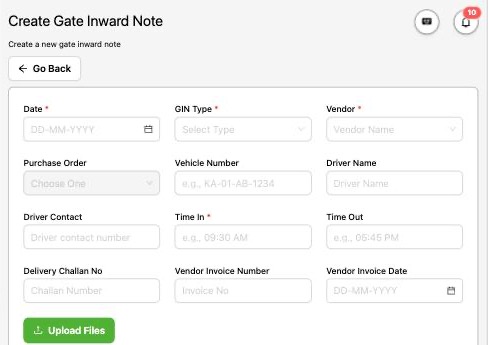
The empty Create Gate Inward Note form. Open the full-size screenshot of Purchase: Create Gate Inward NoteAssign it for checking (optional)
📍 Assign ToFor a Purchase Delivery, an Assign To field appears. If you choose someone there and your company uses Tasks, they get a task Verify and Create GRN for GIN (…). Without Tasks, nobody is told.
Create
📍 CreateThe note is saved as Posted. If the vehicle hasn't left yet, the creator can fill in Time Out later with Edit.
Convert to a GRN
📍 Gate Inward Note → note → Convert to GRNCreate GRN from Gate Inward Note opens with the purchase order, vendor and invoice details from the note. The Purchase Order is required: it is locked when the note has one; otherwise choose it here. The Delivered Date starts as the note's date and can't be in the future. This form has no Preview GRN step. Check the items received and create the GRN as in Receive the goods on a GRN. Creating the GRN sets the note's GRN Created to Yes and, when your company uses Tasks, completes the verification task.
Statuses#
| Status | Meaning |
|---|---|
| Posted | Recorded at the gate. The list's GRN Created filter finds notes already converted. |
| Cancelled | Cancelled with a reason. |
While a GRN created from it is active, a note can't be edited, converted again or cancelled.
Cancel a Gate Inward Note#
Cancel a note that was recorded by mistake, or for a delivery that was turned away at the gate.
Open the note
📍 Purchase → Gate Inward Note → note → CancelCancel can be used by the note's creator when their role has GIN: Cancel. Without that permission it is greyed out with You don't have permission to cancel this entry; for anyone other than the creator, with Only the creator or designated users can cancel this entry.
Give the reason
📍 Cancel GINEnter the Reason For Cancellation* and click Proceed.
- The note becomes Cancelled and shows the Cancellation Reason. It can no longer be edited, converted or given remarks.
- When your company uses Tasks, the note's verification task is cancelled and the assignee gets a notification.
- A note from which a GRN was created can't be cancelled: GRN has been created and cannot be cancelled. Cancel the GRN first if needed (see Manage GRNs). When the GRN is cancelled, the note becomes available again: you can convert it to a new GRN, edit it or cancel it. The GRN cancellation is noted on the note's Audit Logs tab.
- Cancelling can't be undone: record a new note if the goods come back.
What the note does not do#
The note itself doesn't add stock or post to the accounts: stock comes in through the GRN, inspection and Add to inventory steps.