
Step 5: Inspect the goods
What you are doing
Checking received goods and recording how much is accepted and how much is rejected.
Why it matters
Only accepted quantity should reach your stores. Rejected quantity becomes a rejected item that is settled with the vendor.
- Who
- Quality inspector (the Technical Person on the GRN line)
- Where in the ERP
- The GRN → Inspect items, or Quality → Incoming Inspection → Create Inspection
Before you start#
✅ Before you start
0/5 readyWhat to enter#
| Field | Required | What to put | Example |
|---|---|---|---|
| Date | Yes | When you inspected | Today |
| Template | Yes | The incoming inspection template | — |
| GRN | Yes | Filled in when you start from the GRN. The list shows only GRNs with lines waiting for your inspection | — |
| Inspected By | Yes | The inspector | — |
| Approved By | No | The approver | — |
| Over All Result | Yes | Approved, Rejected or Partially Approved | Partially Approved |
| Final Accepted Qty | Yes | Quantity that passed. It can't be more than the Invoice Quantity | 96 |
| Final Rejected Qty | Calculated | Invoice Quantity minus Final Accepted Qty | 4 |
| Reason For Rejection | Yes, when Final Rejected Qty is above zero | Why the quantity was rejected | "4 sheets scratched" |
| Invoice No, Invoice Date, Invoice Quantity | Filled in | Taken from the GRN line you chose | — |
| Samples Inspected, Samples Accepted, Samples Rejected | Yes | Your sample counts | 10, 9, 1 |
| Parameters table | At least one row | Parameters, Specifications, Tolerances, Instrument / Method, up to 10 Observations, Result (Ok, Not Ok or N/A) and Remark for each check | Thickness, 2 mm ± 0.1 |
| Issues table | Optional | Issue, Category, Resolution, Target Date, Responsible and files for each problem found. Responsible lists the members of your Production, Assembly and Electrical And Automation departments | — |
| Note, Over All Remark | Optional | Findings | — |
| Files | Optional | Photos, reports | — |
Steps#
Open the inspection
📍 GRN → Inspect itemsOpen the GRN and select Inspect items, or go to Quality → Incoming Inspection and select Create Inspection, then choose the GRN.
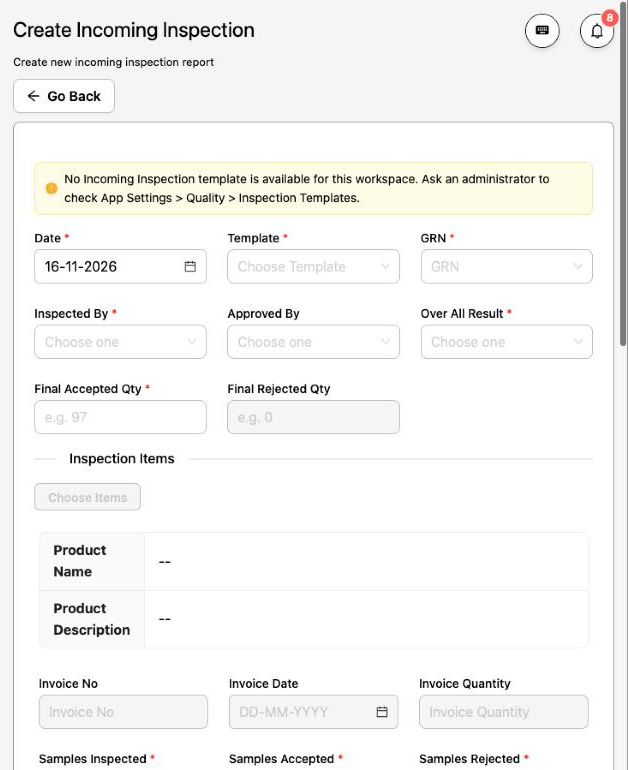
- 1Template and GRN
- 2Inspected By
- 3Over All Result
- 4Final Accepted Qty (Final Rejected Qty follows from it)
The yellow message appears when no inspection template is set up yet; see Before you start. Open the full-size screenshot of Incoming inspection: createChoose the item
When the GRN is chosen, Select Item for Inspection opens. Tick the line to inspect and select Add Item. One inspection covers one line. To change the line later, use Choose Items under Inspection Items.
Record the checks and the result
Fill in the sample counts, add your checks with Add Parameters, and add any problems with Add Issue. Enter the Final Accepted Qty and the Over All Result, and the Reason For Rejection if anything was rejected.
Create
Select Create. It stays disabled until you have changed the form and added at least one parameter row (the form says Please add parameter to proceed inspection).
What happens after you save#
| Result | Effect |
|---|---|
| Any line inspected | The GRN line is marked inspected with its result and accepted and rejected quantities. The GRN status is worked out again (see Rules to know) |
| Accepted quantity above zero and result not Rejected | With the Tasks module, the person who created the GRN gets the task (Action Needed) Add Accepted Item to Inventory (GRN …). Without it they get a notification, unless they did the inspection themselves |
| Rejected quantity above zero | A rejected item is created. With the Tasks module, the inspector who saved the inspection gets the task (Action Needed) Items Rejected After Incoming Inspection Against GRN (…) |
| Issues entered | A quality issue is raised. Each issue's Responsible person gets a Review Quality Issue task when the Tasks module is on, or a notification when it is off |
| Purchase order | Its line's accepted and rejected quantities update; the line becomes Pending, Partially Delivered or Delivered and the order Open, Partially Delivered or Fully Delivered |
| Purchase request | The person who raised the purchase request is notified that the inspection is complete |
The inspection report PDF is made automatically and kept in the report's Files tab.
Rejected items#
The rejected item belongs to the inspector who saved the inspection. On the Rejected Items list, Edit is greyed out for anyone else (Only the creator or designated users can update this entry). Accept With Deviation has no such rule: anyone whose role has Rejected Items update can use it. Editing it sets the Action Plan: Replacement, Return, Rework or Scrap. For Replacement or Rework a Due Date and Responsible Person are also needed. Replacement goods arrive on a new GRN with Is Replacement GRN ticked; inspecting that GRN updates the same rejected item instead of creating a new one. See Quality issues and rejected items.
Correcting an inspection#
Cancelling an inspection undoes its effect on the GRN and purchase order so the line can be inspected again. Amending creates a corrected copy of the report, but it can't change the quantities or the result.
Cancel an inspection#
Open the inspection and use Cancel. Give a Reason For Cancellation and select Proceed. Your role must allow cancelling incoming inspections (Cancel on Incoming Inspection in User Roles). The screen greys Cancel out for anyone but the person who created the inspection (Only the creator or designated users can cancel this entry).
Cancel is disabled when the inspection is already cancelled or amended (tooltip This entry has been Amended and cannot be cancelled.). It is also disabled once the accepted quantity has been added to inventory: the tooltip says This entry has been added to inventory and cannot be cancelled.
When you cancel an original inspection:
- The GRN line is no longer inspected and has no accepted or rejected quantity, and the GRN status becomes Pending Inspection, so the line can be inspected again.
- The purchase order line's accepted and rejected quantities are reduced. The line becomes Pending, Partially Delivered or Delivered, and the order becomes Open, Partially Delivered or Fully Delivered.
- The inspection's rejected item is cancelled, with its open tasks.
- Stock batches linked to the inspection are marked cancelled.
- Quality issues raised from the inspection stay open, although their responsible people are told they were cancelled. Cancel them yourself in Quality → Quality Issues if they are no longer needed.
When you cancel an amended inspection (for example -A1), the GRN line and purchase order aren't reset. The original inspection gets its result back, and stock batches and quality issues go back to it.
Edit an inspection#
Edit in the list's actions (greyed out for anyone but its creator, and once the report is cancelled or amended) changes only the Note, the Over All Remark and adds new files. Your role needs Incoming Inspection update.
Amend an inspection#
Use Amend on the inspection (its tooltip reads Amend this entry). If the accepted quantity has already been assigned to a work order, an Amendment Warning tells you so. Give the Reason for Amendment and select Proceed, then make your changes and select Amend. The amended report is a new report (for example -A1), and the original becomes Amended.
On the amended report you can change the parameter rows and their results, the note and overall remark, add files and add new issues. The GRN, template, Final Accepted Qty, Final Rejected Qty, inspector, approver and the overall result are locked, and the amended report is dated the day you amend it. To change those, cancel the inspection (if nothing has been added to inventory yet) and inspect the line again.
On the screen, Amend is enabled only for the person who created the inspection, when their role can create incoming inspections (otherwise the tooltip reads You don't have permission to amend this entry). Saving the amendment also needs Incoming Inspection update. It is disabled once the inspection is cancelled or already amended.
Amending doesn't change the GRN line, the GRN status, the purchase order or the rejected item. The new report is linked to the GRN, any stock batch from the original inspection now points to the new report, and the original's quality issues move to the new report. Issues you add on the amended report become new quality issues.
Rules to know#
- A GRN that is waiting for approval of its past delivered date can't be inspected: GRN is awaiting approval for its past delivered date. Approve it before inspecting its items.
- The person in Approved By must be an active member with access to your Location; otherwise saving shows Selected user is not an active member of this location.
- Final Rejected Qty is worked out as the Invoice Quantity minus the accepted quantity, and the accepted quantity can't exceed the Invoice Quantity.
- When the rejected quantity is above zero, a reason for rejection must be entered.
- After each inspection the GRN is Partially Approved while any line that needs inspection is still uninspected, or any inspected line is Rejected or Partially Approved. It becomes Rejected only when every line on the GRN is rejected, and Approved otherwise.