
In-process and final inspection, and correcting an inspection report
Example. Halfway through a batch of frames, your inspector checks the welds on job card 0012 and records 48 accepted and 2 rejected, with a weld-porosity issue for the welding supervisor. Before dispatch, the finished frames get a final inspection against the customer's purchase order. A typo in the final report is fixed by amending it.
Who does what#
| Step | Typical person | Screen |
|---|---|---|
| In-process inspection | Quality inspector | Quality → In Process Inspection, or the work order's job cards |
| Final inspection | Quality department | Quality → Final Inspection, or the work order product's Show More → Final Inspection |
| Amend or cancel | The person who created the report (the screen offers it only to them) | The report's view page |
Before you start#
✅ Before you start
0/3 readyStep by step#
For every field of the forms, the parameter grids, the final-inspection templates, saved drafts and the registers, see Inspection forms and registers.
Inspect during production
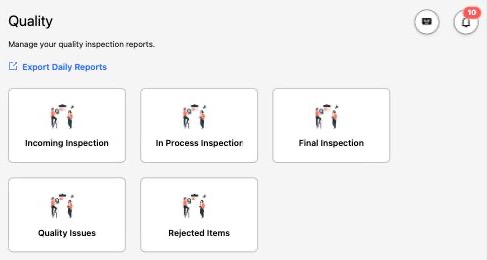
📍 Quality → In Process Inspection → Create InspectionYou can also start from the work order's job cards with Inspect Job Card or, for a production batch, Inspect Batch. Only the job card's or batch's technician gets these buttons; others see a disabled Awaiting Inspection - (technician name). Inspect Job Card appears when the job card is completed and needs inspection, and only once (after a report exists the job card view says Job Card Already has been Inspected). Inspect Batch appears when the batch is Awaiting Qc. Choose the Date, Template, Work Order and Inspected By, then Choose Items and pick the product to check. Record the readings, the Over All Result (Approved, Rejected or Partially Approved), the Final Accepted Qty and Final Rejected Qty, and any issues. Approved By records who approved the result; there's no separate approval step.
Saving a batch inspection completes that production batch; when every batch of a job card is done, the job card is completed. In-process inspection doesn't move stock.
Inspect before dispatch
📍 Quality → Final Inspection → Create Inspection, or work order product → Final InspectionThe same fields; Customer Name and Customer Purchase Order are filled in from the work order. The inspection type (standard, fabricated part or electrical) comes from the template you choose. If the form can't continue, it tells you what's missing: a template, the work order, the product chosen with Choose Items, or the inspection parameters. On a new final inspection for a work order, Generate Default Data (Reset To Default Data once rows exist) fills the inspection grid with a ready conveyor/machine checklist that you can edit; see SPM, conveyor and geared-motor manufacturing.
Raise issues from the inspection
📍 Issues on the inspection formIssues you enter become a quality issue. Each issue's responsible person gets a Review Quality Issue task, or a notification when the Tasks module is off.
Correct a report
📍 Inspection report → Amend or Cancel- Amend: the screen offers it only to the person who created the report. Give a Reason for Amendment and select Proceed, make your changes and select Amend; a new report is made with the next amendment suffix (for example -A1) and the original shows Amended. Linked quality issues move to the new report.
- Cancel: give a Reason For Cancellation and select Proceed. A report that has been amended can't be cancelled (This entry has been Amended and cannot be cancelled.).
Who can amend or cancel#
- On the screen, the Amend button is enabled only for the person who created the report, and only when their role can create entries on that inspection page (otherwise the tooltip reads You don't have permission to amend this entry). Saving the amendment also needs Update on that page. It is disabled once the report is cancelled or already amended. Hover over it to see why.
- Cancel needs Cancel on that inspection page in your role, and the screen greys it out for anyone but the report's creator (Only the creator or designated users can cancel this entry). It is disabled once the report is cancelled or amended.
What amending does#
- Amending saves a new report with your corrected parameter rows and results, note, overall remark and files. The work order, customer, template, Final Accepted Qty, Final Rejected Qty, inspector, approver and the overall result are locked, and the new report is dated the day you amend it; the amend screen lists what you can and can't change. The new report gets its own PDF in its Files.
- Linked quality issues move to the new report. Any issues you add on the amended report become new quality issues, with a task (or notification) for each responsible person.
- For an in-process inspection of a job card, the job card now points to the amended report.
What cancelling does#
- The report shows Cancelled and is removed from its work order and job card. A production batch and a job card it completed keep their Completed status.
- Quality issues raised from the report are not cancelled, even though their responsible people get a notification saying the issue was cancelled because the inspection was cancelled. If the issue is no longer needed, open it in Quality → Quality Issues and cancel it there yourself.
- Cancelling an amended report (for example -A1) is different: the original report gets its result back, worked out from its own accepted and rejected quantities, and no longer shows Amended. Its quality issues go back to the original report, and a job card goes back to the original report too.
Statuses#
| Report | Over All Result |
|---|---|
| In-process and final inspection | Approved, Rejected, Partially Approved; Amended or Cancelled when corrected |
Common mistakes#
Reports and daily export#
- Each saved inspection gets its PDF report automatically, kept in the report's Files.
- Quality → Export Daily Reports (needs Quality → Quality Dashboard → Read in your role) asks for a Date (and members, for people who can see everyone's entries) and downloads the Quality Daily Report: each inspection of that day with its number, type, customer, item, overall result and remark.
- Without that Read, Export Daily Reports isn't shown on the Quality page. Ask an administrator to tick Read on Quality Dashboard under QUALITY for your role in Admin → User Roles. Only a team member with Is Admin switched on can change the role they hold themselves; anyone else's own role must be changed by another administrator.
- The sheet's columns are Sr.No., Customer, Item Description, Quality Inspection No, Inspection Type, Overall Result, Overall Remark and Created By.
- It lists every inspection created on that date at your current Location, including cancelled and amended ones. Check the Overall Result column to tell them apart.
- If you don't see a member picker, the export still includes every member's inspections at your Location, not only yours. If you pick members, it lists only the inspections they created.
Rules to know#
- The registers list your own inspections and those of members assigned to you, or everyone's with Can View All Members Quality Entries ? (Admin → Team → member → Quality). A team member with Is Admin switched on also sees everyone's.
- If Approved By names someone who isn't an active member with access to your Location, saving shows Selected user is not an active member of this location.
- Editing a saved inspection (Edit in the list, greyed out for anyone but its creator) changes only the Note and Over All Remark, and can add files. Amending a report does not change its accepted or rejected quantities or its result either.
- Cancelling an amendment restores the original report: its result is worked out again from its final accepted and rejected quantities.
- When a production batch is completed it goes to Awaiting Qc if the job card needs batch inspection; otherwise it is Completed.