
Request quotations from vendors, compare them and convert to a purchase order
Example. An approved purchase request asks for 200 kg of MS round bar. The purchase executive creates an RFQ for three regular vendors and e-mails it from MSME Sales Booster. Two vendors reply by e-mail with their rates; the executive records both responses, compares price, delivery time and payment terms on Compare Vendors, and converts the better offer into a purchase order.
Who does it#
A purchase executive whose role has Create on Request For Quotations (menu Purchase → RFQ), and Create on Purchase Orders to convert. RFQs have no approval step of their own.
- Preview Quotation also needs Export rights on RFQs. Without them the preview can't be built, so the RFQ can't be created, edited or amended.
- Recording vendor responses, sending e-mails and editing need Update rights on RFQs. On the screen, Edit and Cancel are available only to the RFQ's creator; Cancel also needs Cancel rights.
- Export Response on Compare Vendors needs Export rights on RFQs.
Before you start#
✅ Before you start
0/3 readyStep by step#
Create the RFQ
📍 Purchase → Purchase Requests → request → Create RFQ, or Purchase → RFQ → Create RFQFrom a purchase request, the RFQ takes that request's items. Create RFQ on the RFQ list lets you combine several: choose Purchase Request as the Reference, then pick the Purchase Requests; only the item descriptions can be edited. Under Choose Items, lines already on another RFQ aren't shown. Lines with the same item code can be merged into one line with Select Same Items and Combine Selected (Only items with the same Item Code can be combined), and a combined line can be separated again with Split Items. Choose the Date, an optional Expected Delivery date and the Vendors (one or more).
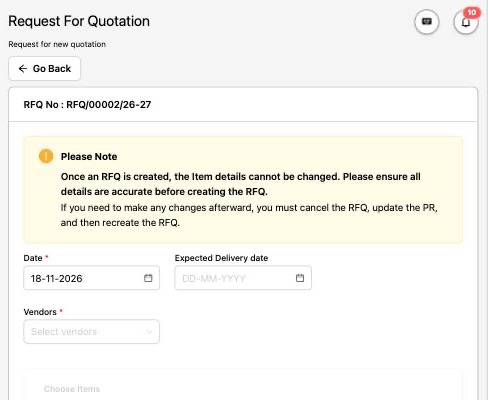
A new RFQ opened from a purchase request. Open the full-size screenshot of Purchase: Request For QuotationPreview, then create
📍 Preview Quotation → CreateClick Preview Quotation to build the quotation document in the editor below, adjust its wording if needed, then click Create. Create stays disabled until you preview, and changing any field afterwards needs a fresh preview. Line quantities can't be changed after creation (the form warns that item details can't be changed); on Edit you can still remove lines that aren't on a purchase order and add lines of its purchase requests with Choose Items.
Send it to vendors
📍 RFQ → Vendors EmailsSelect Vendor, compose the mail and Send. The Vendors Emails tab appears for anyone whose Gmail or Outlook mailbox is connected. Only the RFQ's creator sees Compose Mail and Select Mail, and only while no e-mail is linked to that vendor yet. You can also send the RFQ outside MSME Sales Booster.
- Compose Mail opens Compose new mail. To is filled with the vendor's e-mail address. You can add Cc and Bcc, a Subject and files with Attach File. The RFQ's PDF is attached for the first mail, and the Message starts from your RFQ e-mail wording.
- Select Mail is for when you have already written to the vendor from your own mailbox. Pick that e-mail and click Confirm to link its conversation to the vendor.
- Once a mail is sent or linked, the tab shows that vendor's conversation, including their replies. No emails found means nothing is linked to that vendor yet.
Record each vendor's response
📍 RFQ → Vendors Response, or Purchase → RFQ → row actions → Vendors ResponseSelect Vendor, answer Is this a new response?, and enter the Unit Price, Discount (%), Delivery Time, Payment Terms, Delivery Terms and Warranty for each item. Click Save Response. Answering Yes to a new response keeps the vendor's previous one in their history.
- Vendors Response is a button at the top of the RFQ and in each row's actions on the RFQ list. It opens Add Vendor Response.
- The button is greyed out when your role can't update RFQs, when the RFQ is cancelled or amended, or when every line is already on a purchase order.
- Lines already on a purchase order are shown but can't be changed.
- You can type the Net Price directly instead of a discount. Amount is worked out for each line in the RFQ's currency.
- Answering No replaces the vendor's current response. With Yes, the history keeps at most one earlier version per vendor for each day.
- Saving a response sets the RFQ to Under Review.
Compare
📍 RFQ → Compare VendorsLatest Vendors Response Comparison shows the vendors side by side. Tick Delivery Terms, Payment Terms, Warranty or Delivery Time to add those rows. Export Response downloads the comparison.
- Each vendor has a Net Price and a Total column for every line, with a totals row at the bottom.
- Export Response downloads the comparison as a PDF, including the rows you ticked. It is greyed out when no response has been saved or your role can't export RFQs.
- Previous Vendors Response History below shows the earlier responses kept when you answered Yes to Is this a new response?, so you can see how a vendor's prices changed.
Convert to a purchase order
📍 RFQ → Convert to POConvert to PO (at the top of the RFQ, or in the row's actions on the RFQ list) opens the Create Purchase Order page for this RFQ. It has three tabs: Basic Details, Requirements and Settings.
- Basic Details: choose the Vendor (Choose vendor from RFQ). The list offers every vendor on the RFQ, so pick one whose response you saved. Fill the other order details as in Create the purchase order.
- Requirements: click Choose Items, tick the lines to order and click Add Selected (greyed out until a line is ticked: Select at least one item to proceed). Each line shows the Net Price and Amount from that vendor's response. Lines already on a purchase order aren't offered.
- Settings: choose the GST Mode (Overall GST or Item-wise GST; it is saved on the order but doesn't change how tax is calculated), Show HSN/SAC Code In PO Template and Show Discount In PO Template.
Click Preview Purchase Order, then Create. Create stays disabled until you preview and there is at least one line (Please click 'Preview Purchase Order' to enable the create button); changing the order after the preview needs a fresh preview. Ordered lines are then locked on the RFQ, and the RFQ moves to Partially Purchase Order Created or Purchase Order Created.
Convert to PO is greyed out when no vendor response has been saved, the RFQ is cancelled or amended, every line is already on a purchase order, or your role can't create purchase orders. Hover over it to see the reason.
Statuses#
| Status | When |
|---|---|
| Open | Created, or restored when an amendment is cancelled |
| Under Review | A vendor response has been saved |
| Partially Purchase Order Created | Some lines are on a purchase order |
| Purchase Order Created | All lines are on purchase orders |
| Amended | Replaced by an amended RFQ (Amend RFQ) |
| Closed | Vendor prices were sent back to an inquiry request with Update Price Request |
| Cancelled | Cancelled with a reason |
On the screen, an RFQ's creator can cancel it (reason required) while it isn't cancelled or amended and none of its lines is on a purchase order. If RFQ reminder in days is set in Admin → Application Settings → Purchase (RFQ tab) and your company uses Tasks, the creator of an RFQ still Open or Under Review gets a Review Pending RFQs task from one day before that many days have passed since the RFQ's Date (with 1, on the RFQ's date itself). The daily check at 10:30 updates an open reminder task instead of adding another. RFQs don't affect stock or accounts.
Edit or cancel an RFQ#
- Edit on the RFQ opens Update Request For Quotation with the saved quotation document ready to change. You can change the Date, Expected DeliveryDate and Vendors and the document text, Remove lines that aren't on a purchase order yet (Processed Item Cannot Be Edited) and add lines of its purchase requests with Choose Items; quantities can't be changed. Click Preview Quotation again before you click Update; it stays disabled until you do (Please click on Preview Quotation button to enable the update button).
- Edit is available only to the RFQ's creator with update rights. It is greyed out when the RFQ is cancelled or amended, or when every line is already on a purchase order.
- Cancel on the RFQ is available only to its creator, whose role needs Update and Cancel rights for RFQs. Anyone else sees Only the creator or designated users can cancel this entry; a creator without Update sees You don’t have permission to cancel this RFQ. It is also greyed out when the RFQ is already cancelled or amended, or when any of its lines is on a purchase order (This RFQ have processed items. You cannot cancel rfq). Hover over it to see the reason. Click Cancel, enter the Reason For Cancellation in Cancel Request For Quotations and click Proceed.
- When you cancel, the purchase request lines (and price request lines) on the RFQ are released, so they can go on a new RFQ. If you cancel an amended RFQ, its lines go back to the original RFQ instead, and the original RFQ becomes Open again. Each request's status is worked out again as Open, Partially Closed or Closed.
- Cancelling also removes the RFQ's link from any purchase orders and adds an entry to the timeline.
Amend an RFQ#
Amend an RFQ when its purchase request was amended (see Amend a purchase request).
Choose the RFQ
📍 Purchase → Purchase Requests → amended request → Amend RFQ, or the RFQ → Amend RFQChoose RFQ for Amendment lists the RFQs made from the request that aren't cancelled or already amended, with their status and lines. Select one and click Proceed to Amend RFQ (needs RFQ Update rights). To put new lines on a new RFQ instead, click Create RFQ. No open RFQs found means there is nothing to amend. Amend RFQ at the top of an RFQ opens the amendment directly; it is greyed out when the RFQ is cancelled, already amended or Closed, every line is on a purchase order, or your role lacks RFQ Update rights.
Change and save
📍 Amend Request For QuotationChange the Date, Expected Delivery date, Vendors and lines, click Preview Quotation, then Amend (Please click on Preview Quotation button to enable the amend button).
- The new RFQ gets an amendment number and shows This RFQ has been amended from …; the original becomes Amended.
- Amend RFQ on the request is greyed out when the request is cancelled or already amended, when it is pending or rejected while approval is required ("This Purchase Request is pending approval and cannot be amended.", "This Purchase Request was rejected. Amend the PR first."), or when your role lacks RFQ Create rights ("You don’t have permission to amend RFQs.").
- If saving the amendment fails with a general error, one possible cause is the RFQ numbering (the amendment number can't be given for this RFQ); ask your administrator to check RFQ numbering.
Send vendor prices back to an inquiry request#
When an RFQ was made from a purchase request of type Inquiry (raised by sales with Request Vendor Pricing), the RFQ shows Update Price Request next to Vendors Response (not on an amended RFQ). It is greyed out when the RFQ is cancelled, prices were already sent, or every line is on a purchase order.
Choose the vendor
📍 RFQ → Update Price Request → Choose VendorUpdate Vendor Price Request lists the vendors that responded, with their Response Date. Click Select on the vendor whose prices you want to send.
Pick the lines and confirm
📍 Choose ItemsTick the lines; the Unit Price, Discount %, Discounted Price and Amount come from the vendor's response. Click Confirm Pricing (greyed out until a line is ticked), or Previous to choose another vendor.
The prices are copied to the inquiry request's lines, those lines are closed (the request becomes Closed when all are), the RFQ becomes Closed, and the linked task is completed. Sales sees the prices on the inquiry's Vendor Price Request tab. It needs RFQ Update rights.
The RFQ document#
After you save an RFQ, its PDF is made automatically and added to the RFQ's Files tab, where you can preview and download it. A new PDF is made each time you edit or amend the RFQ. The salutation, introduction and closing come from Admin → Application Settings → Purchase, RFQ tab (RFQ Email Template).