
Field service: complaint, schedule, quotation and service report
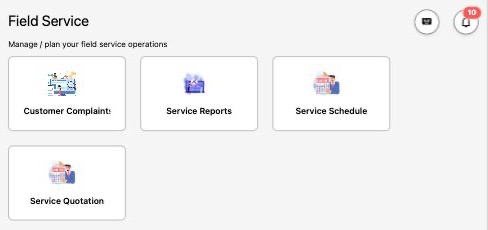
Field service looks after equipment you've sold, at the customer's site. (For your own machines, use Maintenance.) It appears in the menu as Service when the module is switched on for your account.
Example. A customer reports a noisy gearbox. You register the complaint, schedule an engineer for an initial inspection, send a quotation for replacing the bearings, and after the repair the engineer files a service report, which completes the complaint.
Before you start#
✅ Before you start
0/3 readyFinding the customer#
The customer box on service quotations, service reports, schedules and service requests searches as you type. It finds customers whose name or customer code contains what you have typed. It lists only customers of the Company you are working in, and never cancelled ones. Unless your team settings have Can View All Entries? set to yes, or your Is Admin is Yes, it finds only customers created by you or a member assigned to you, or whose sales member is you or such a member. To search, you also need view access to the Service screen you are on: Service Quotation, Reports, Schedule or Requests.
Step by step#
Register the complaint
📍 Service → Customer Complaints → Register ComplaintFill in the complaint form your company has set up. The complaint is Open. Change its status as the work progresses with Update Status.
Schedule the visit
📍 Service → Service Schedule → Create ScheduleEnter the Date, Company Name, Category (Initial Inspection, Actual Servicing, Follow-Up or Other), the Service Engineer, contact and the Customer Complaint. The schedule is Scheduled; set it to Rescheduled, In Progress or Completed as things happen, or cancel it. Scheduling doesn't change the complaint's status; update it yourself.
Quote for the work (when chargeable)
📍 Customer Complaints → Create Quote, or Service → Service QuotationOnly the member assigned to the complaint can create its quotation from the complaint. See Service quotations below.
Close with a service report
📍 Service → Service Reports → Create Service ReportChoose the complaint, the Service Type and the customer (Customer Name is required), describe the equipment and the work, and add photos. Saving the report sets the linked complaint to Completed. See Service reports below.
Customer complaints#
Register, view and edit a complaint#
- Go to Service → Customer Complaints → Register Complaint. The fields come from the complaint form your company has set up, so they differ between companies. The complaint number is given from App Settings → Service.
- Fill in the form, add files if needed, and save. The complaint is Open.
- After saving, a PDF of the complaint is prepared in the background. Open the complaint with View (View Customer Complaints) to see its tabs: Details, Files (your attachments), PDF Files (the generated PDF, to open or download) and Audit Log.
- To change a complaint, use Show More → Edit (only the person who registered it can). A complaint that is Completed or cancelled can't be edited.
Change the status#
Click the status tag in the Customer Complaints register. In Update Status, pick the new status and click Update. The options are Open, Quotation Sent, Inspection Scheduled, In Progress and Completed. Only the person who registered the complaint, or the member it is assigned to, can change it, and not after it is cancelled. Saving a service report for the complaint sets it to Completed automatically.
Export complaints to Excel#
- In the Customer Complaints register, narrow the list with the search box and Filter if you want only some complaints.
- Click Export. A Processing... message says Export will begin shortly!
- The file customer-complaints.xlsx is downloaded with one row per complaint the register shows with your search and filters, at the Location selected in the header: Date, Request No, Customer, Contact Details, Invoice Number, Customer Document No, Item Details, Gearbox S/N, Motor S/N, Description, Customer Complaint, Nature of Complaint and Action Taken.
Export needs the Export action on Service → Requests in your role, and is greyed out while the register is empty. If no complaint matches, no file is downloaded.
Cancel a complaint#
Open the complaint with View and click Cancel. The warning reads Once cancelled, this customer complaint cannot be modified. If needed, you will have to create a new customer complaint. Enter the Reason For Cancellation and click Proceed. Only the person who registered the complaint can cancel it, and not once it is Completed (the button is greyed out with This entry is completed and can't be updated). The complaint becomes Cancelled: it can no longer be edited, its status can't be changed, and no quotation can be created from it.
Service schedule#
- Go to Service → Service Schedule → Create Schedule.
- Type the Schedule Number yourself, for example SCH-0001 (schedules have no automatic number and no printout), and enter the Date.
- Choose the Company Name (the customer). The Customer Complaint list then offers that customer's complaints that aren't cancelled.
- Choose the Category, the Service Engineer and the contact, add a Note if useful, and click Create. Schedule Number, Date, Company Name, Category and Service Engineer are required.
- To record progress, click the status tag in the register and choose Scheduled, Rescheduled, In Progress or Completed. To cancel a schedule, use Cancel on its view page (see the next step). Only the schedule's creator or the engineer assigned to it can change the status, and their role needs update permission for Service Schedule.
- Show More → Edit changes a schedule that isn't cancelled (only the person who created it can). To cancel it, open it with View, click Cancel, enter the Reason For Cancellation and click Proceed. Only the person who created the schedule can cancel it.
Service quotations#
A service quotation prices chargeable work. You can start one from the complaint (Show More → Create Quote, assigned member only) or from Service → Service Quotation → Create Quotation.
Create the quotation#
The form has four tabs. A tab's name turns red when something on it is missing.
| Tab | What you enter |
|---|---|
| Basic Details | Company Name (the customer), Contact, Date and Quotation Validity(Days) (all but Contact are required), plus files to attach. |
| Requirements | One row per line with + Add Line Item: the item or model (Choose Item Code searches your items; you can also type a description), Customer Part No (when switched on in Settings), HSN / SAC Code, Qty, UOM and Unit Price. The Total is worked out for you. |
| Other Details | Terms and Conditions rows (filled from your service settings and editable), and DataSheet Specifications: turn the switch on, choose a model in Select Model No (the models come from your Requirements lines), add rows with Add Specification giving each a Data name and Value, then click Save Specifications. A row without both is refused: Both Data and Value are required before saving this row. |
| Settings | Show Customer Part No Column: whether the customer's part number column appears. |
Then choose the page Orientation (Portrait or Landscape) and click Preview Quotation. The formatted quotation appears in the editor below, where you can adjust the wording. Create stays disabled until you have previewed (Please click 'Preview Quotation' to enable the button), and you must preview again after changing the form. When you save, a PDF of the previewed quotation is prepared in the background.
The quotation number follows App Settings → Service (prefix, digits and suffix), and the salutation, introduction, closing and default terms come from the same settings.
View, edit and email#
View shows the Details (with the lines, Sub Total and Grand Total), Files and Audit Log tabs. Service quotations carry no GST: the Grand Total equals the Sub Total. When your Gmail or Outlook account is connected and you created the quotation or are its sales member, an Emails tab lets you link the email conversation with the customer to the quotation. Show More → Edit changes a quotation that isn't cancelled or amended (only the person who created it can); preview it again before you click Update.
Follow up#
On a phone-width screen, open the ⋯ menu on the quotation and click Follow Up (on a wider screen the quotation has no Follow Up button in this version). Enter the Date, the Mode of Following Up (Call, Text, Email, Online Meeting or Personal Visit) and the Feedback from Customer, then click Create. Follow Up is switched off for quotations that are cancelled, amended, or marked Order Received or Order Lost. In this version the service quotation has no tab listing its follow-ups.
Amend#
Click Amend on the quotation. Only the person who created it can amend it, with create permission for Service Quotation, and only while it isn't cancelled or already amended. The amendment opens with the same details for you to change; preview and save it. It gets the original number with an amendment suffix: -A1 for the first amendment, -A2 for the next, and so on. The original becomes Amended. Files on an amended quotation can't be deleted.
Cancel#
Click Cancel on the quotation (on a phone-width screen it is in the ⋯ menu), enter the Reason For Cancellation and click Proceed. Only the person who created the quotation can cancel it. All its lines and the quotation become Cancelled. Cancelling an amendment reopens the quotation it amended: that one loses its Amended status, goes back to Open and can be amended again. A quotation that is already cancelled, amended or marked Order Received can't be cancelled.
Statuses: a quotation is Open when created, Amended once an amendment is made and Cancelled once cancelled. The register's Quotation Status filter also offers sales-style statuses such as Partial Order Received.
Service reports#
Create a service report#
- Go to Service → Service Reports → Create Service Report. The report number is given from App Settings → Service.
- Choose the Service Request (the complaint) this report closes. The linked complaint must be at the Company and Location you're working in.
- Choose the Service Type (marked with *, although the form doesn't stop you saving without it): Inspection Services, Repair Services, Maintenance Services, Installation Services, Calibration and Alignment Services, Specialized Services, Follow-Up and Post-Service, or Environmental and Safety Services.
- Choose the Customer Name (required) and fill in Contact Details, Mobile No, Site Visit Date and Site Address.
- Under Item Details, describe the Gearbox/ Motor Details (required) and enter the Gearbox SL No and Motor SL No (serial numbers) and a Description.
- Under Complaint Details, enter the Customer Complaints, the Nature Of Complaints and the action taken (Take Action).
- Add Before Photos and After Photos, then click Create.
Saving sets the linked complaint to Completed. View shows the Details, Photos, Files and Audit Log tabs. Show More → Edit changes a report that isn't cancelled (only its creator can).
Cancel a service report#
Open the report with View and click Cancel. The warning reads Once cancelled, this service report cannot be modified. If needed, you will have to create a new service report. Enter the Reason For Cancellation and click Proceed. Only the report's creator can cancel it. The report becomes Cancelled (a saved report is Open). The linked complaint stays Completed; change its status with Update Status if the work isn't finished. If someone has already cancelled it, you see This service report is already cancelled.
Statuses#
| Record | Statuses |
|---|---|
| Complaint | Open, Quotation Sent, Inspection Scheduled, In Progress, Completed (from Update Status, or automatically when a service report is saved), Cancelled (by cancelling the complaint) |
| Schedule | Scheduled, Rescheduled, In Progress, Completed, Cancelled |
| Service quotation | Open, Amended, Cancelled |
| Service report | Open, Cancelled |
Common mistakes#
Rules to know#
- Complaints, schedules, quotations and service reports belong to one Location: the registers show only those of the Location selected in the header.
- Service schedules and service quotations list only your own entries and those of the service members assigned to you, unless your team settings let you see all members' service entries or Is Admin is on for you.
- Service quotations carry no GST. The printout's total is the basic amount plus packing and forwarding; it shows your Location's GSTIN (India) or your Company's NPWP (Indonesia).
- Service screens don't move stock or post to the accounts.