
Inquiry to customer order: costing, quotation and special price
Example. Acme Engineering e-mails asking for 10 conveyor frames. Your sales member records the inquiry and names Priya as the quotation creator. Costing works out the price, Priya sends the quotation, Acme asks for a better price, and the sales manager approves a special price. Acme confirms, and Priya converts the quotation into a customer order.
Who does what#
| Step | Typical person | Screen |
|---|---|---|
| Inquiry | Sales member | Sales → Inquiries |
| Costing (optional) | Costing team | Inquiry → Make a request → Request Costing |
| Order processing request (optional) | Quotation creator | Quotation → Create PPR |
| Quotation | The inquiry's Quotation Creator | Inquiries list → Actions → Create Quote |
| Special price | Quotation creator; approved by special price approvers | View Quotation → Special Price; approval on Sales → Special Price |
| Customer order | Sales | View Quotation → Convert To Order, or Sales → Customer Orders |
Before you start#
✅ Before you start
0/4 readyStep by step#
Record the inquiry
📍 Sales → Inquiries → CreateEnter the Company Name, Contact, Inquiry received on, whether it is Urgent, the Sales Member, the Quotation Creator, the Inquiry Source and the Inquiry itself, with files (dealer or distributor companies also choose a Supplier from the active Company's supplier list; This company's supplier list has not been set up yet means the active Company has no supplier list of its own yet, so none is offered). The sales member and quotation creator must be active users with access to this Company and Location, otherwise saving is refused with Every selected team member must be an active user with access to this company and location. The inquiry is Open. The quotation creator gets a task when Tasks are switched on, otherwise a notification.
Open the full-size screenshot of Sales: Create Inquiry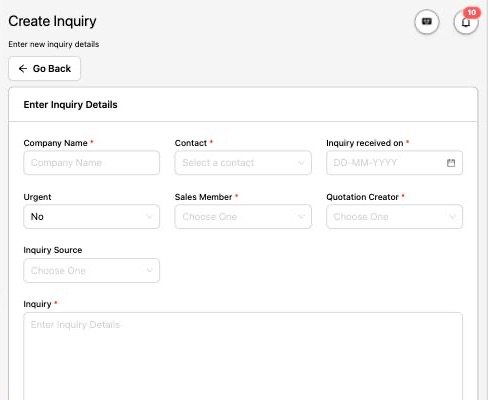
Get it costed (when Costing is switched on)
📍 View Inquiry → Make a request → Request CostingThe inquiry's creator, sales member or quotation creator chooses the costing members under Select Costing Member and clicks Request. The inquiry becomes Costing Requested. When costing is submitted it becomes Costing Submitted, and, when Tasks are switched on, the quotation creator gets a task. If the customer must supply more information first, see Missing information below. For every costing step, see Costing requests.
Send the quotation
📍 Inquiries list → Actions → Create QuoteOnly the inquiry's quotation creator can create the quotation (the role also needs Quotation create), and only after the latest costing is submitted. There's no stand-alone Create button. The quotation is Open and the inquiry becomes Quotation Sent. Use Follow Up on the quotation to record each conversation. Every field of the quotation form, preview, edit, amend, follow-ups, lost items and cancelling are in Quotations.
Ask for a special price (optional)
📍 View Quotation → Special PriceThe quotation's creator clicks Special Price on a quotation that is Open or Partial Order Received. Fill in Request Special Price as described in Special price requests below. The request is Pending Approval and the approvers are notified.
Approve or deny the special price (approvers)
📍 Sales → Special Price → View DetailsAn approver opens the request. For every line still undecided there is an Approve choice (Yes or No) and a Remark, both required. Choose Yes or No for each line, enter the remarks and click Send. One Send decides the whole request: all Yes makes it Approved, all No Denied, and a mix Partially Approved. After that it can't be decided again. You return to the Special Price list; open the request again to see the result. The requester is notified, unless they are themselves one of the Special Price Approvers.
Convert to a customer order
📍 View Quotation → Convert To Order, or Sales → Customer Orders → CreateThe order needs the Order Date, Order Type, Customer Name, the customer's Customer Order Number, Reference (Quotation or None), Contact Person, Sales Member and Is Repeat Order?, plus the items. Convert To Order is greyed out when the quotation is cancelled or amended, every line is lost, or it has no lines; if the quotation already has an order, you are first asked about a repeat order. Every field, the credit-block and BOM-revision alerts, and what to do after saving are in Customer orders. The quotation shows Order Received when every line is fully ordered, and Partial Order Received while any line is ordered in full or in part. When all lines are lost the quotation is Order Lost.
When order processing is switched on, Create PPR on the quotation records an order processing request instead, with delivery and document details. See Order processing request (PPR) below.
Open the full-size screenshot of Sales: Customer Order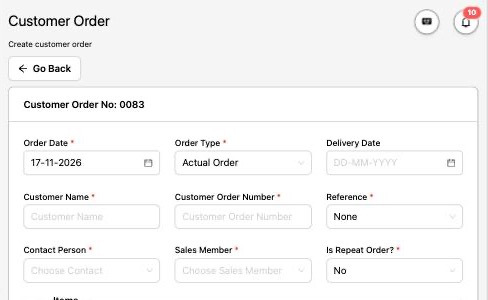
Close what you won't win
📍 View Inquiry → Regret, or View Quotation → Mark Lost Items- Regret the inquiry (creator only) with a reason, then Regret Sent once the customer is told. See Cancel or regret an inquiry.
- On a quotation, the creator can mark lines as lost (only the creator sees Mark Lost Items); this can't be undone. When all lines are lost the quotation is Order Lost.
- Amend an inquiry or quotation (creator only) to make a new version numbered -A1, -A2 and so on; the original shows Amended.
View an inquiry#
Sales → Inquiries → View Inquiry has these tabs:
- Details: the inquiry and, at the top, the Make a request menu: Request Costing (or Amend Costing on an amended inquiry whose original was costed) when Costing is switched on, Request Missing Information, Amend Quote on an amended inquiry whose original already has a quotation, and, for the inquiry's costing members, Request Estimation BOM and Request Machining Time (with Production switched on) and Request Vendor Pricing (with Purchase switched on).
- Remarks: notes from the team, with a count. Mention a colleague in a remark to bring it to their attention; on the Inquiries list, the Pending Mentions and My Unresolved Mentions filters find inquiries with remarks waiting for you.
- Files: the inquiry's files.
- Audit Logs: every change.
- More (when Costing is switched on): Costing, Missing Information and, for the inquiry's costing members, Price Estimation BOM and Machining Time (with Production switched on) and Vendor Price Request (with Purchase switched on). See Costing requests.
Edit or amend an inquiry#
Edit (Inquiries list → Actions) opens Update Inquiry with the same fields as when creating; change them and click Update. Edit stays available after a quotation is sent. Saving copies the contact, party name and sales member to the inquiry's quotations; other changes don't reach a quotation already sent, so use Amend Inquiry and Amend Quote for those. Only the inquiry's creator or its sales member can edit, and Edit is greyed out for amended, cancelled and regretted inquiries.
Amend Inquiry (on View Inquiry) is for a changed customer requirement after work has started. Only the inquiry's creator can amend. It is greyed out with This inquiry has been amended already., This inquiry has been cancelled., This inquiry has been regretted. or You don't have permission to amend this Inquiry. On Amend Inquiry, change the details and save:
- The new version gets the next suffix (-A1, -A2 …) and the original shows Amended.
- The original inquiry's own tasks (such as the quotation creator's new-inquiry task) are cancelled; open missing-information tasks are not.
- A costing for the original isn't copied: on the amended inquiry, Make a request shows Amend Costing, which opens the original's last costing for amendment. When the original already has a quotation, use Amend Quote to bring the quotation up to date. See Costing requests.
Cancel or regret an inquiry#
Cancel (View Inquiry → Cancel): enter the Reason For Cancellation and click Proceed. The inquiry becomes Cancelled and its costings are cancelled. Its open inquiry task, if any, is cancelled and the other person on it is notified; without such a task the quotation creator is notified. Cancel is greyed out with This Inquiry has already been cancelled, Quotation has been already sent for this inquiry, This inquiry has already been regretted or You don't have required permission to cancel (only the inquiry's creator and its costing members can cancel, and the role needs Cancel on Inquiries). Cancelling an amended version opens the original again.
Regret (View Inquiry → Regret) when you won't quote: in Regret Inquiry, enter the Reason For Regret* and click Proceed. The inquiry becomes Regretted. Only the creator can regret, only while no costing has been requested (after that Regret isn't shown), and not after the quotation was sent (This Inquiry has already been sent for quotation.). After telling the customer, the inquiry's creator or its quotation creator clicks Regret Sent (in this version the inquiry's sales member doesn't see the button unless they are one of those two), add the Remarks* in Convey Regret and click Proceed: the inquiry becomes Regretted and Informed.
Neither changes stock or accounts.
Missing information#
When the costing team can't cost the inquiry without more details from the customer:
Ask for the information
📍 View Inquiry → Make a request → Request Missing InformationA costing member assigned to the costing (once the costing is prepared, only the person who prepared it) or the inquiry's quotation creator opens Request Missing Information, describes what is needed, attaches files with Upload File if useful, and clicks Request. The inquiry becomes Missing Information Requested. With Tasks on, the inquiry's creator and sales member get a task [Action Needed] - Missing Information Requested for Inquiry; the costing members' open costing tasks are completed for you.
Mark that you've e-mailed the customer
📍 View Inquiry → More → Missing Information → Missing Information Email SentThe inquiry's creator or sales member clicks Missing Information Email Sent and confirms with Yes, Mark as Sent. The inquiry becomes Missing Information Email Sent.
Record the answer and complete
📍 View Inquiry → More → Missing Information → Add Remark → SaveUnder Missing Information Remarks, the inquiry's creator or sales member clicks Add Remark, enters the customer's answer and clicks Save. Save Missing Information offers Save Only (keep the request open) or Save & Mark Complete. Completing sets the inquiry to Missing Information Completed and can't be rolled back. The costing team can then continue.
Request Missing Information is greyed out while a request is still open, and with the reason shown when the costing is cancelled or regretted, the inquiry is regretted or cancelled, or you aren't allowed (Only the costing creator or quotation creator can request missing information., You are not assigned to this costing.). Once a request is completed, you can request more information again. Missing Information Email Sent is unavailable once a quotation is sent, after it was already marked, when no request is open, and on cancelled or regretted inquiries.
Find and export inquiries#
The Inquiries list shows Date, Inq No, Quotation, Company, Contact, Sales Member, Created By, Status and Actions. Filter by Inquiry Received On, Sales Member, Created By, Status (including Amended and Cancelled) and Pending Mentions (choose My Unresolved Mentions or a member). You see the inquiries you created, are the sales member, quotation creator or a costing member for, or are mentioned in, and those of members you look after, unless Can View All Entries? is set for you (Admin → Team → member → Sales) or you are an admin (Is Admin on your team member record): then you see every inquiry of the Location.
Export opens Export Inquiries: choose the Date Range and the sales members and download the Excel file (needs Inquiries export; greyed out while the list is empty).
Special price requests#
Fill in the request
📍 View Quotation → Special Price → Request Special PriceCompany Name* and Contact* come from the quotation and can't be changed. Enter the Competitor name if known. Under Requirements, click Choose Items, tick the quotation lines in Select Items for Special Price Request and click Confirm Selection. For each line the table shows the Model No and the Quoted Price/Unit; enter the Requested Price/Unit (not more than the quoted price), the Purchase Qty and the Purchase Frequency (Month or Year). Remove drops a line. Enter the Reason for special price request* and click Create (it needs Special Price create in your role).
Approve or deny (approvers)
📍 Sales → Special Price → View DetailsOnly users listed in Special Price Approvers whose role has Sales → Special Price update see the Approve (Yes / No) and Remark fields and the Send button; everyone else sees the request read-only. Approvers decide requests while working in the quotation's Company and Location; a request of another Location can't be opened or decided. Both fields are required on every undecided line, so one Send decides the request: Approved (all Yes), Denied (all No) or Partially Approved (a mix). You can't decide your own request (You cannot approve or deny your own special price request.). If another approver decided first you see This special price was decided by another approver. Reload it to see the decision., and a request that is already decided is refused (This special price is already denied., for example). After Send you are taken back to the Special Price list.
Track and cancel requests
📍 Sales → Special PriceThe Special Price list shows Special Price No, the quotation, Created On, Created By, Customer, Competitor and Status, and filters by Request Date and Special Price Status. View Details opens the request with Details and Audit Log. The requester can Cancel it with a reason, unless This special price request is already cancelled., Cannot cancel because the overall special price is approved. or Cannot cancel because one or more requirements have already been approved.
There's no way to edit a request once it is created: cancel it and raise a new one.
Order processing request (PPR)#
Some companies don't convert the quotation into a customer order straight away. Instead, sales raises an Order Processing Request (PPR): an internal sheet for the team that will process the order, with delivery instructions, document instructions, the ordered lines, technical details per model and a printable PDF. It appears when order processing is switched on for your account. The Sales page card is called Order Process Request; the screens are called Order Processing Request.
✅ Before you start
0/4 readyStart the PPR from the quotation
📍 Sales → Quotations → View Quotation → Create PPRCreate PPR opens Create Order Processing Request with the quotation number and the next PPR number at the top. The number shown is a preview; the final number is given when you save. The button is greyed out when the quotation is amended, cancelled or already Order Received, when every line is Order Lost, or when your role can't create PPRs.
Fill in the Basic Details tab
📍 Create Order Processing Request → Basic DetailsEnter the Date, the Customer PO NO, Branch / Zone, Delivery Charges and Transporter Name. The Company Name and Contact come from the quotation. Choose the Delivery Type (Door Delivery or Godown Delivery) and Payment Mode (Paid or To Pay). In Document To Be Sent, choose Along with material, Separately to Billing Address, Separately to Consignee Address or Separately to Another Address (Please specify); the last one asks for a Document Address. Set Different Shipping Address ? to Yes to enter a Shipping Address.
The requirement lines are filled in from the quotation: Model no, Unit Price, Quantity, Total Amount and a Delivery Date for each (no past dates). Remove lines that aren't ordered, drag to reorder, or click Reset Requirements to reload them from the quotation. Add a Note if useful.
Add technical details on the Annexure tab (optional)
📍 Create Order Processing Request → AnnexureFor each model, Choose Model No and use Add New Field to list Symbol, Data and Value rows, plus a Special Feature text.
Preview the PPR sheet and create it
📍 Create Order Processing Request → Preview PPR → CreateChoose the Orientation (Portrait or Landscape) and click Preview PPR. The sheet appears in an editor, where you can still change the wording. The totals on the sheet add the delivery charges and the quotation's packing and forwarding to the basic amount. New quotations carry no GST, so no GST is added; a quotation saved earlier with a GST rate still has it added here. Preview PPR is greyed out when no requirement line is left. Create is enabled once you have changed the form (for example, entered the delivery dates) and clicked Preview PPR; if you change anything afterwards, it is greyed out again until you preview once more. The note above the editor asks you to click Preview Quotation: it means the Preview PPR button.
Click Create. You are taken straight to the PPR list; if the save fails, an error message appears there, so check that the new PPR is listed. The PPR is Submitted. The quotation becomes Order Received and all its lines are marked won. A PDF of the sheet is added to the PPR's files a moment later.
View, edit or e-mail the PPR
📍 Sales → Order Process Request → ViewThe list shows Date, PPR No, Quotation, Contact Person, Created by and Status, for the current financial year by default. Filter by Status, Priority or Created By. View Order Processing Request has Details, Audit Log and, when Gmail or Outlook is connected, Emails tabs. There you can link an existing mail conversation with Select Mail or send one with Compose Mail.
Only the PPR's creator can Edit it. Update Order Processing Request has the same tabs; click Update to save.
Cancel the PPR, if the order falls through
📍 View Order Processing Request → CancelIn Cancel Order Processing Request, enter the Reason For Cancellation and click Proceed. The PPR becomes Cancelled (shown in red), and the quotation is reopened: its status and every line go back to Open, so you can raise a new PPR or a customer order. Only the creator can cancel.
PPR statuses: Submitted (when created) and Cancelled. Each PPR shows the priority Medium; the list can be filtered by priority (High, Medium, Low), but no screen sets or changes it. A PPR has no approval step and doesn't change stock or accounts. It changes only the quotation's status, as described above, and adds entries to the quotation's and the PPR's timelines.
Statuses#
| Document | Statuses |
|---|---|
| Inquiry | Open, Costing Requested, Costing In Progress (an estimation BOM, machining time, vendor purchase request or price request was raised for it), Costing Submitted, Recosting Requested (remarks were saved on the inquiry), Recosting Submitted, Quotation Sent, Missing Information Requested / Email Sent / Completed, Regretted, Regretted and Informed, Amended, Cancelled |
| Quotation | Open, Partial Order Received, Order Received, Order Lost, Amended, Cancelled |
| Special price | Pending Approval, Approved, Partially Approved, Denied, Cancelled |
| Order processing request (PPR) | Submitted, Cancelled |
Common mistakes#
Export and dashboard#
- Export on the Inquiries list asks for a date range and sales members; on Quotations, a date range and optional extra columns; on Customer Orders, a date range and sales member. Each downloads Excel and needs that list's export permission.
- Dashboard → Choose Dashboard → Sales shows the funnel, inquiry sources, conversion by sales member and order status. Its cards need Sales → Sales Dashboard read in your role, and its exports need Sales Dashboard export.
- If Sales isn't offered in Choose Dashboard, or an export on the dashboard is greyed out (You don't have permission to export), ask an administrator to tick Read (and Export for the downloads) on Sales Dashboard under SALES for your role in Admin → User Roles. Only an admin (Is Admin on their team member record) can change the role they hold themselves; anyone else's own role must be changed by another administrator.
- The Special Price list has no export.
Rules to know#
- Amending an inquiry or quotation (its creator only) makes a new version numbered -A1, -A2 and so on, and the original shows Amended.
- To cancel an inquiry you must give a reason; an inquiry that is already cancelled can't be cancelled again.
- Only the person who uploaded a file to an inquiry remark can remove it, and files the system attached can't be removed.
- If someone else changed the quotation after you opened it, your update is refused; reload the quotation and make your change again.
- If the quotation already has a customer order that isn't cancelled, the new order is treated as a repeat order and the repeat reason you give is added to the order as a remark.
- Order processing request (PPR) numbers run in a separate series for each Location.
- Cancelling an order processing request (PPR) needs a reason.