
Step 1: Raise a purchase request
What you are doing
Telling the purchase team what you need, how much and by when.
Why it matters
It gives every department one traceable way to ask for material. Purchasing works from these requests, and approvers can check spending before anything is ordered.
- Who
- Requester (any department)
- Where in the ERP
- Purchase → Purchase Requests → Create New PR
Before you start#
✅ Before you start
0/4 readyWhat to enter#
| Field | Required | What to put | Example |
|---|---|---|---|
| Date | Yes | The request date | Today |
| Department | Yes | The department that needs the material | Production |
| Purchase Incharge | Yes | The purchase person who will handle it. The list offers the members of your Purchase department, so you may not see your own name | — |
| Request Type | Yes | The kind of request, from the options your company uses | — |
| Specify Reason | When Request Type is Others (also shown, but optional, for Stock) | A short reason | — |
| Purchase Request For Multiple Work Orders / Work Order | No | Link the request to one or more work orders when it is for production. Not shown for Stock requests | No |
| Approvers | When request approval is switched on in Any Approver or All Approvers mode (in Sequential mode the field isn't shown: the approvers come from the purchase settings) | Who approves. The label shows the mode: Any One or All Must Approve. The list shows only active members of the Purchase department who have access to your current location. If you name only yourself, the request is approved as soon as you save it | — |
| Expected Delivery Date | No | When you need the material | Next Friday |
| Item and Requested Qty | Yes, per line | What you need (Choose Item Code) and how much. Available Qty shows current stock for reference | RM-SS304-SHEET-2MM, 100 |
| Remarks | No | Anything purchasing should know. Use Add Remark under the items; each remark is dated, and the saved request also shows who added it | "Mill test certificate needed" |
| Files (on each item line) | No | Specifications or drawings | — |
Steps#
Open a new request
📍 Purchase → Purchase Requests → Create New PR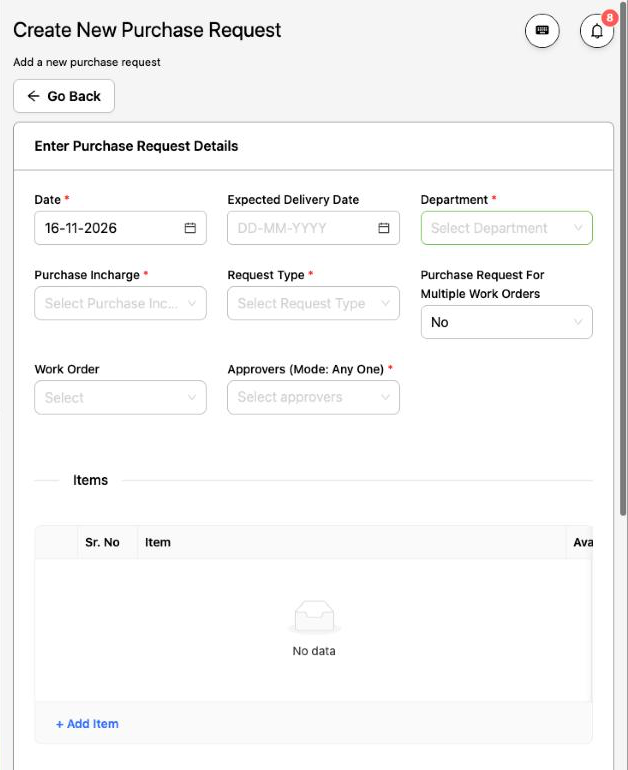
- 1Date, Expected Delivery Date and Department
- 2Purchase Incharge and Request Type
- 3Approvers (shown when request approval is switched on)
- 4+ Add Item: item and requested quantity
The empty form, before anything is entered. Open the full-size screenshot of Purchase request: createFill in the header and add your items
Enter the fields in the table above. Select + Add Item, search for the item code and pick it from the list, then enter the requested quantity. The unit fills in from the item master.
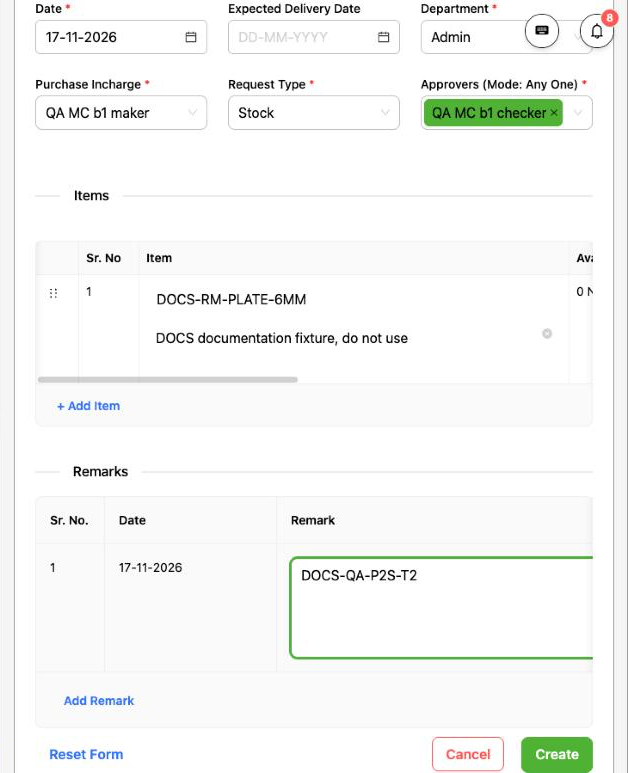
- 1Purchase Incharge and Request Type
- 2Approvers: only the people listed here can approve
- 3The item line (scroll right for quantity and unit)
- 4Remarks, added with Add Remark
- 5Create saves the request
An example completed request: one item, one approver and one remark. Open the full-size screenshot of Purchase request: filled inSave
Select Create. It is enabled once the request has at least one item line. You return to the list; when request approval is switched on, the new request shows approval status Pending while it waits for its approver.
When request approval is switched on, a request needs an approver: in Any One or All Must Approve mode the Approvers field is required (Required under the field); in Sequential mode, when the purchase settings name no approvers, saving shows Purchase Request approval is required but no approvers are configured in Purchase settings.
What happens after you save#
- The request gets a number in your company's purchase request numbering format.
- Its status is Open.
- If your company uses purchase request approval, its approval status is Pending. When your company also uses Tasks, each approver gets a task (in Sequential mode the first approver, and each next approver when it is their turn).
- Without purchase request approval, it goes straight to the purchase team.
What happens after approval#
When the request is approved (or if approval is switched off), the purchase team can put its lines on a purchase order or a request for quotation.
Export, edit, amend or copy a request#
Step-by-step instructions for Edit, Amend PR, Duplicate PR, the list filters and Export are in Manage purchase requests. Requests raised from low stock or from work orders, and Link Work Order, are in Plan purchases.
- Export on the list downloads the filtered requests to Excel (needs Purchase Requests: Export).
- Amend PR on a request replaces it with an amended copy, typically when it can no longer be edited because items have been processed. The original becomes Amended, and its orders and RFQs move to the new request. On the screen it is greyed out for anyone but the request's creator, for cancelled or already amended requests, when all its orders are fully delivered, and (when approval is required) until the request is fully approved: while its approval is Pending, Partially Approved or Rejected. The work order can't be changed.
Close lines from stock, or cancel the request#
- Close from stock. The purchase person a request is assigned to sees Check Items Stock above its items. Stock Availability lists each line's Requested Qty, Available Qty and Already Reserved Qty. Tick the lines that stock can cover, enter a Remark and click Close Selected Items. Closed lines are reserved from stock (for the work order, when the request came from one) and shown as Closed; they can't be bought or reopened, except by cancelling that reservation in Inventory → Inventory Reservation. Lines with less stock than requested can't be closed (there is no partial close).
- Closing is permanent: the window warns that closed items cannot be processed further and the action cannot be reverted.
- Requests raised from the low stock items list are closed in the same way, but no stock reservation is made for their lines.
- After closing, the request becomes Closed when every line is either on a purchase order or closed from stock. Otherwise it becomes Partially Closed.
- Check Items Stock is greyed out when the request is cancelled, has been amended, or all its lines are already processed.
- Cancel. Click Cancel on the request, enter the Reason For Cancellation in Cancel Purchase Requests and click Proceed. This works while none of its lines is on a purchase order, request for quotation or work order.
Who can cancel, and what cancelling changes#
- On the screen, Cancel is available only to the request's creator and the purchase person it is assigned to, and their role needs both Update and Cancel ticked for Purchase Requests. Anyone else sees Only the creator or designated users can cancel this entry.
- Cancel is greyed out when the request is already cancelled, is Closed, has been amended, or has processed lines. Hover over it to see the reason, for example "This purchase request is closed" or "This purchase request has an amended PR".
- When you cancel, any open tasks for the request (such as approval tasks) are cancelled and their assignees are notified, if your company uses Tasks.
- Work order raw-material lines and bill of materials requirements that pointed at the request lose the link and show Request Cancelled, so a new request can be raised for them.
- If you cancel an amended request, the original can be ordered and amended again; its status becomes Open, or Partially Closed when some of its lines already have an order or were closed from stock.
- The cancellation and its reason are added to the request's timeline.