
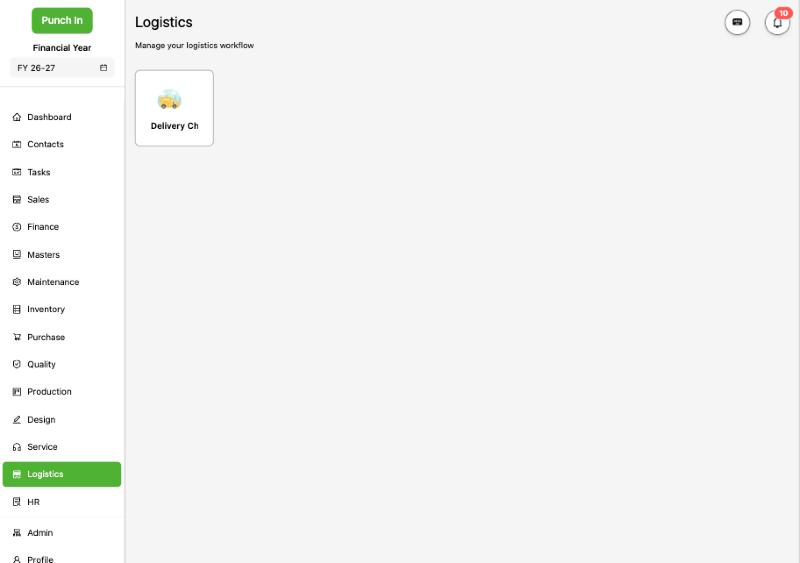
Logistics: delivery challans
A delivery challan is the document that travels with goods leaving your premises. MSME Sales Booster uses it to:
- record what was sent, to whom and how;
- issue the dispatched stock when delivery is confirmed;
- start the sales invoice.
From order to invoice#
Before you start#
✅ Before you start
0/4 readyCreate a delivery challan#
You can start a challan in four ways:
- Logistics → Delivery Challans → Create Delivery Challan.
- From a customer order: Create Delivery Challan (shown when your role can create delivery challans). The customer and order are filled in for you.
- From a work order, to dispatch finished products.
- From a material requisition for a Service, Spares or Repair job that you created, to send the issued material (Create Delivery Challan on the requisition).
Challan details
The challan number is generated when you save. Enter:
- the Challan Date (not in the future);
- the Dispatch Mode: With Value or Without Value;
- the Party Name. For a customer, choose the Customer Orders (and work orders); for a vendor, the Purchase Orders.
Addresses and transport
Check the Billing Address and Shipping Address. Add the transport details: Transportation Date, Transport Mode (Road, Rail, Air, Ship), Transporter Id, Transporter Name, Vehicle Number, Dispatch Doc No, and the driver's name and contact.
Items
Add the items and quantities (each above 0), with serial numbers where items are serialised. A With Value challan also has a Tax Rule and can carry additional charges. Optionally choose Yes for Show Discount In Delivery Challan Template.
Preview, then create
Click Preview Delivery Challan to see the printed challan. Create is enabled only after a preview. If you change anything afterwards, preview again.
For every field, the e-way bill checks and what cancelling does, see Delivery challans.
After dispatch#
- Mark As Delivered: enter the Delivered Date and a Remark, and confirm that the challan can't be edited afterwards. This records delivery and issues the stock. Only the challan's creator can do it, with Update permission. It posts no accounting entry. Once the challan is delivered or cancelled, Mark As Delivered is no longer shown.
- Create Sales Invoice: available once the challan is delivered, if your role can create sales invoices. It opens a new sales invoice in Finance with the challan's details.
- E-Waybill (With Value challans with a Sub Total of at least ₹50,000, when e-way bills are enabled for your account): generate the e-way bill for the consignment.
- Cancel: possible until the challan is delivered or has an e-way bill. Your role needs Cancel on Delivery Challans, and you give a reason.
Each challan has two statuses, both shown in the register:
| Status | Values | What it tells you |
|---|---|---|
| Document Status | Posted, Cancelled | Whether the challan stands. A challan is Posted as soon as it's created |
| Dispatch Status | Dispatched, Delivered, Cancelled | How far the goods have got: a new challan is Dispatched, Mark As Delivered changes it to Delivered, and a cancelled challan shows Cancelled. Delivered challans can no longer be edited or cancelled, and are ready to invoice |
A challan reserves its stock at your Location when it's created and holds it until it's delivered or cancelled; Mark As Delivered issues the stock. Delivery challans have no approval step.
- Every challan reserves its stock lines, With Value or Without Value, whether made from a customer order, a work order or a purchase order. Service lines and items that don't track stock aren't reserved.
- A challan made from a material requisition reserves nothing and takes nothing more out of stock when delivered: its material issue note already did. It can't send more than was issued and not yet dispatched. See Delivery challans.
- If a stock line needs more than the stock that isn't already reserved at your Location, the challan isn't created. The message shows how much is available and how much is reserved for other documents.
- When you edit a challan that isn't delivered or cancelled, its reservations follow the new quantities. A changed line's reservation goes up or down by the difference, and a new line gets its own reservation.
- A line you remove gives its reservation back. An increase or a new line must fit the stock that isn't reserved, or the change is refused.
- A challan created before challans reserved stock has no reservations; editing it doesn't add any.
- Cancelling a challan releases what it still holds reserved, and delivering it releases anything a line didn't use, so that stock is free again.
Roles and permissions#
In Admin → User Roles, the Logistics module has the page Delivery Challans with Create, Read, Update and Cancel. Creating the invoice also needs Finance → Sales Invoices → Create.
Under Admin → Team → member → Logistics, you can let a member see all members' challans (Can View All Members Logistics Entries ?), or assign the members they manage (Assign Logistics Members). Without either, a member sees only their own challans; a member with Is Admin sees everyone's. The register lists only challans of your current Company and Location.
Related workflows#
Rules to know#
- The customer, vendor or party on a delivery challan must belong to your current Company.