
Inventory
Inventory keeps the quantity of every item in every store at your Location, and records every movement in and out, so you can always trace where stock came from and where it went.
Who sees which stores#
- Operational Stores shows one card for each active store of your current Company and Location that you have been given in Admin → Team → member → Accessible Stores. Access to a Location alone opens none of its stores. A store you create in Store Master is given to you straight away.
- Opening a store and its items also needs Inventory → Inventory Stores → Read in your role. Without it you see the no-permission page.
- A store that isn't one of your stores at the current Company and Location shows Store not found.
- Issuing, returning, adjusting and adding stock from a GRN are refused for a store you don't have, for example with You do not have access to the selected store.
- Stock Value and the stock breakdown appear only when Can View Stock Valuation ? is on for you, and WIP Value only when Can View WIP Valuation ? is on (Admin → Team → member → Inventory). Low Stock Items (ROL) is always shown.
To give a member their stores, an administrator follows Add team members, give them access and set up roles: Accessible Stores is on the add form and on the member's Settings tab.
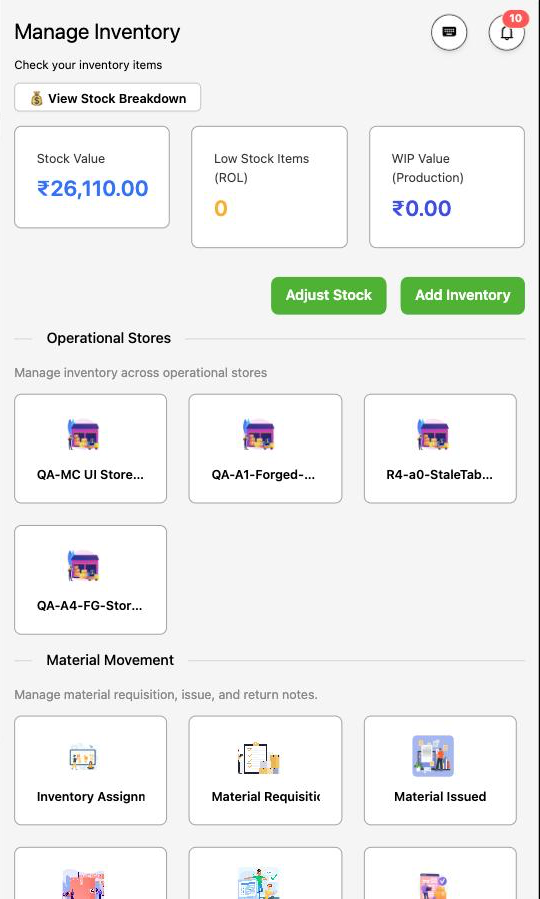
- 1Stock value of this Location
- 2Adjust Stock and Add Inventory
- 3One card per store at this Location
- 4Material requisitions, issues and returns
How stock comes in from purchasing#
Goods received on a GRN enter stock only through the Add to inventory step. Inspection, when required, decides how much is accepted.
- Each item needs a complete Item Master entry. Stock goes into the item's default store for your Location; the store is locked when the item has one. For an item without one, the store you choose becomes its default store. You must have that store in your Accessible Stores, and your role needs Purchase → GRN → Update to confirm.
- The quantity comes from the GRN and can't be changed, except for items bought by weight and stocked in pieces, where you confirm the number of pieces under Adjust Stock Qty.
- Cancel in the Add Items to Inventory window adds nothing; use Add To Inventory on the GRN later.
- GRN savedStores
- Inspection, if requiredQuality
- Add to inventoryStores
- Stock, batch and movement historyAutomatic
Issuing material to work#
- Material requisitionRequester
- Material issue noteStores (the assigned user)
- Material return noteRequester
- Return approved: stock backReturn approver
| Document | Statuses | Who acts |
|---|---|---|
| Material requisition | Pending, Partially Issued, Issued, Cancelled | The user it is assigned to converts it into an issue note |
| Material issue note | Issued, Partially Returned, Fully Returned | Stores |
| Material return note (full or off-cut) | Pending Approval, Approved, Cancelled | Only the designated return approver can approve it |
Other stock tools on the Inventory page: Adjust Stock, Add Inventory (opening stock), Low Stock items (which can raise purchase requests or orders), the Movement Ledger and Inventory Reservation. Add Inventory and Adjust Stock depend on the role's Inventory store pages; see Opening stock and adjustments. Stock adjustments can't take stock below zero. With Finance switched on, and Enable Ledger Posting not set to No in your Company's Application Settings → Finance, adjustments and opening balances also post an accounting entry; adding goods from a GRN, issuing material and approving returns don't in the current version. Who can see stock value and work-in-progress value is set per team member.
How it connects#
Guides#
Add goods from a GRN to inventory
Material requisition, issue and return
Opening stock and stock adjustment
Material requisitions and issue notes
Material returns and off-cuts
Batch trace and ledgers
Tools and calibration
Where to find things#
| Where | What it is |
|---|---|
| Inventory → Add Inventory | Opening stock when you start |
| Inventory → Adjust Stock | Quantity or rate corrections |
| Inventory → Operational Stores | Each store's items and stock (your stores only) |
| Inventory → Low Stock Items (ROL) | Items below their minimum stock level |
| Inventory → Material Movement → Material Requisitions, Material Issued, Material Returned | Material for work orders and service jobs |
| Inventory → Material Movement → Inventory Assignment | Items handed to people or departments |
| Inventory → Material Movement → Movement Ledger | Every stock movement |
| Inventory → Material Movement → Inventory Reservation | Stock held for work orders and challans |
Rules to know#
- In a store, Register Serials records serial numbers for finished-product stock you already hold; the window shows On hand, Registered serials and Unregistered quantity.
- An item's view has the tabs Details, Batches, Serials and Audit Log.
- Releasing a stock reservation needs a reason and a quantity above zero, no more than is still reserved.
- Cancelling a stock reservation needs a reason and can be done only once.
- Stock is valued first-in, first-out: issues take the oldest batch first, unless a specific batch was chosen on the material requisition.
Common questions#
Related workflows#
Purchase request to stock
Request, order, receive, inspect and put away.
Material for production
Requirement, requisition, issue and consumption.
Customer order to invoice
Order, work order, production, dispatch and invoice.