
HR
HR keeps the people side of the factory: who works here, which department and shift they belong to, when they came in, the leave they took and what they are paid. Factories that use contract labour can also manage contractors, their workers, budgets and daily production.
Employee records, attendance, leave, payroll and the other employee and contract-labour records belong to the Company you are working in; people working in another Company don't see them. Attendance, travel details, accidents and most contract-labour screens also need a Location selected: a day's attendance is recorded at that Location, and contract-labour attendance is listed for that Location only. Holidays, shifts and departments belong to a Company and Location: you see and change those of the Location you are working in. Skills and wages belong to the Company. Cost centres are shared by all the Companies of your account.
- 1Employees
- 2Shift Master
Finding your way around#
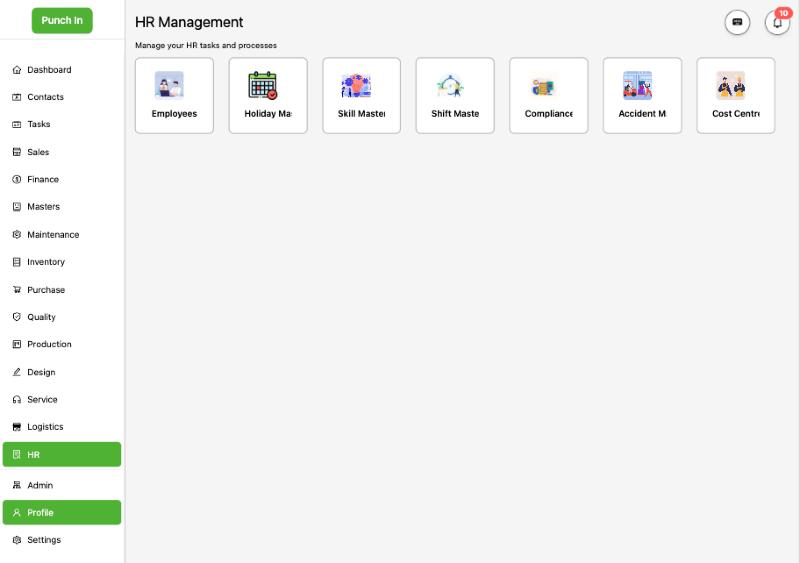
HR shows a card for each part of HR that is switched on for your account and allowed by your role: Employees, Contractors, Holiday Master, Skill Master, Shift Master, Compliance Master, Accident Master and Cost Centre.
- Employees opens the cards Attendance, Leaves, Calendar, Travel Details, Insurance, Wages Master, Employee Master, Payroll, Leaves Master, Department Master, Penalty Master and Biometric Devices. It shows only the cards your role can Read.
- Insurance opens General Insurance and Vehicle Insurance.
- Contractors opens Attendance, Contractors Masters, Contractors Workers, Budget Master, Departments, Wages, Overtime Masters, Production Records and Audit Logs.
- Budget Master opens Wages Budget, Department Budget and Cases Budget.
The Contractors and Budget Master pages show every card; opening one your role doesn't allow shows a no-permission page.
Setting up HR#
| Step | Screen | What to enter |
|---|---|---|
| 1 | Masters → Department Type Master | The kinds of department (Production, Quality, Purchase, Maintenance…) |
| 2 | HR → Employees → Department Master | Department Name, Department Type, Department Incharge and members. One department per type in each Company and Location |
| 3 | HR → Shift Master | Shift Name, start and end time, break, grace in and out, minutes for half day and full day, Working Days |
| 4 | HR → Employees → Wages Master | A salary structure per skill: Effective From, PF, ESI, Gratuity and LWF applicability, and the earnings (Basic, HRA, DA, Conveyance, Medical Allowance, Special Allowance, Bonus, Incentive), PF %, ESI %, LWF and Professional Tax |
| 5 | HR → Holiday Master | Common holidays and exception holidays for each year; Copy from Previous Year fills an empty year |
| 6 | HR → Employees → Employee Master | The employee's details (below) |
| 7 | Admin → Application Settings → HR | Who approves attendance and leave, the leave method, alternate Saturdays off. See HR settings |
Employees#
Employee Master holds each employee's HR record. For an internal employee you also choose the team member (Employee); external employees have no team member. Required fields:
- Is External Employee, Employee, Employee Name, Date Of Birth and Employee Code.
- Attendance Mode: App Attendance Only, Biometric Attendance Only or Hybrid (App + Biometric). External employees can only use biometric attendance.
- Shift and Wages.
You can also record personal, bank and statutory details (Aadhar, PAN, UAN, ESI) with document uploads, or import employees from Excel. An employee's status can be Active, On Hold, Resigned, Terminated, Retired or Inactive. See Employee Master for importing, changing the status or code, assigning shifts and wages, and attendance from biometric devices.
Attendance and leave#
- Attendance lists Punch In, Punch Out, working time, overtime and status for each day. If someone forgot to punch, they use Request For Missed Attendance: date, punch-in and punch-out times, and a reason.
- Leaves: request Privilege Leave, Casual Leave, Sick Leave or Compensatory Leave for a date range, with a reason. Days beyond the employee's paid balance are recorded as leave without pay. Approvers decide pending requests with Accept or Reject in the Leave Requests and Attendance Requests cards on the HR dashboard, or with Approve or Deny in the request's notification window.
- Who approves: only the people chosen in Admin → Application Settings → HR → Choose who can approve attendance and leaves.
- An approver can't approve their own request.
- An approver can Reject an approved leave on Leaves History until its dates have passed.
- An employee can ask to delete an approved leave; an approver then deletes it or keeps it.
- Employees can withdraw their own pending requests.
- Leaves Master shows and edits each employee's available paid, casual and sick leave.
- Calendar shows holidays, leave and attendance together.
Payroll and other employee records#
- Payroll: choose the Employee Name and Month, add any advance deduction or other deduction, and click Preview Payroll; Create is enabled only after the preview. See Monthly payroll.
- Step by step for the records below: Compliance, accident, penalty, travel and insurance records.
- Penalty Master: record a penalty for an employee with a date, reason and amount.
- Travel Details: trips with distance, vehicle readings and expenses, with bills attached.
- Insurance: general and vehicle insurance policies.
- Skill, Compliance, Accident and Cost Centre masters:
- Skill: skill codes for workers.
- Compliance: statutory compliances with due dates and renewals.
- Accident: the accident register.
- Cost Centre: cost centres used by holidays and contract labour.
Contract labour (when switched on)#
With contract-labour management enabled, HR → Contractors adds:
- Contractors Masters and Contractors Workers, with each worker's cost centre, shift and wage.
- Attendance from registered biometric devices, with dialogs to add missing punch times and to mark a worker absent. Moving workers to another department for a day is done with Transfer Worker on the HR dashboard's Contractors view (see Contract labour).
- Departments with minimum workers and per-day rates.
- Wages, Overtime Masters and daily Production Records.
- Budget Master: wages, department and cases budgets. See Contract-labour budgets.
- Audit Logs.
Biometric devices#
HR → Employees → Biometric Devices lists the biometric punch devices of the current Company, each with its Location, and the punches that couldn't be matched to an employee or contract worker (Quarantined Punches). Register a device there before people use it; fix the reason shown and reprocess quarantined punches. See Biometric Devices.
Roles and permissions#
In Admin → User Roles:
- The HR-employees module covers Attendance, Leaves, Calendar, Employee Master, Payroll, Wages Master and the other employee screens.
- HR-contractors covers contract labour.
- HR covers the Holiday, Skill, Shift, Compliance and Accident masters and Cost Centres.
To approve attendance or leave, a person must be in the approver list in HR settings; no other permission is needed to decide.
The HR dashboard has its own permissions: HR-employees → Employees Dashboard for the Employees view and HR-contractors → Contractors Dashboard for the Contractors view (which also needs contract labour switched on). Read shows the view with all its cards (see Employees view and Contractors view); without it, that view isn't shown, and HR isn't offered in Choose Dashboard unless you can open the other view. Read on Employees Dashboard also opens the Location Tracking map. Both rows also have an Export tick, but no button uses it in this version: Export Report on the Contractors view needs Export on HR-contractors → Contractors instead (see Export Report).
Related workflows#
Employee Master
Create, import, status, shifts and wages.
Attendance and leave
Employee, attendance, leave and approval.
Monthly payroll
Preview, create and cancel payslips.
Employee records
Compliance, accidents, penalties, travel, insurance.
Biometric Devices
Register devices and reprocess punches.
Contract labour
Contractors, workers, attendance and reports.